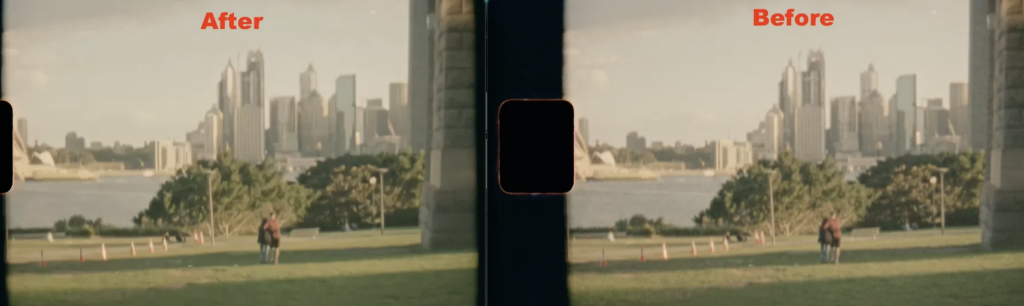
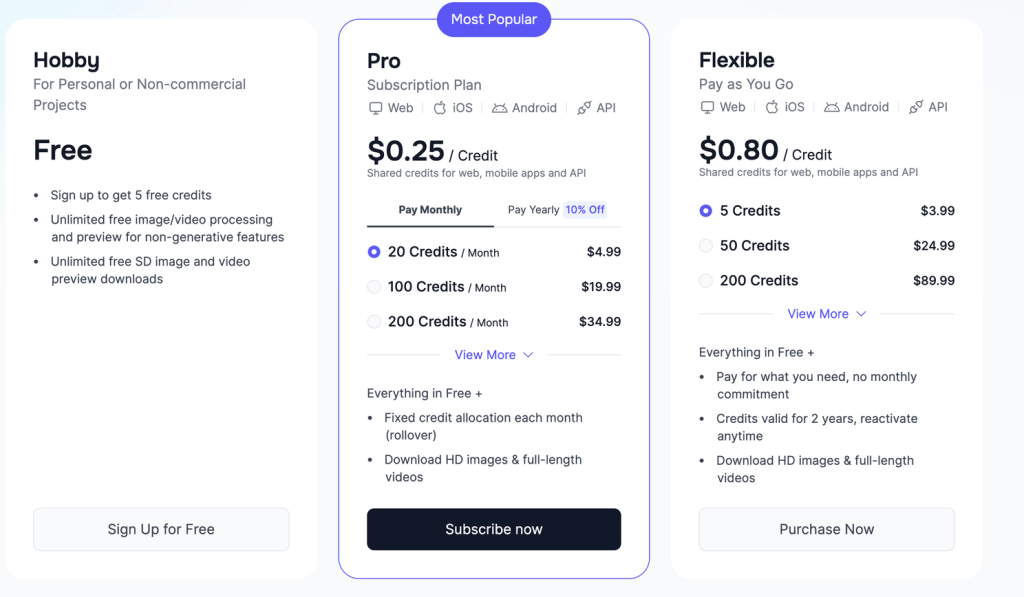
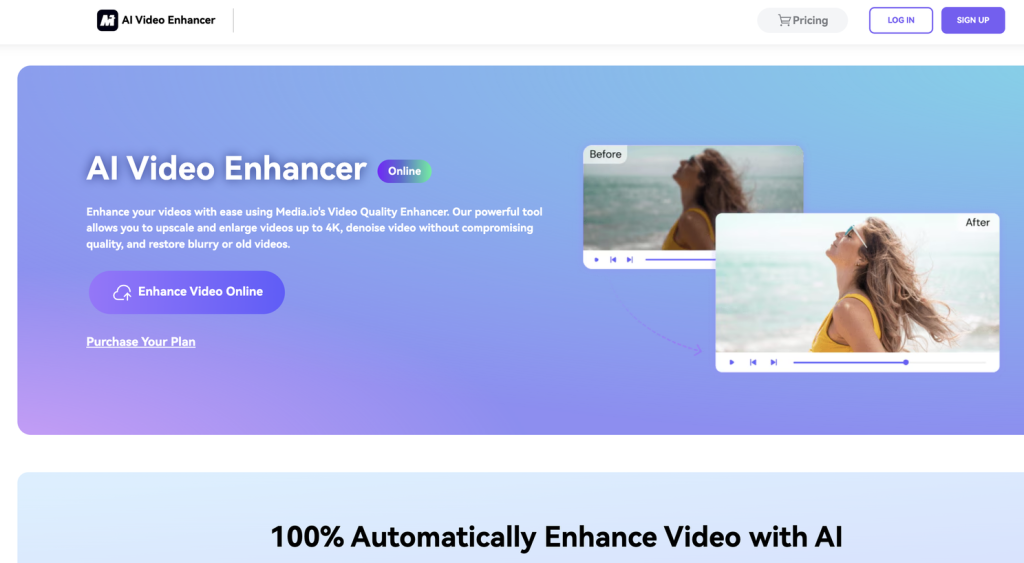
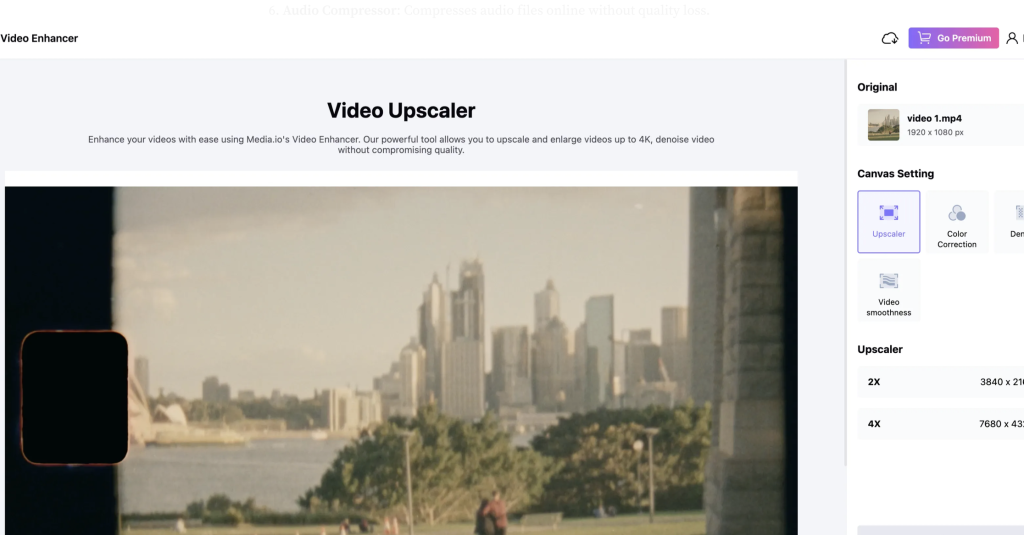
Category: reviews

  • 4 Best AI Logo Generators of 2025 (I’ve Used Them All)

    In this post, I’ll show you the best AI logo generators right now.

    I’ve tested them all and only included tools for different, specific purposes — whether you want full customization, hands-off automation, or to create something from scratch.

    Let’s start!

    Top Picks

    Here are the top picks for the busy readers:

    👉 1. Fiverr AI Logo Maker

    👉 2. Looka AI Logo Maker

    👉 3. Canva AI Logo Maker

    But now, let’s jump into the details of each tool!

    Disclaimer: This post has affiliate links at no cost to you.

    1. Fiverr AI Logo Maker

    Fiverr AI logo maker is the best overall AI logo generator that I’ve used.

    Let me show you my results and how it works.

    To create a logo with Fiverr’s AI logo maker, head over to their site.
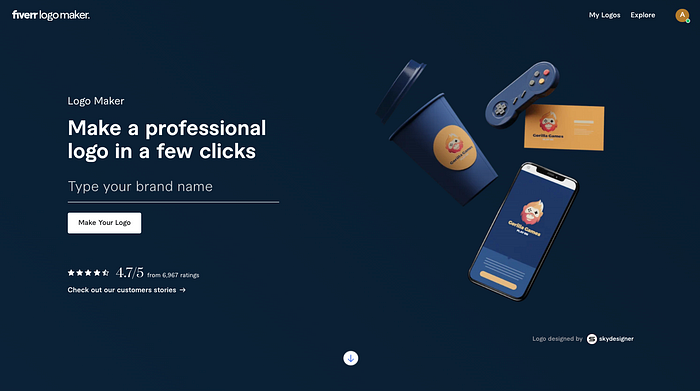
    Enter your brand name ot this view. For example, I’m creating a new logo for my site, softwareviews.net.

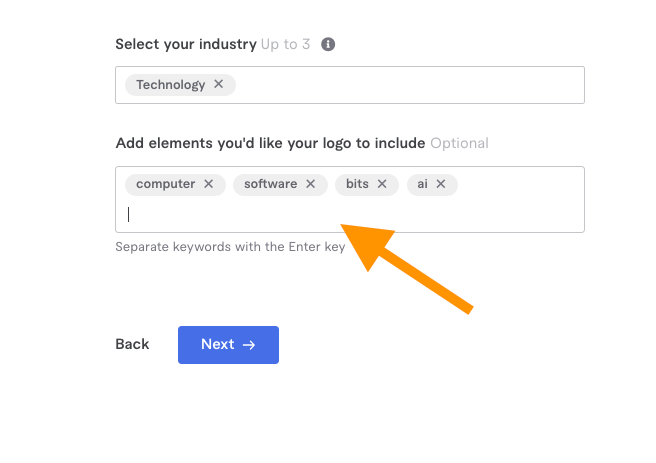
    Specify your industry.

    Add elements you want to see in the logo.
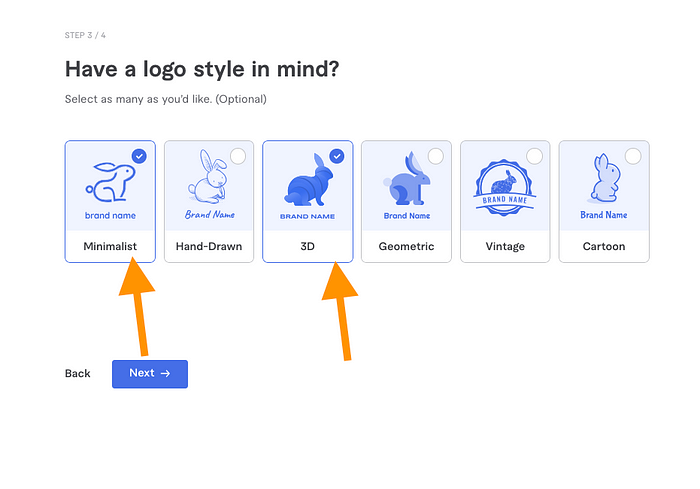
    Pick your favorite logo styles.
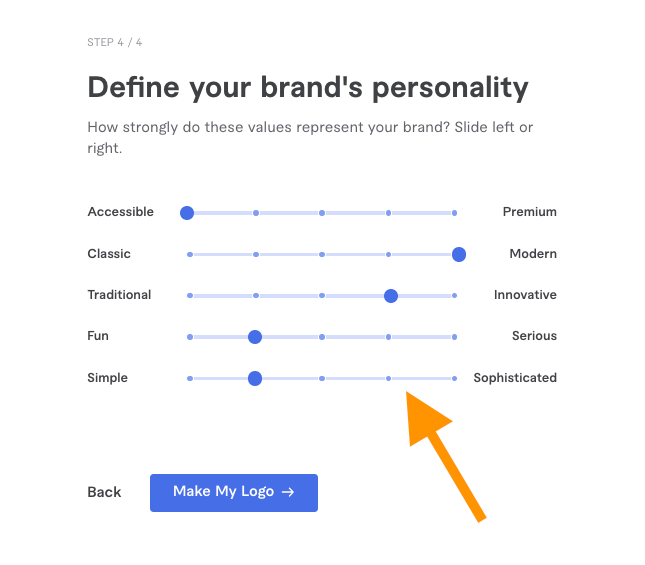
    Specify your brand personality with the brand sliders. For example, I told my brand is accessible, modern, innovative, somewhat fun, and somewhat simple.
    Then wait for 10 seconds for the AI to create your logo.
    After 10 seconds, you will see your AI-generated logos.
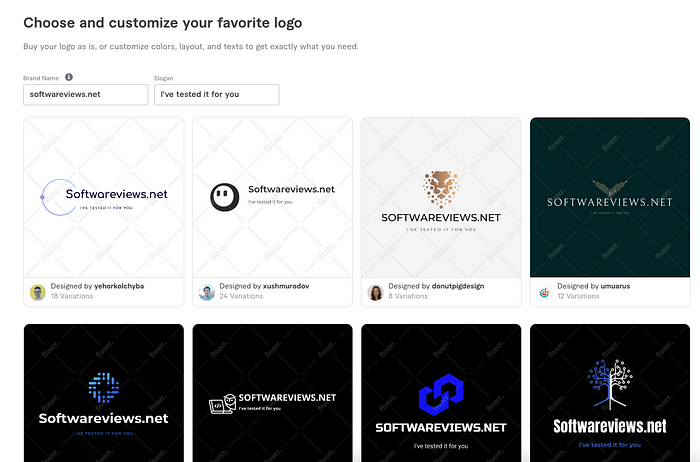
    But the journey doesn’t end here.

    As the next step, you can customize any of these logos.

    For example, I liked this design:

    But I wanted to change some things around.

    For example, I picked a blue style instead of the black that it gave me.

    When you do this, you get to see what your logo looks like on business cards, social media, coffee mugs, and more.
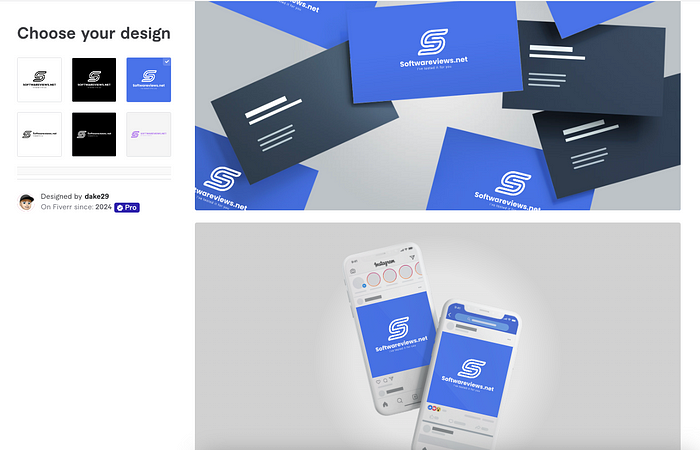
    If you like what you see, feel free to download it and start using your new logo.

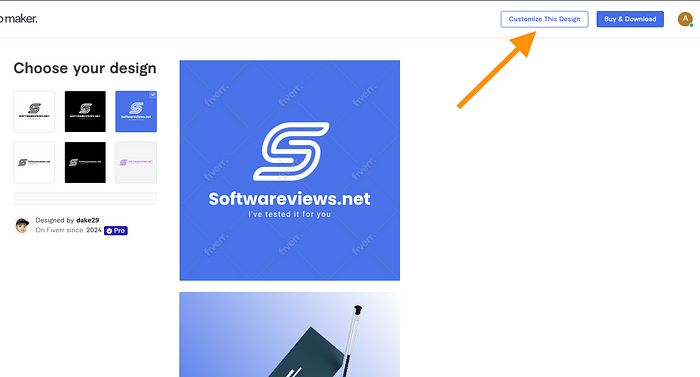
    However, you can do more customizations on Fiverr too by clicking the “Customize This Design” button.
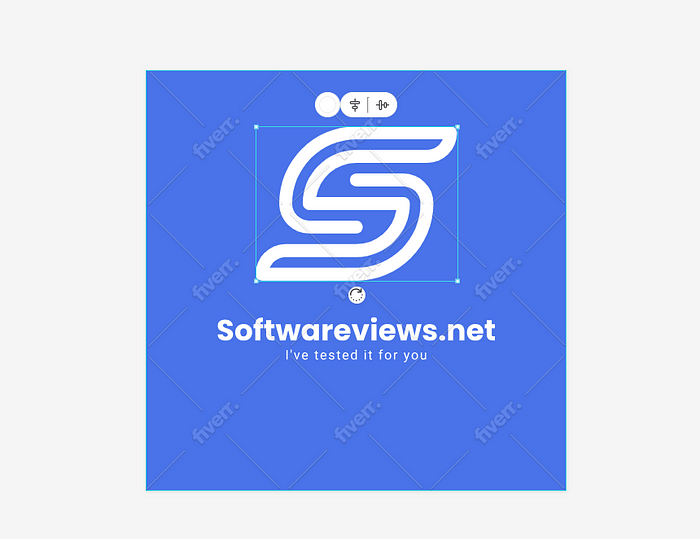
    With this, you can move your elements around and resize them.
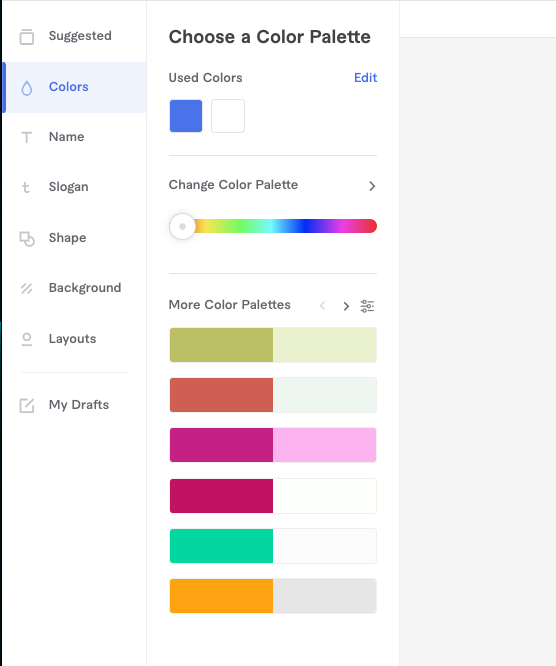
    You can customize colors, name, slogan, shapes, backgrounds, and layouts.
    For example, I chose a new layout for my logo where the element is not on the top, but on the left of the text instead.

    Pretty cool, huh?

    Then, once you’re ready, you can download your logo. This gives you a set of PNG files.
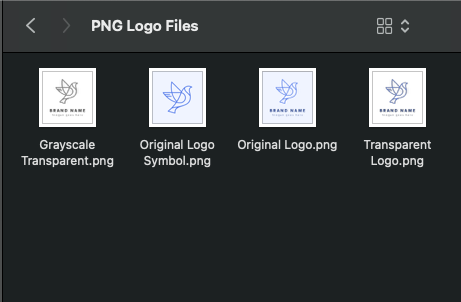
    But for most, that’s not enough. That’s why Fiverr also allows you to download Favicons, Social Media Kits, SVG files, Zoom Backgrounds, and a roadmap to using your logo.
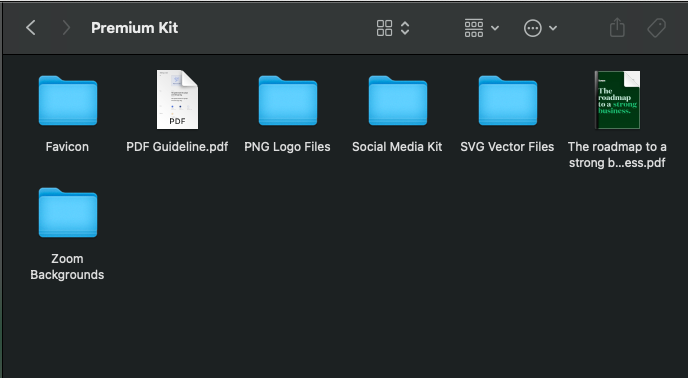
    The essential package costs $30. That gets you an instant download with PNG files.

    But if you need SVGs, revisions, social media kits, and more, pick either the Professional plan for $60 or the Unlimited plan for about $90.

    I liked the Fiverr AI logo generator because:

    • It’s fast: Logos are created in seconds.
    • It’s free to try: You can play with it for free until you find the perfect logo for your business.
    • It’s not too expensive: This service is way faster and way more affordable than hiring a professional logo designer. This is crucial for smaller businesses.
    • Quality: The designs are surprisingly polished and professional-looking.

    However, there were a couple of things that could be done better, too. For instance:

    • The logos aren’t too unique: Since the AI uses existing design elements, some logos might look similar to others. Technically, some people might not call this an AI logo generator because it just combines existing logos.
    • There’s a lack of advanced edits: For more intricate design needs, you might hit some limitations because this tool allows for basic edits only.

    If you need a quick, budget-friendly logo that still looks professional, Fiverr’s AI Logo Maker is a solid choice.

    However, if you want something more unique and customizable, you should continue watching.

    👉 Try Fiverr AI Logo Maker free

    2. Looka AI Logo Maker

    If you’re looking to build a logo with a complete brand identity without hiring a designer, Looka is the AI logo generator you should choose.

    Let me show you how it works.

    First, you need to head over to the AI logo maker page.
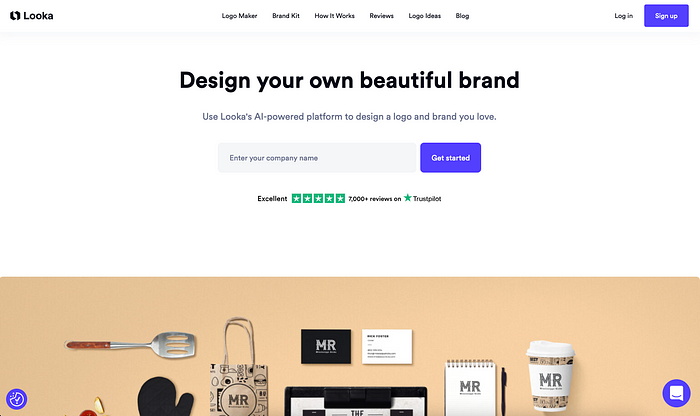
    Enter your company name.

    Pick your industry.

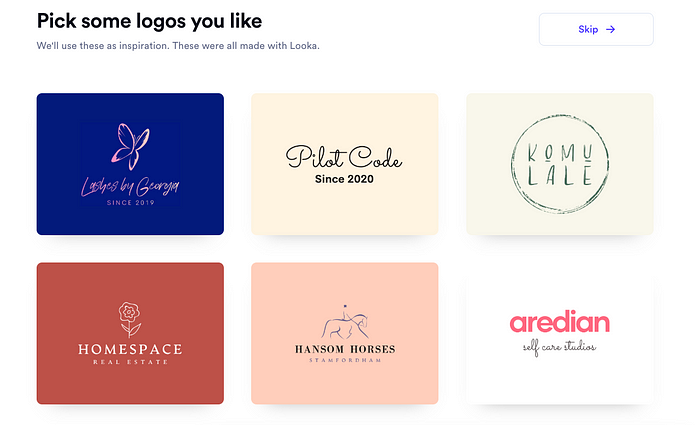
    Pick logo styles that you like.
    Choose colors that you prefer. As you can see, there are way more options than on the Fiverr AI logo generator already.

    Then, add your company name and slogan.

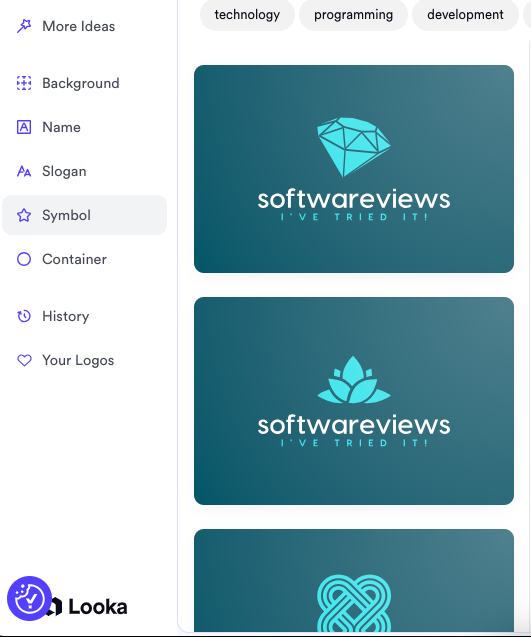
    Pick the symbols you want in your logo.
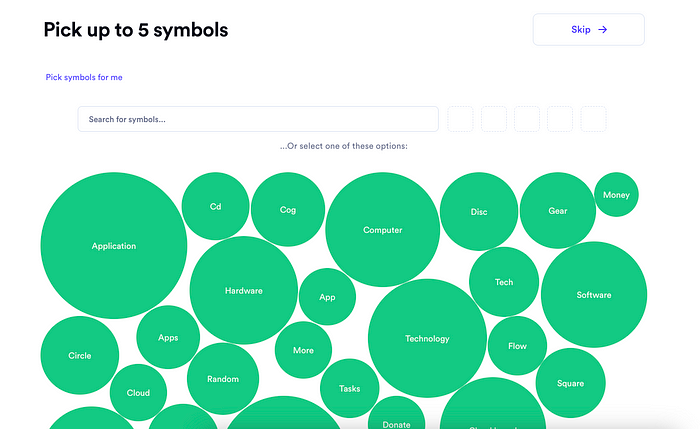
    I picked a computer. As I did this, it allowed me to choose different computer elements from a list.
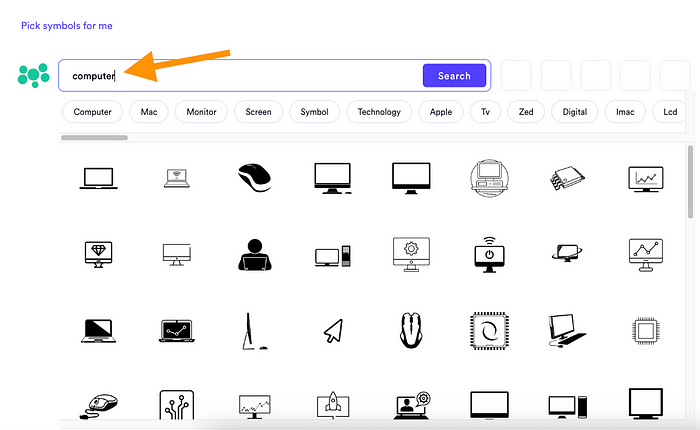
    After this step, you will see your AI-generated logos for the first time.

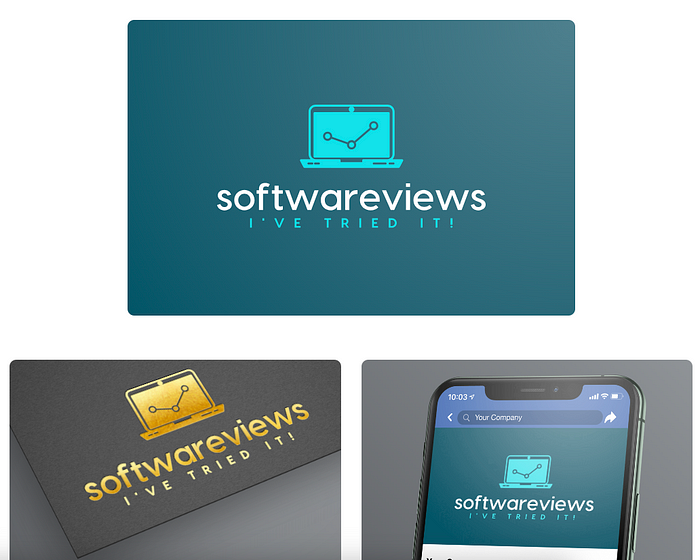
    Pick the one that meets your eye and hit “Customize”.

    It first shows you what the logo looks like right now. It also shows you what it would look like on a social media post, e-signature, and more.
    In this section, you can customize your layout, palette, backgrounds, symbols, and much more. It gives you more controls than the Fiverr AI logo maker did.
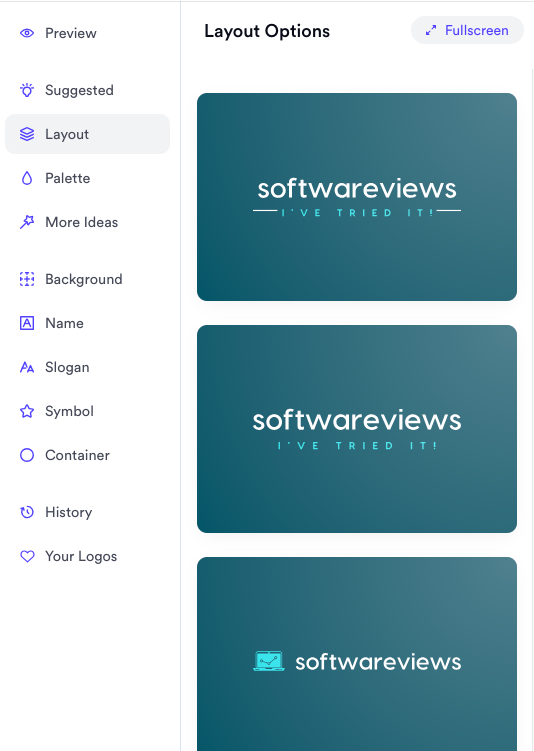
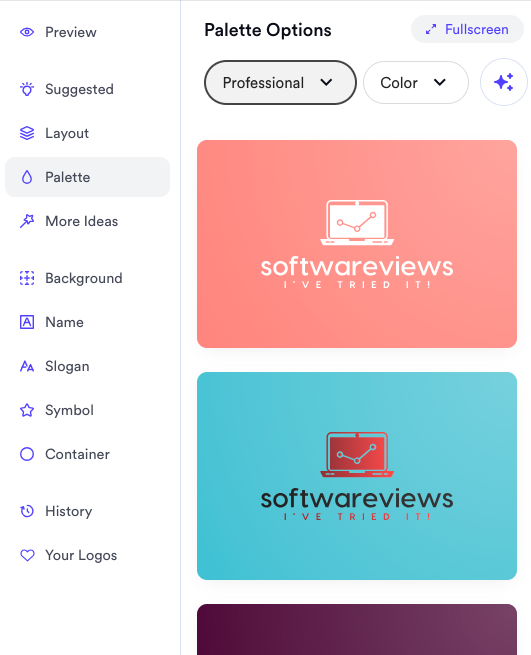
    Then, obviously, you can do more than just select colors and fonts.

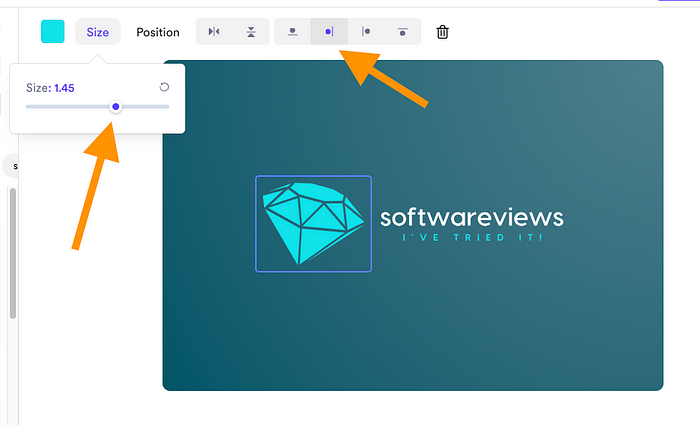
    For example, by clicking the symbol, you can resize and realign it.
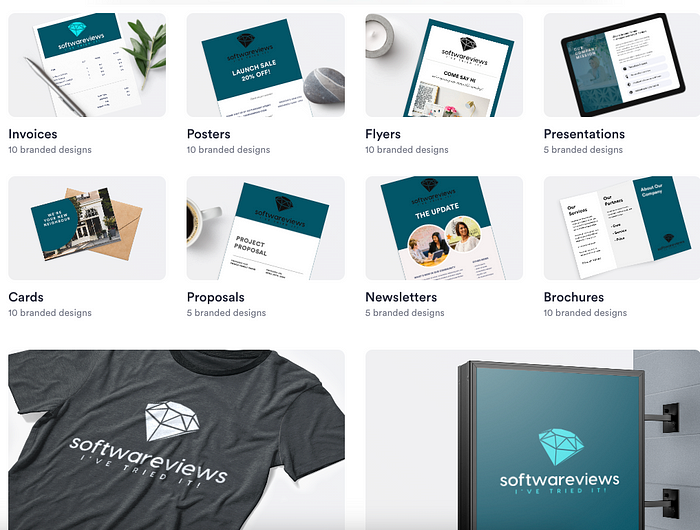
    On top of these customizations, Looka doesn’t just create your logo with AI. It creates for you a Brand Essentials kit that includes everything you might ever imagine.

    This kit has the logo files, social profiles, covers, business cards, letterheads, and more.

    Once again, this is much more than what Fiverr AI logo maker offers. Heck, you can even get printables, such as logos on a t-shirt.
    Thus far, everything I did was free. You can create unlimited logos and brand kits for free on Looka.

    However, to use them, you’ll need to pay for the service. First, hit download.

    Then you’ll see the pricing options.
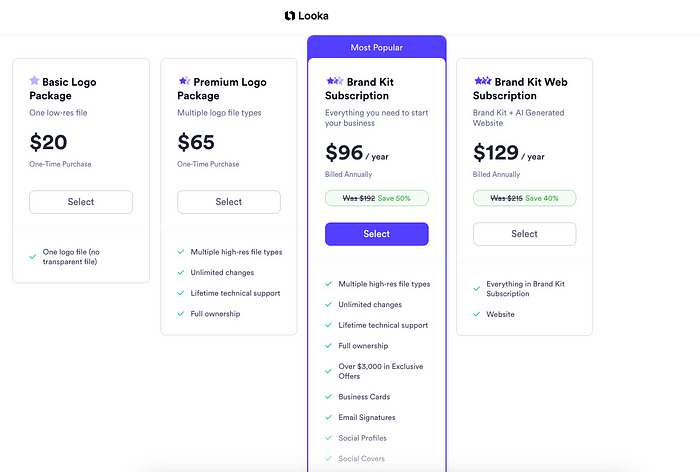
    The one-logo package costs just $20. If you want unlimited customizations, support, and full ownership, you need the $65 plan, which is already more expensive than on Fiverr.

    But then, here’s where it gets expensive. If you want to have those brand kits, such as business cards, social profiles, and more, you have to pick a recurring plan of either $96 or $129 per year. This can easily cost thousands in the long run.

    If you’re not a relatively big company, I wouldn’t recommend this. As a small firm, it’s enough to have a logo in multiple formats and a round or two of edits.

    To put it short, I liked Looka’s:

    • Comprehensive Branding: They offer a brand kit with business cards, social media templates, and more.
    • Variability in Options: There are more symbols, logo styles, brand kit options, and more than in any other AI logo maker I’ve tested.
    • User-Friendly Interface: The platform is very easy and intuitive, making the design process straightforward.
    • High-Quality Files: You get access to various file formats, including SVG, PNG, and PDF.

    However, I think Looka isn’t perfect. Here are some problems I found:

    • Limited Post-Purchase Edits: Once you download your logo, making further edits is not possible unless you have a more expensive plan.
    • Recurring Payment: $96 might not sound like a lot, but once you notice it’s a recurring yearly payment, it can easily be just as pricey as hiring a real designer in the long run.
    • Generic Designs: Some logos felt a bit templated, lacking a unique flair, despite having a lot of elements to choose from.

    I’d prefer Fiverr over Looka for most. Fiverr logos are always a one-time fee with all the brand kits and such.

    However, at some point, Fiverr’s service might be too basic. There are too few logo styles, symbols, customization options, and the brand kits are also somewhat limited.

    👉 Try Looka AI Logo Maker

    3. Canva AI Logo Maker

    To create a basic, free logo, try Canva.

    It’s technically not a full-on AI logo maker, but rather a traditional logo design tool with AI superpowers.

    This is the easiest, most customizable, and most affordable AI logo maker on the list.

    For example, I have a bunch of websites that are very small one-person businesses. In my use, the logo doesn’t matter, but it’s still good to have one.

    That’s why I use Canva to create a logo for my sites. It usually takes less than 5 minutes, even without any design background.

    Let me show you how it works and what kinds of things you can do with it.

    To use the Canva AI logo maker, first, head over to the Canva Logo Maker page.
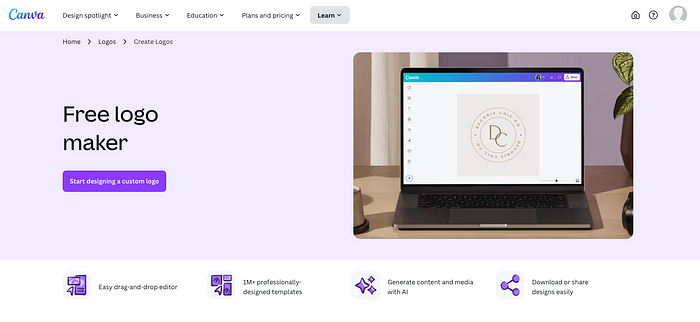
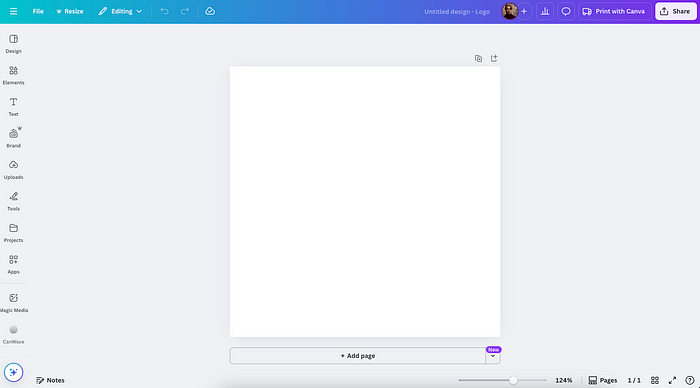
    Click “Start designing a custom logo”. This opens up the Canva AI-based logo editor.
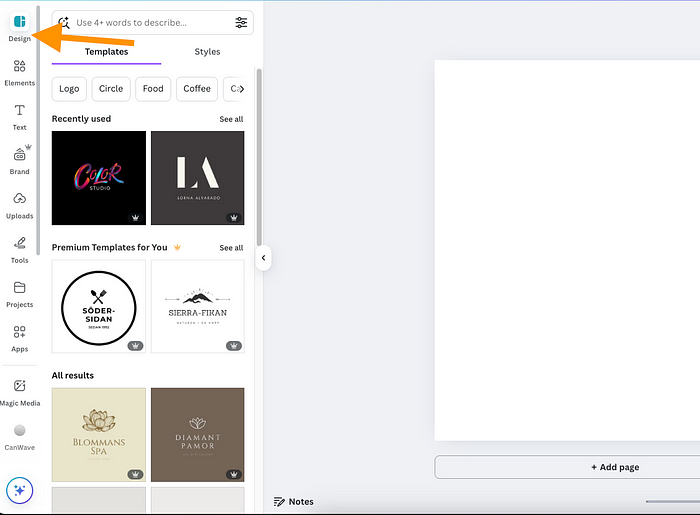
    Pick from the designs in the list.
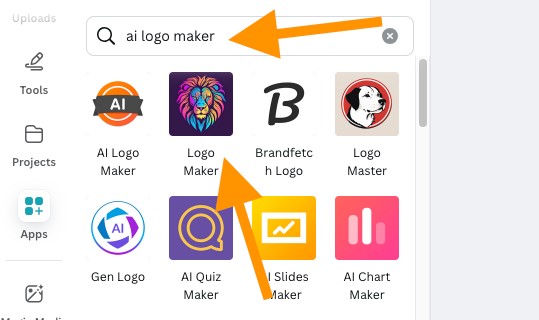
    You can also create a logo with one of the AI logo maker apps in Canva.
    Once your logo is created, you can customize it fully. This is unlike Fiverr and Looka, since it lets you drag the elements anywhere and do literally anything in the editor. Canva is not a logo maker, but a full-on design and illustration platform instead!

    For example, you can change the color of your element.

    You can tweak the fonts.
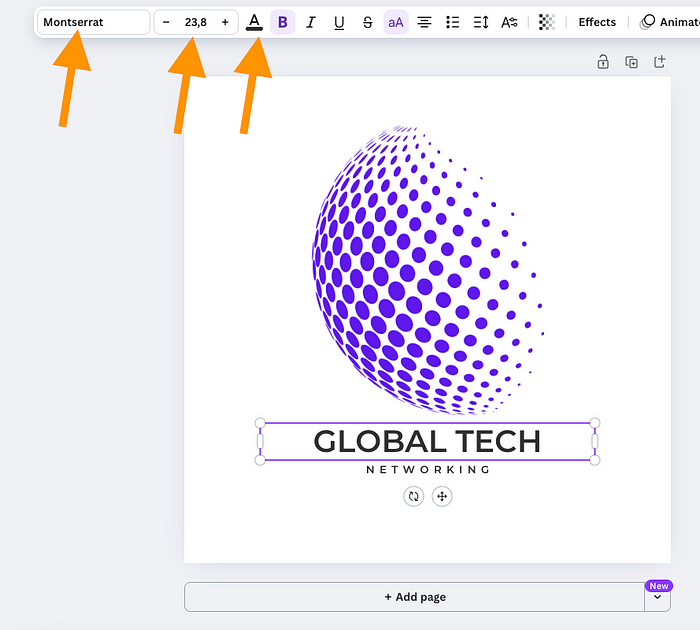
    You can change the text.
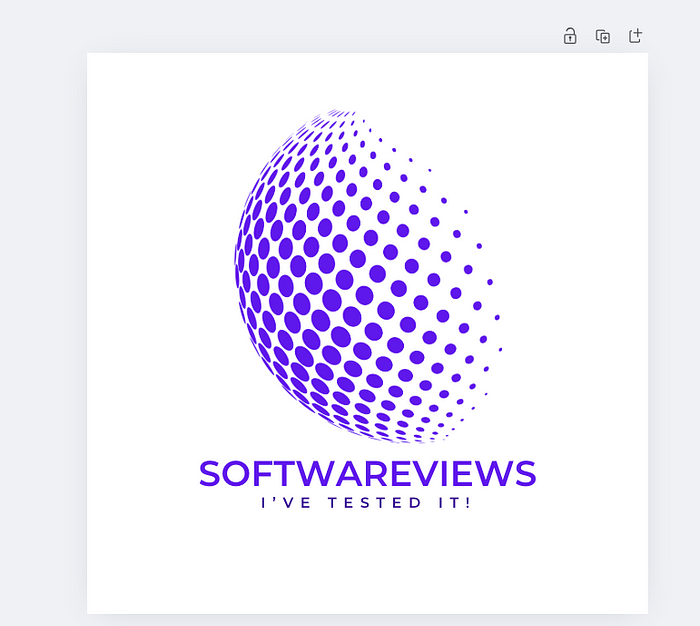
    If you want to find a better color scheme, you can use Canva’s AI features.

    For example, you can drag and drop any image into the view. I’ve dragged a photo that represents a color palette.
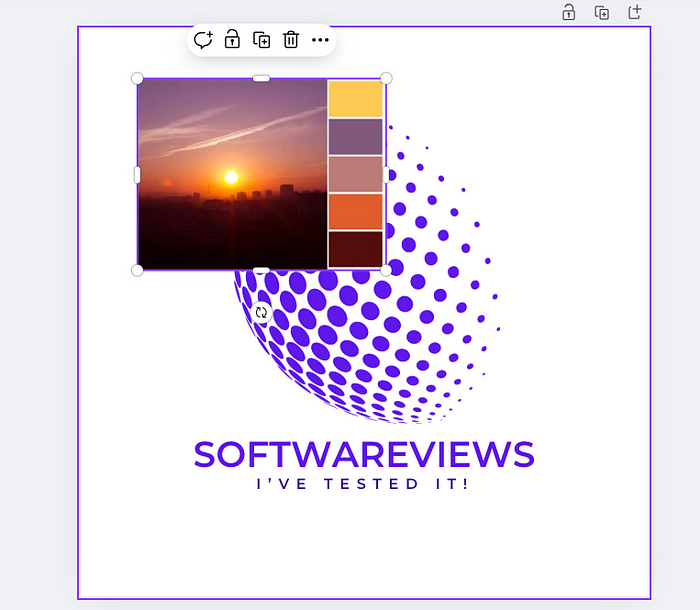
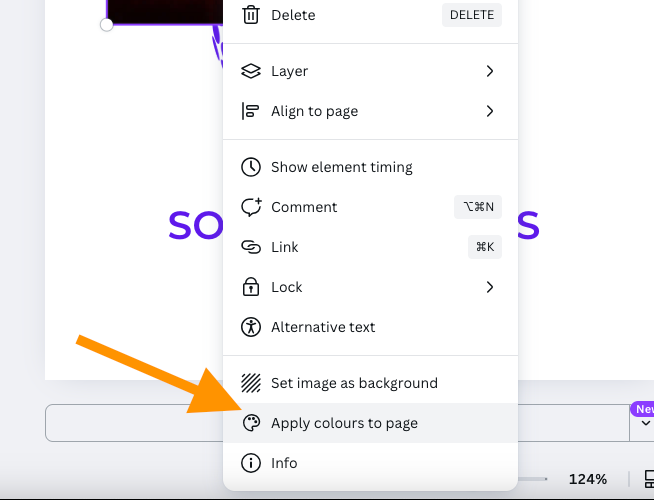
    Then right-click on the image and choose “Apply colours to page”.
    It then applies the colors from that sample image to your logo design.
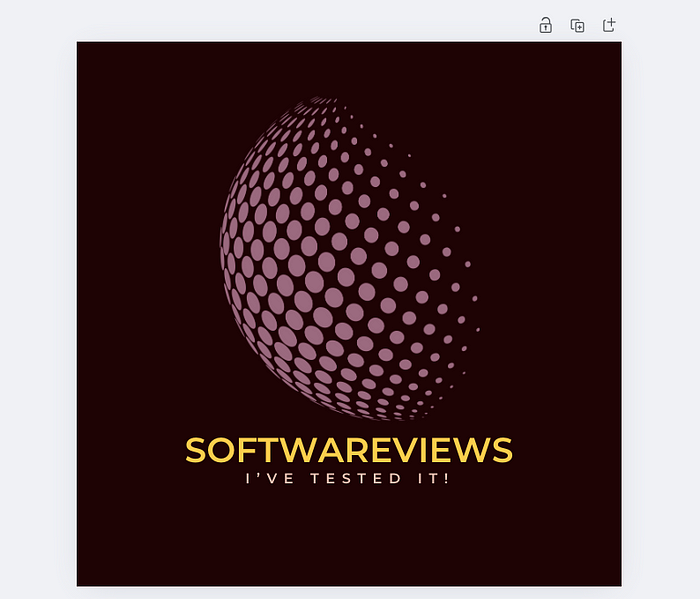
    You can do this as many times as you want and you will always get a different output.

    Then, at any time, you can download the logo.
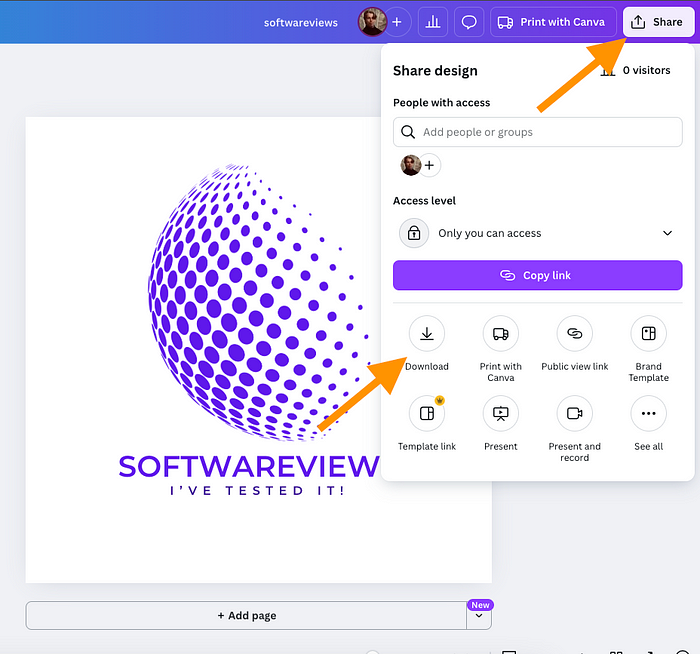
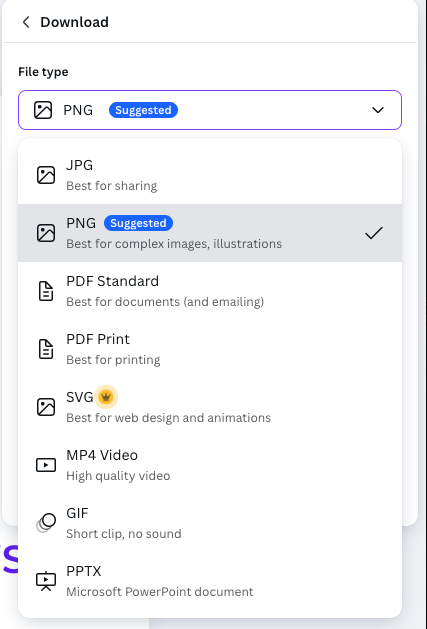
    You can download it as PNG or SVG (and other formats).
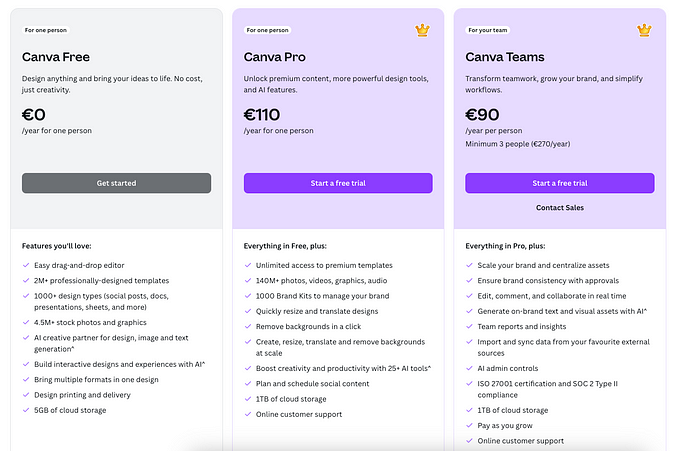
    If you used free assets in your logo, the logo is 100% free for you.

    If you used a Pro design or elements, then you have to upgrade to Canva Premium, which costs $110 a year.
    The fun doesn’t end there, though! Once you’ve downloaded your logo, you can upload it back to Canva as an image for AI mockups.

    This lets you test the logo on a t-shirt, wallpaper, business card, and more.

    To do this, open up Canva again, click “Apps”, type in “Mockups”, and choose the “Mockups” app.

    Then pick a mockup template, such as a coffee mug from the left. Then drop your logo on top of the mockup. It takes a couple of seconds for the AI to render the mockup.
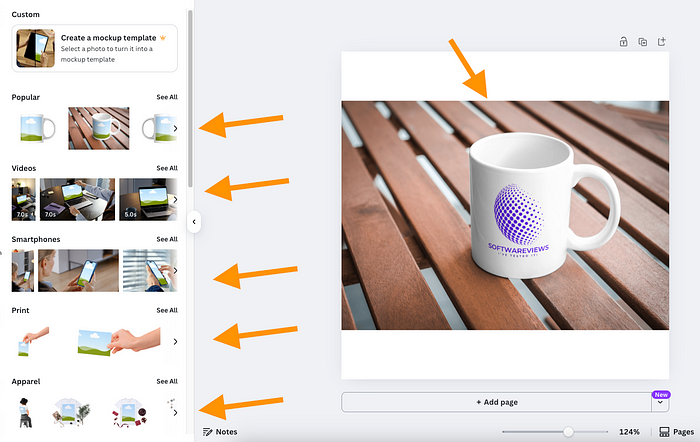
    Isn’t that awesome?

    With the help of AI, templates, and an easy-to-use interface, you can create professional logos in no time without design skills.

    Just keep in mind that the Canva Pro plan costs $110 a year.

    You can get decent logos for free, though.

    However, some AI features and templates only belong to the paid plan. In that case, you might want to subscribe to a monthly paid plan for a month, for example. It’s going to be a lot cheaper than $110. Just remember to cancel it once you don’t need it.

    In my eyes, the Canva Pro AI logo generator is best if you’re already using Canva to begin with. However, the free version is more than enough if you have a small business that just needs a logo as a formality.

    This is what I liked about Canva:

    • Ease of Use: The intuitive interface makes it accessible even without design experience.
    • Template Variety: A huge library of templates provides a good starting point for various industries.
    • AI Features: There are AI features and apps, such as mockups, color schemes, background removers, etc., that can be useful in logo design.

    Here’s what could be better, though:

    • Limited AI Features: The AI features are there to support you, but you still have to do most of the work. In that sense, it’s more of a logo design tool than an AI logo maker.
    • Pro Features: If you want to do more customizations and use more templates, you quickly have to upgrade to a paid plan.
    • Learning Curve: Because Canva is a proper design platform, it takes a while to learn how to use it.

    That being said, Canva’s AI Logo Generator is excellent for brainstorming and creating quick, visually appealing logos.

    I create my small website business logos from start to finish with it!

    However, for a unique and fully ownable brand identity, you might need to invest more time or consider other tools or a professional to do the job.

    👉 Try Canva AI Logo Maker free

    4. ChatGPT

    Last but not least, we have the laziest option of them all. That is, of course, ChatGPT.

    If you just want the most basic, generic, and less customizable logo out there, tell ChatGPT to create it for you.

    Thanks to the latest OpenAI model updates, ChatGPT is getting better and better with text.

    For example, here I’ve told ChatGPT to create a logo for my site, softwareviews.net:
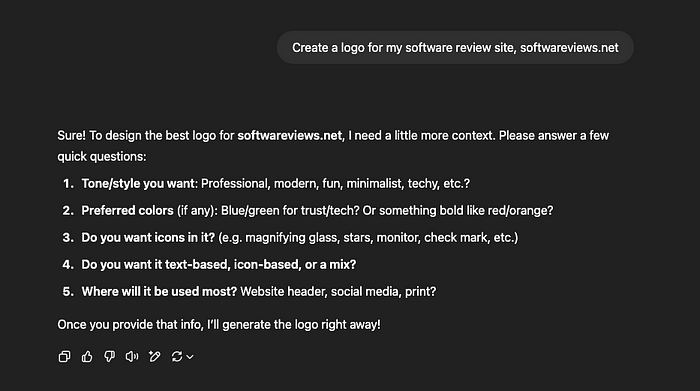
    ChatGPT was wise enough to ask me follow-up questions related to my logo. I answered those and then the AI started to create my logo.

    Here’s the result I got:
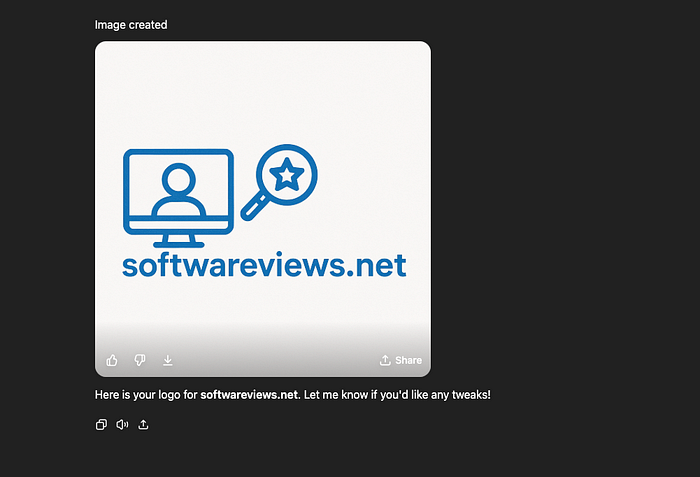
    I mean, it’s not that impressive, but also, it’s the first attempt.

    Note that if you just have a website (like I do), this can already be enough. Just download the logo, and use it as the favicon, logo, and theme of your site.

    However, I thought it would be too basic. I asked the AI to make it darker and more dramatic.

    Here’s what I got back:
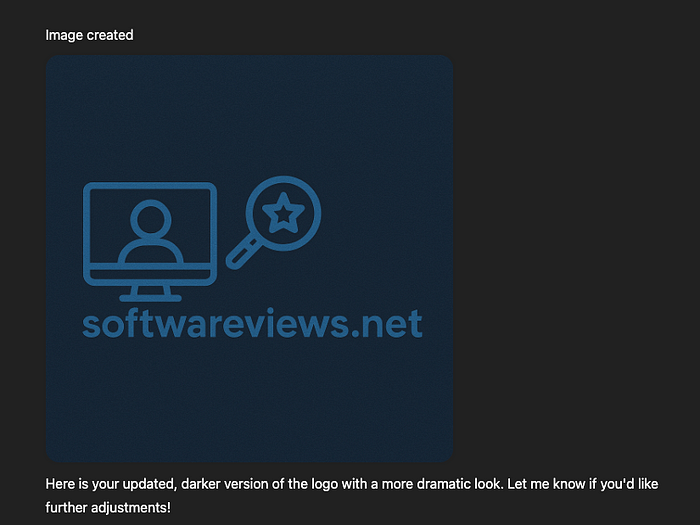
    That’s decent!

    But I wanted something else. So I told ChatGPT to create an entirely different-looking logo. I started a new chat so that it wouldn’t repeat the above style anymore.
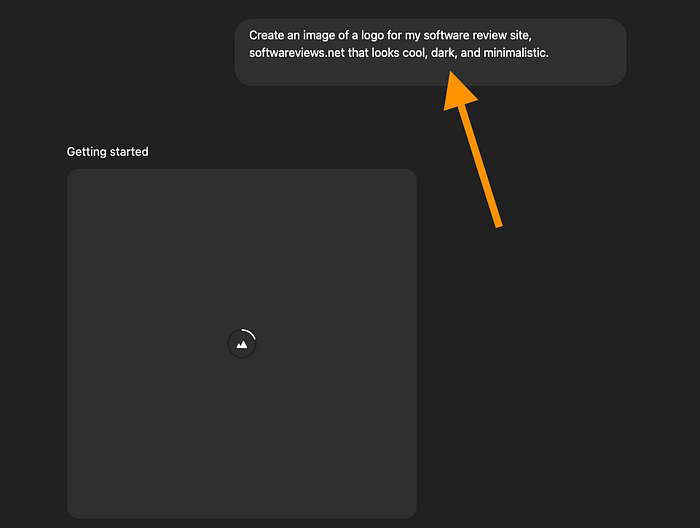
    Here’s the result:

    Way better!

    To make edits to the logos, the options are quite limited, though. So, if you use ChatGPT to create a logo, create an image or two, and use those as-is.

    • I like ChatGPT because it’s free and the easiest way to prototype logos. You can create logos for free, at least a couple of times a day.
    • Also, the AI is good with text these days. The ChatGPT logos look less and less like AI-generated images.
    • However, because the customizations are limited and uncontrollable, I wouldn’t use this if you need to make any tweaks to your designs.
    • Also, the downloadable are just images, not SVGs.

    👉 Try ChatGPT free

  • Chatling Review: The Best AI Chatbot Builder?

    Chatling lets you build AI chatbots easily with a drag-and-drop builder. You don’t need technical skills to use it.

    I’ve tested it thoroughly and it works great for businesses of all sizes. It answers customer support questions based on your business data accurately.


    Let me show you how it works and what it does.

    👉 Try Chatling free

    Disclaimer: This post has affiliate links at no cost to you.

    Features

    Before I show you how the tool works, let me quickly give you an idea of what it does by checking the main features.

    • Knowledge-Based Answers: Chatling AI bot gives you accurate responses using your documents or website.
    • AI Training: Automatically train the chatbot by uploading your data, such as your (or anyone’s) website.
    • Drag-and-Drop Builder: Create chatbots with no code.
    • Multilingual Support: Build chatbots that can speak in over 85 languages.
    • Lead Generation: Capture leads during chats to boost your business.
    • Easy Website Integration: Add your AI chatbot to your site with a couple of clicks.

    But thus far, it’s all hype. Let me see if it works!

    My Experience

    Feel free to just read along. But if you’re convinced to test it (because it’s free), feel free to repeat the steps I take here.

    As the first step, you need your free trial of Chatling. You can get your free trial here.

    Then create an account. (Sadly, this tool doesn’t let you create with a Google account.)

    Once you’ve signed up and in, click “Create chatbot.”

    Next, choose the option that best fits what you want to do.

    For me, I wanted to create a simple AI chatbot for my website where I teach blogging.

    Then give it a name. I named my chatbot Blog support bot:

    Ignore the paid promotions you’ll see in the next view. They might be useful later, but they’re not needed right now since we’re focusing on creating a free AI chatbot.

    To get started, open the chatbot builder:

    Then you will see your chatbot’s main workflow, that is, what it will do once someone opens up a chat window.

    You can move things around in this view as much as you like. I went with the default one that looks like this:

    I think the default flow is good unless you have a very specific use case. It simply greets the user with a welcome message.

    Just make sure you change the texts in the flow, though. To do that, click the text in the flow elements and type something.

    I changed the welcome text to let the visitors know that they’re using my AI assistant for blogging.

    Once you have changed the flow and texts in it, it’s time to tweak the AI configuration of your bot. This gives the AI a persona that’s on brand and in line with your information and style.

    To do this, click on the ‘AI Configuration’ section on the left.

    I restricted the AI to use my website as a resource for finding answers. That way I avoid creating made-up answers that make no sense.

    But now there’s one problem. The AI doesn’t know you or your business information.

    To change this, let’s add a knowledgebase for the AI to draw information from.

    You can use a URL list, a document, a text file, and more as your knowledge source.

    Yes, you got it right: The AI will read all the stuff you give it and then remember everything.

    I want the AI to get its information from my website so I will add it as the knowledge base.

    After I entered my site URL, it took about 2–3 minutes for the AI to read it through.

    Then it listed my site URLs, that is, all the blog posts on my site.

    After this, the bot is ready!

    Click on the “Preview” to test your AI chatbot. This allows you to interact with your own bot before making it live.

    For instance, I sent my Chatling AI bot a message that asks what’s realistic to earn as a blogger.

    Here’s the conversation:

    That answer is insane! That is exactly what it says on my website.

    No generic, hype-filled answers like you get from other resources with false promises. It spoke exactly how I would, and even pointed me directly to the page or section of the knowledge base where it found the information.

    When I clicked the links that the bot gave me for double-checking, I could also confirm that the answer was correct and in line with how I would say it on my site.

    Once you’re happy with your Chatling chatbot, publish it with the “Publish” button on the top right corner.

    Then embed it to your website or share a link for anyone to use it. This will save you a ton of time on customer support, lead generation, and more.

    I’m really impressed with Chatling AI.

    What I didn’t expect was how it listened to my input before responding to customers.

    It even provided direct links to the sources where it found the information, showing that it truly ‘learns’ the knowledge base content.

    👉 Try Chatling free

    Pros

    • User-Friendly: Just click a few buttons to set up your own custom ChatGPT-like AI bot for your site.
    • Accurate: The results are impressive — it’s highly accurate and provides answers that feel very much like mine. I have no issues believing that it will automate 80–90% of my support. It also points you to the knowledge base location where it found the information.
    • Global Reach: Supports over 85 languages to reach a wider audience. This is especially great since I originally thought these tools would only work in English (and honestly, not even that well just a couple of years ago).

    👉 Try Chatling free

    Cons

    • Setup Can Be Tricky: Even without coding, adding the bot to your site might feel overwhelming, especially when you’re dealing with code adjustments.
    • Quality Data Matters: If your data is inconsistent, like conflicting information on different pages, the AI might get confused.

    Pricing

    • Free: $0/mo
    • Basic: $15/mo
    • Pro: $35/mo
    • Ultimate: $99/mo

    👉 Try Chatling free

  • Pikzels AI Review (2025): The Best AI Thumbnail Maker?

    I tried Pikzels AI to save your time and money.

    In this post, I will show you my results and overall opinion on the tool.

    Spoiler: I think Pikzels AI is epic. It’s the best thumbnail maker I’ve tested.

    Grab a 50% discount with code JALLI50.

    But now, let’s jump into the review.

    Disclaimer: This post has affiliate links at no cost to you.

    My Experience with Pikzels

    I’ll also walk you through my experience with Pikzels and how it works, so you know what to expect.

    Let’s start by creating a basic viral-style thumbnail. After that, I’ll show you how to add your own face, make custom adjustments, and refine it further.

    Create Thumbnail

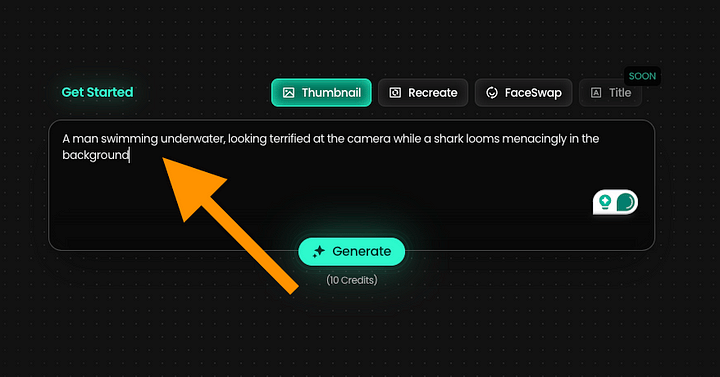
    The workflow in Pikzels is straightforward—you simply describe what you want to create, and the AI generates it for you.

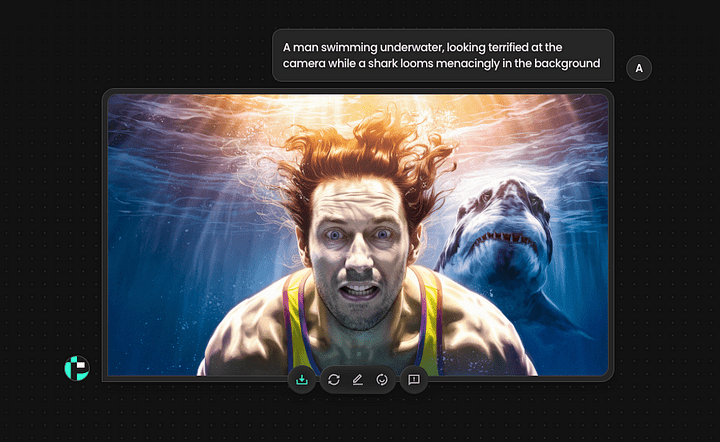
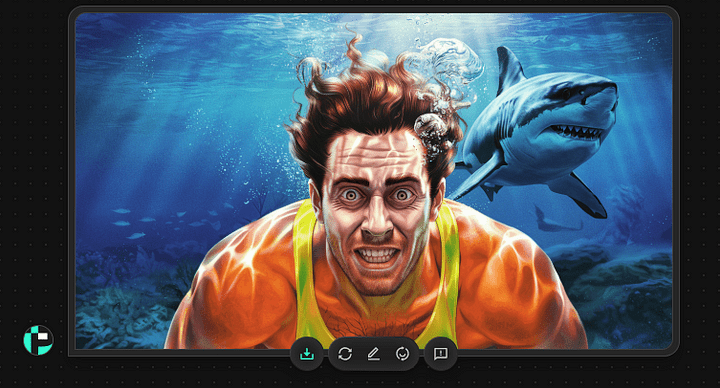
    For example, you might enter a prompt like: “A man swimming underwater, looking terrified at the camera while a shark looms menacingly in the background.”

    After that, the image typically generates in about 20 seconds.

    After a second, you’ll see the first version of your thumbnail.

    It’s impressive, though it’s worth noting that AI has been capable of generating images like this for nearly two years. Tools such as ChatGPT and others have offered similar functionality for a while.

    That said, let’s take a look at what makes Pikzels stand out.

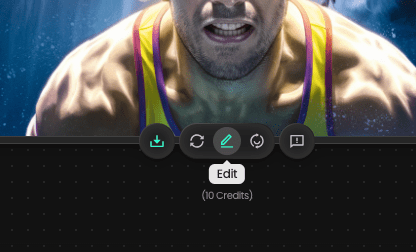
    For each image, you’re given three main options:

    • Redo
    • Edit
    • Faceswap

    After using the Redo option once, here’s the updated version of the thumbnail I received:

    Keep in mind that working with AI often involves some trial and error. It takes a bit of experimentation to understand what delivers the best results.

    One helpful tip: keep your prompts simple. Avoid overloading the input with too many details at once.

    👉 Try Pikzels AI free — 50% off with code JALLI50

    The “Thumbnail Copy” feature

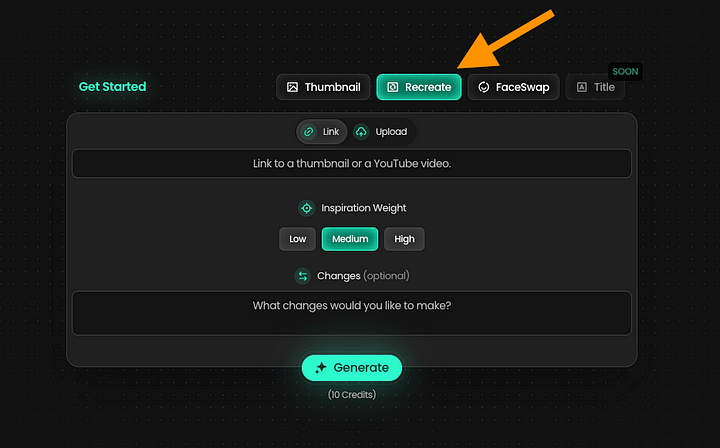
    Now let’s explore the feature that really sets Pikzels apart as a thumbnail creation tool: the Recreate feature.

    This allows you to take a thumbnail from a channel you admire and generate a similar version with just a few clicks.

    For example, here’s a thumbnail I found:

    If you want to create a similar thumbnail for your own video, the process is simple.

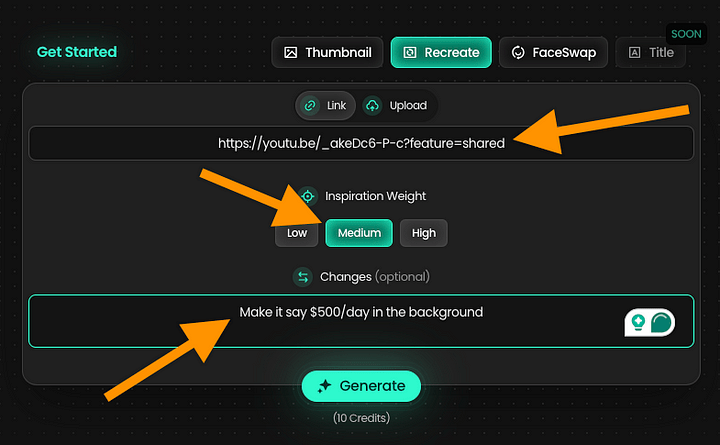
    In the Pikzels app, just paste the link to the video you want to reference. The tool will handle the rest.

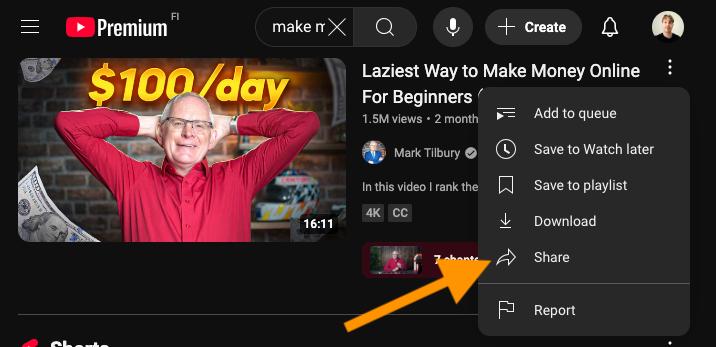
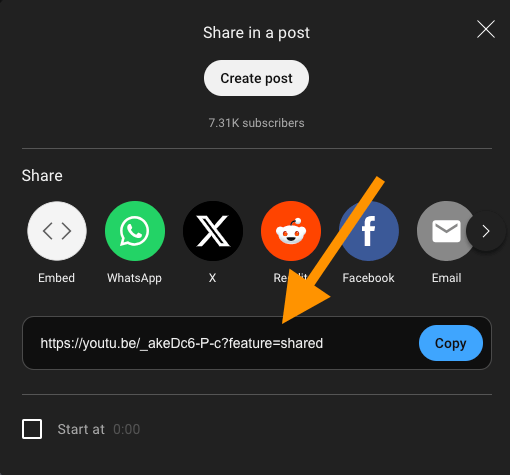
    To get the shareable link on YouTube, click the three dots next to the video and select “Share.”

    Copy the link to the clipboard.

    Next, paste the link into Pikzels. You can also adjust the Inspiration Weight to control how closely the new thumbnail follows the original. Then, describe any changes you’d like the AI to make to the original design.

    For example, I asked the AI to change the text from “$100/day” to “$500/day.”

    Here’s the result it generated:

    Not bad—it captures the same overall vibe and style as the original. Here’s a side-by-side comparison:

    Keep in mind that these thumbnails are fully customizable.

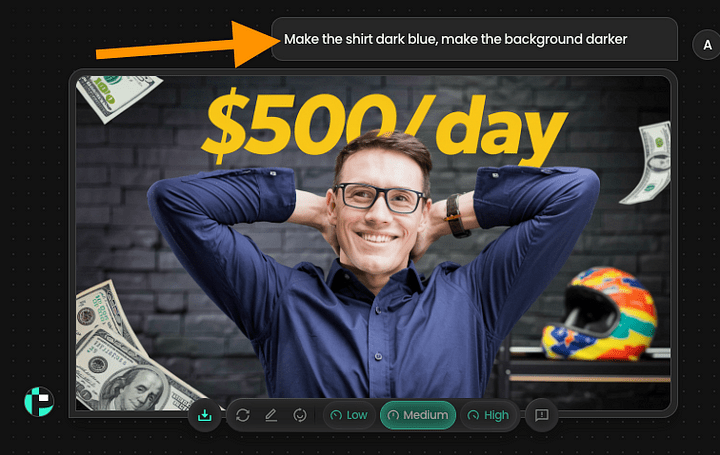
    For example, here’s what I got when I asked the AI to darken the background and change the shirt color to blue:

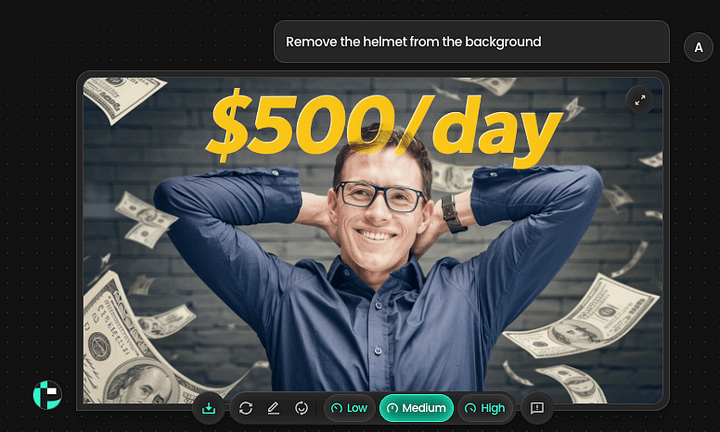
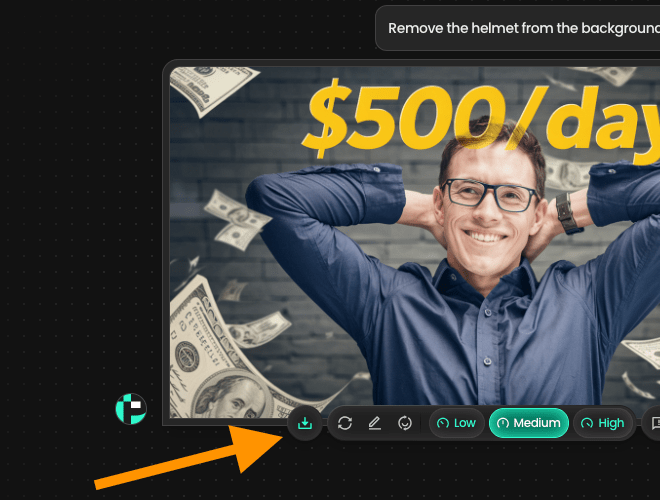
    I also asked the AI to remove the helmet. Here’s the updated version it generated:

    Just like that—the helmet is gone.

    One thing to keep in mind: when you make edits, the AI might unintentionally alter other parts of the image. This is a common limitation, as AI still has trouble maintaining full consistency in visual elements.

    That said, I think this version works well now.

    There’s still one major issue—the thumbnail doesn’t resemble me at all.

    It features a completely random, AI-generated person.

    The good news is that Pikzels includes a Face Swap feature, which lets you insert your own face directly into the thumbnail.

    The Face Swap

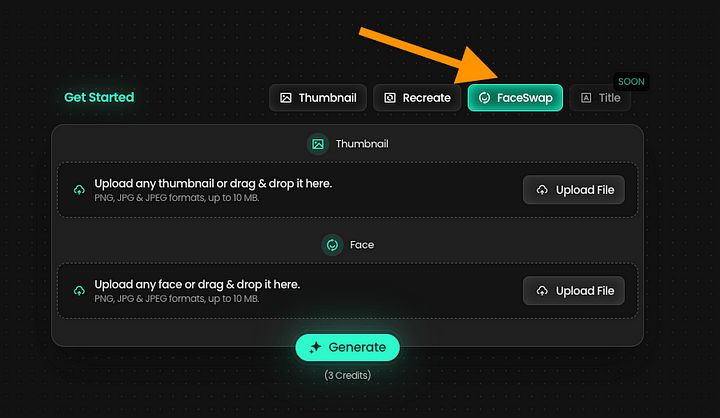
    To use the AI face swap feature, click on the FaceSwap feature.

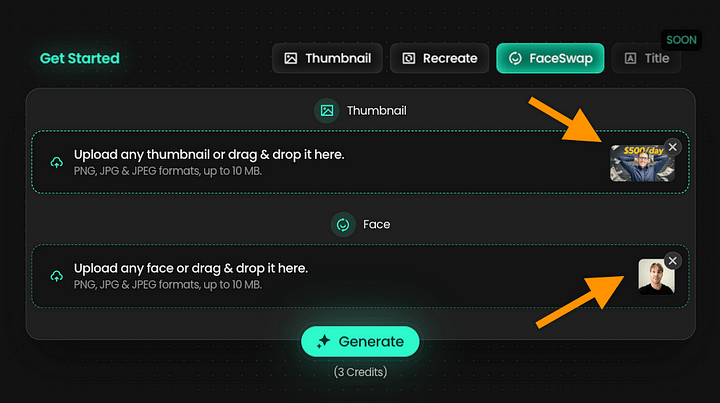
    Upload the thumbnail and your picture to the view.

    Then generate and wait for 20 seconds.

    Here’s the image I used:

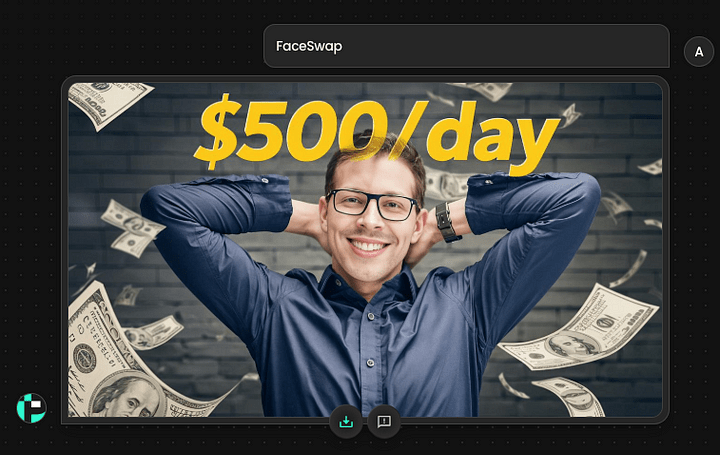
    Finally, I asked the AI to remove the glasses, since I don’t wear them. After a few quick adjustments and re-generations, here’s the final version of my thumbnail:

    Obviously, that’s not perfect. But it’s still close to what I look like. Perhaps a bit too young, but otherwise, really impressive.

    Tip: One step at a time!

    When creating or editing thumbnails in Pikzels, it’s best to take a step-by-step approach. Start with simple instructions to generate the initial image, then make edits gradually—one or two changes at a time.

    Here’s the exact workflow I used to create the thumbnails shown above:

    • Recreate
    • Edit: “Darker background”
    • Generate
    • Edit: “Remove glasses”
    • Generate
    • Edit: “Remove background helmet”
    • Generate
    • Edit: “Change background color”

    This helps prevent the AI from becoming overwhelmed and producing inconsistent results.

    Taking it one step at a time is the key to creating high-quality thumbnails with AI.

    👉 Try Pikzels AI free

    Pikzels Pricing

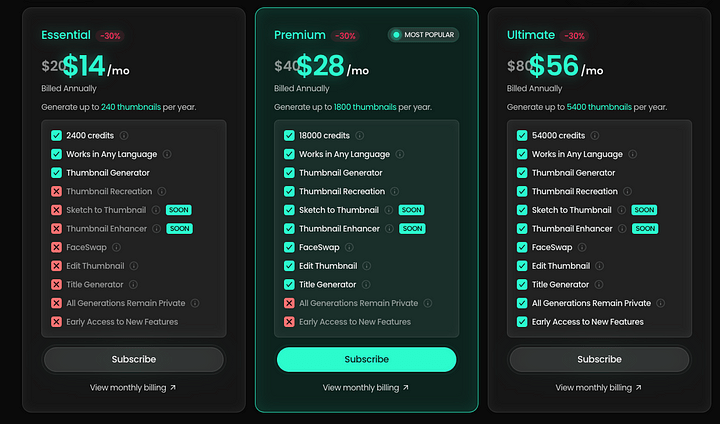
    Pikzels.com offers three pricing tiers, all billed annually:

    Essential – $14/month
    Includes basic features, 2,400 credits, and up to 240 thumbnails per year.

    Premium – $28/month
    The most popular plan. Offers more tools, 18,000 credits, and up to 1,800 thumbnails per year.

    Ultimate – $56/month
    Unlocks all available features, with 54,000 credits and up to 5,400 thumbnails per year.

    Higher-tier plans provide more credits, access to advanced features, and greater flexibility for power users.

    👉 Try Pikzels AI free — 50% off with code JALLI50

    Pros

    • User-friendly: Just describe what you want, and the AI generates a thumbnail to match.
    • High-quality output: Among the tools I’ve tested, Pikzels consistently delivered the best results.
    • Face swap feature: Thumbnails initially feature random faces, but Pikzels lets you realistically replace them with your own.
    • Inspiration tool: A standout feature that allows you to replicate the style of an existing thumbnail—great for consistency and creativity.

    Cons

    • Limited free trial: The trial version allows for just five thumbnails, all with a large watermark—making it essentially unusable.
    • Inconsistent results: You may need to spend multiple credits to refine or fix outputs, which can feel wasteful.
    • Pricing: At $80/month for 300 thumbnails, it’s costly—especially considering it often takes 20–30 iterations to get one solid thumbnail.
    • Market saturation risk: As more creators use tools like this, the novelty and impact of AI-generated thumbnails could decline. Overuse may lead to a generic, less engaging aesthetic.

    My Honest Take

    If you’re just starting out with thumbnail creation, Pikzels is worth trying. It can save time, streamline the process, and help spark creative ideas.

    That said, there’s a downside. As AI-generated thumbnails become more common, their effectiveness may fade. What once stood out can start to feel generic and overdone.

    Right now, though, tools like Pikzels are still new enough that they haven’t saturated the space. There’s still room to stand out—if you use them well.

    Stay informed about evolving trends. Recently, YouTube seems to be favoring more minimal, cleaner visuals with fewer edits. Thumbnails are following suit—simpler designs that align with the content are gaining traction.

    Balance automation with originality, and you’ll stay ahead of the curve.

    👉 Try Pikzels AI free — 50% off with code JALLI50

    Thanks for reading. Stay tuned!

  • SemDash Review | The Best SEO Tool of 2025?

    I recently came across a new SEO tool called Semdash, so I decided to test it out.

    In this post, I’ll share my experience, the results I got, and my honest thoughts on how it performs.

    I’ll also compare it with my preferred SEO tool, Semrush (yes, the names are quite similar).

    Let’s get started.

    Disclaimer: This post has affiliate links at no cost to you.

    What Is Semdash?

    Semdash is a similar tool to Semrush and other SEO tools that you’ve probably heard of before. If you look at the UI, it looks exactly the same but with different colors and branding.

    Semdash provides insights into competitor traffic, topic competitiveness, keyword opportunities, and more.

    But let’s see how it performs and if it’s worth it.

    My Experience with Semdash

    I tested my website, nodesk.fi, using Semdash’s domain analyzer.

    I simply entered the domain, selected the location and language—that part was straightforward.

    Now, let’s take a look at the data Semdash provided and see how it compares to other tools and real-world results.

    1. Traffic Distribution

    Semdash provided the traffic distribution for nodesk.fi, indicating that most visitors are from Finland, with a small percentage coming from Sweden.

    Promising! This is indeed the case. The traffic is mostly from Finland and Sweden.

    2. Organic Traffic Distribution

    Semdash also gave me an organic position distributio chart that looks like this:

    Based on this report, it says that the domain ranks outside of the top 5, mainly in the second and third search results page on Google.

    That is true based on what we’ve seen in the actual data on our site.

    3. Organic Keyword Distribution

    Semdash creates organic keyword distribution charts too. Here’s one for our site, nodesk.fi:

    This metric is similar to the previous one but focuses on the number of keywords ranking in specific positions in the SERPs. Based on our actual data, the results were fairly accurate.

    If you’re analyzing competitor sites, this kind of insight can be quite valuable.

    4. Traffic Analysis

    Now we get to the more interesting part—the traffic and keyword metrics.

    Here’s what Semdash estimates for nodesk.fi:

    It suggests we have 17,000 visitors monthly. However, in reality, the number is just 1/3th of that.

    The estimate is quite far off—but to be fair, traffic prediction is notoriously difficult. Even Semrush didn’t get it right.

    5. Top Keywords Report

    To help with competitive analysis, Semdash also shows the keywords the target site is ranking for.

    Each keyword comes with associated data such as search intent (e.g., commercial), traffic volume, keyword difficulty (KD), cost per click (CPC), and more.

    These metrics are useful for evaluating potential niches. For example, a keyword with high CPC and volume but low KD can indicate a valuable, low-competition opportunity.

    Semdash also provides a top pages report for the site, offering further insights.

    This is close but still wrong. The real top pages are here:

    (I won’t share the actual traffic numbers for individual pages, but I can say that the estimates from Semdash were noticeably off.)

    Other leading SEO tools, like Semrush, tend to provide more accurate figures in this area.

    6. Link Analysis

    Semdash lets you analyze your competitors’ links too. This is what all good SEO tools let you do.

    Semdash also shows the number of referring domains, backlinks, and both new and lost links and domains.

    This information is helpful for understanding how competitive a niche might be. For example, if a site has 100,000 high-quality backlinks and ranks in the top 10 on Google, targeting the same topics could be challenging. Competing would likely require building a similar backlink profile—a process that can take years of consistent effort.

    7. Competitiveness Analysis

    You can also use the competitiveness analysis feature to see how your site is positioned within the broader competitive landscape.

    However, for our site, nodesk.fi, the competitiveness report was quite inaccurate.

    Our site focuses on electricity-related content, but Semdash identified major newspapers as competitors—which doesn’t really align with our niche. While there may be some overlap in topics, those sites cover a wide range of subjects. Their reported keyword and traffic numbers (e.g., 15 million keywords and 500,000 visits) are inflated in this context and not a meaningful comparison.

    8. Keyword Overview

    Next, I explored Semdash’s keyword overview feature.

    This tool allows you to enter a keyword—like “AI”—and view data on its competitiveness, search volume, and related keywords. It’s useful for identifying low-competition topics to target on your site.

    I ran a search for “AI Tools” and received the following report:

    The tool gave “AI Tools” a competitiveness score of 59 out of 100.

    While that’s useful, it’s worth noting that most other SEO platforms offer similar data. For comparison, Semrush rates the same keyword as nearly 100% competitive—a significantly higher estimate than Semdash’s.

    So essentially:

    Semdash suggests it’s a topic worth targeting.

    Semrush indicates it’s highly competitive and likely not worth pursuing.

    Based on my own experience—having worked in this space for nearly three years—I’d agree with Semrush. “AI Tools” is a highly competitive topic, and targeting it would be challenging without a strong foundation.

    👉 Try Semrush free for 14 days—forget about Semdash!

    My Verdict

    Overall, Semdash feels like a simplified, less accurate version of Semrush.

    Personally, I’d still choose Semrush over Semdash. For example, the related keyword suggestions were limited, and the competitiveness scores didn’t align with real-world data—both of which are critical features in an SEO tool.

    While Semdash does cover the essentials, it falls short in terms of accuracy and advanced capabilities.

    At this stage, I wouldn’t recommend using Semdash—even if it comes at a lower price point. You’re likely better off using free tools and your own research until you’re ready to invest in a more reliable option like Semrush.

    That said, there’s clearly a lot of buzz around Semdash. I’ll revisit it in the future to see how it evolves.

    BTW, you can use better tools like Semrush for free. I’ve arranged a free 14-day pro plan deal.

    👉 Try Semrush free for 14 days

  • Software Growth Kit (by Artturi Jalli)

    Let me bring you customers passively!

    I help you dominate your competitors with powerful, AI SEO-driven content and YouTube videos that rank, attract organic traffic, and convert like crazy.

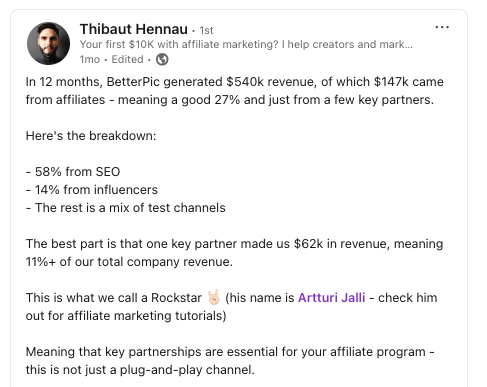
    With 2M+ blog views, 70k+ monthly YouTube views, and millions generated for my partners, this strategy will fast-track your sales to success.

    For Who Is This?

    This is best for anyone looking to get organic leads, customers, and mentions in relevant industry-leading articles.

    Most of my clients are startups looking for rapid growth. However, I’m happy to work with all kinds of SaaS businesses.

    What’s Included?

    To get more customers, you need leads, views, and content.

    I do it all.

    Here’s what I’ll create for you:

    1. A Practical How-To Blog Post: A helpful showcasing of your product. Written with potential customers in mind—SEO-friendly and easy to read.
    2. A Clear, Value-Focused How-To Video: Think of it as a demo that is engaging and created to inspire confidence in your product. Some of these go viral on YouTube!
    3. An Honest Review Blog Post: Authentically written to highlight your strengths, address potential concerns, and build trust. This targets people who are in the “Yes or No” phase in the funnel.
    4. A Straightforward Review Video: Designed to connect with real users and answer their questions while showcasing your product in action.
    5. Mentions in Relevant, Niche Articles: Natural integrations into well-performing existing articles.

    Proof?

    Sounds good… but does it work?

    Let me introduce one of my clients.

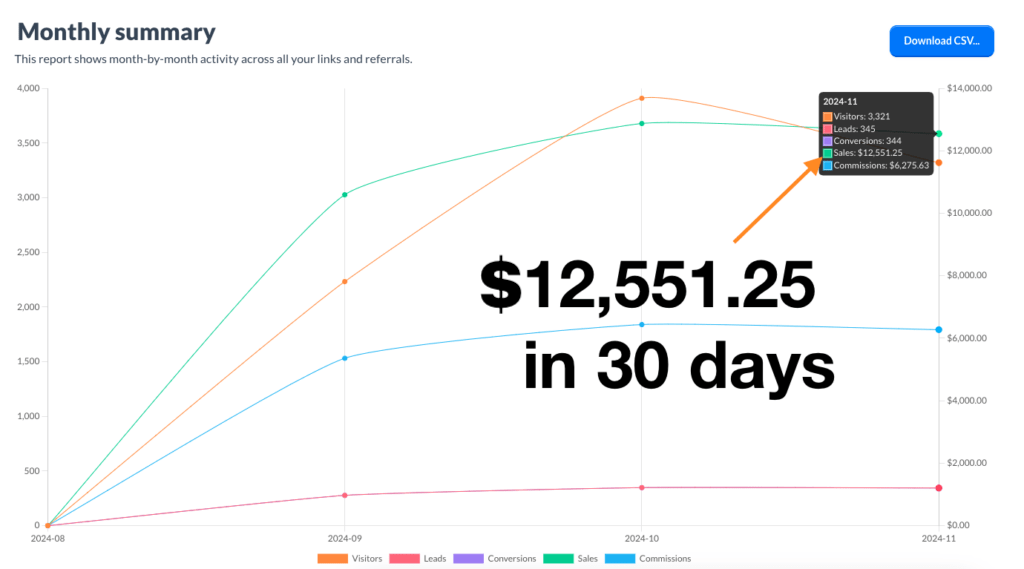
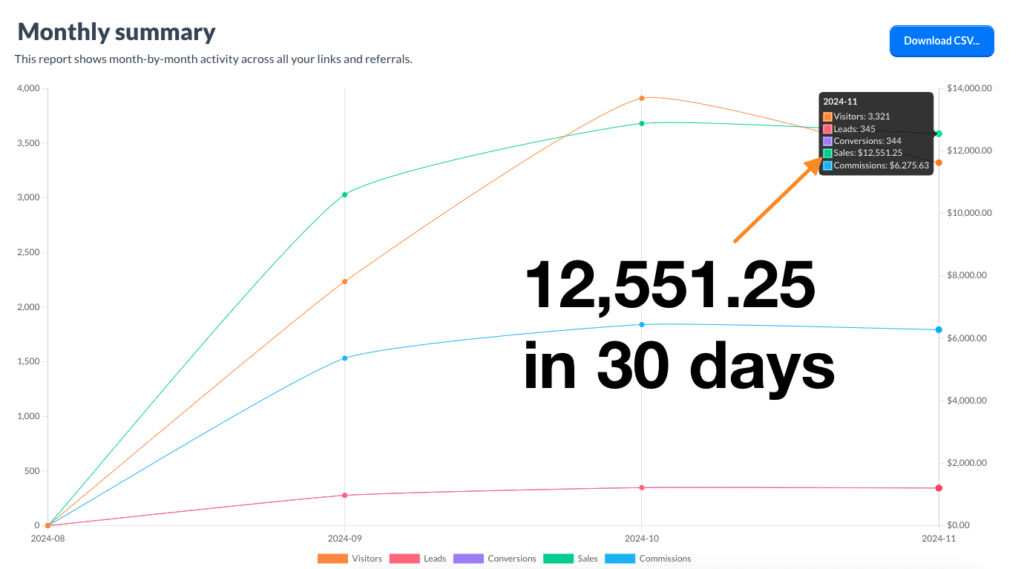
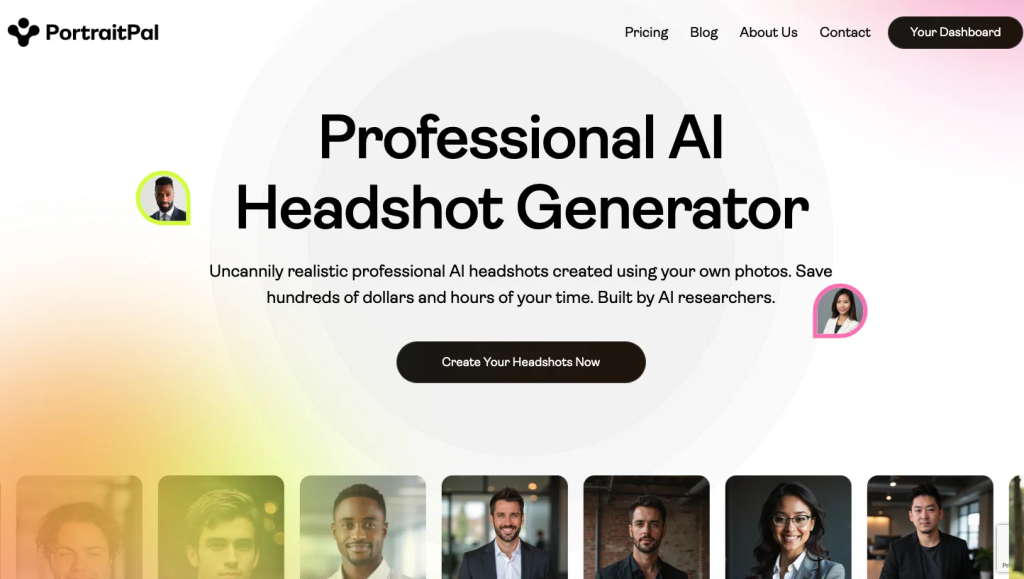
    PortraitPal, is a new AI startup in the competitive AI headshot space. I put them through my Software Visibility Kit… 

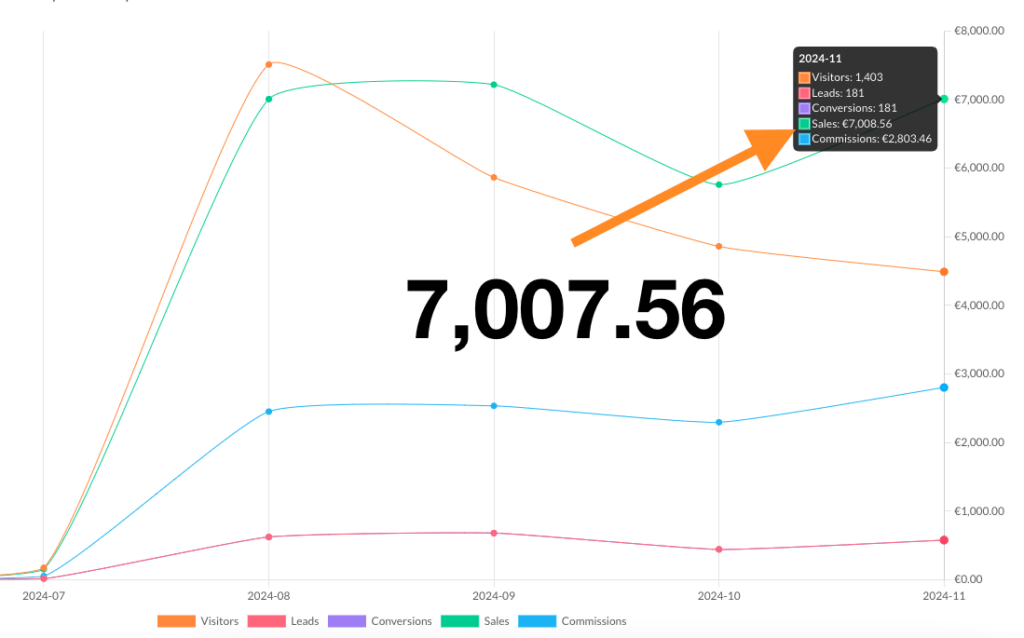
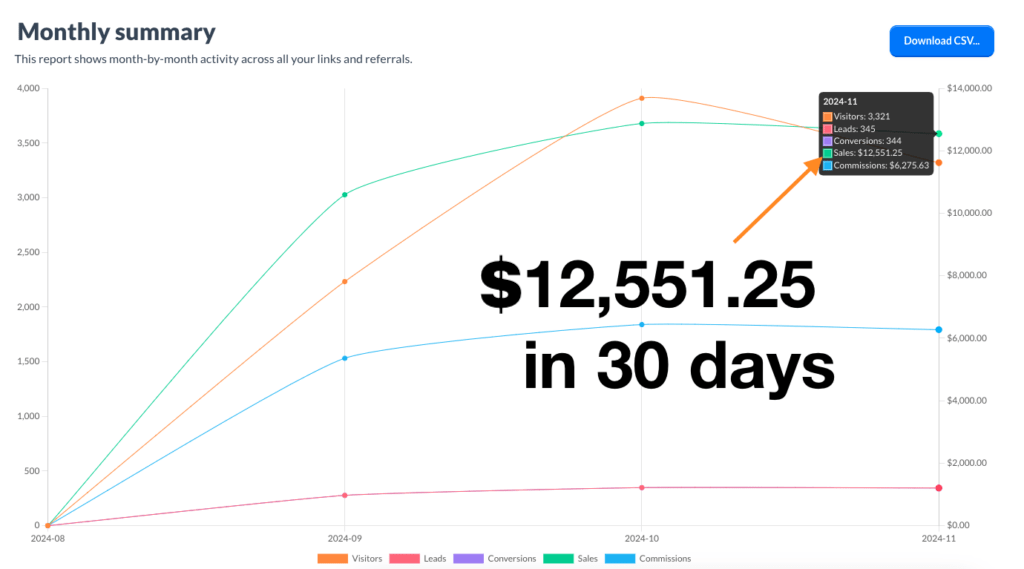
    In less than 2 months, they’re making over $12,000/month from my content passively!

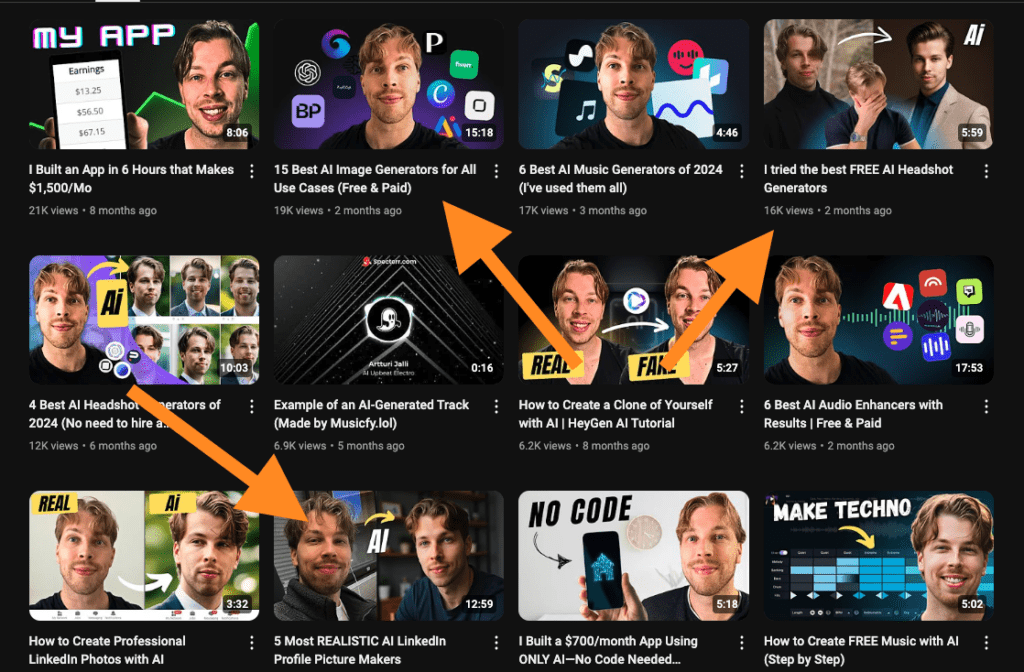
    This is all thanks to a couple of YouTube videos and blog posts to over 20,000 followers. Yes, that’s just a couple of pieces of content all done in less than a week.

    Videos on my channel

    How It Works

    I target people who are close to buying—people who are looking for information with a credit card in their hands. This means people who do searches like “best AI tools” are just a click or two away from buying.

    I don’t have a crazy huge audience. I just have the right one.

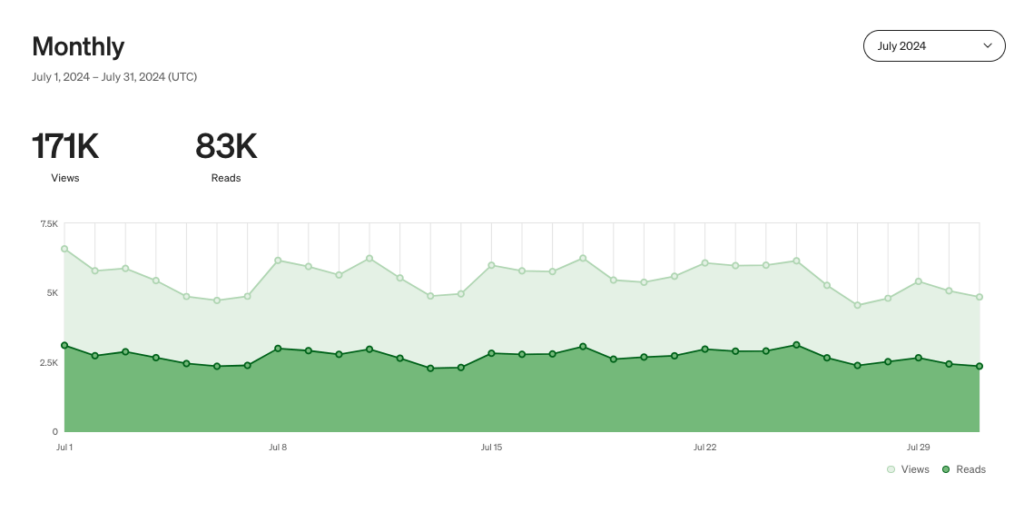
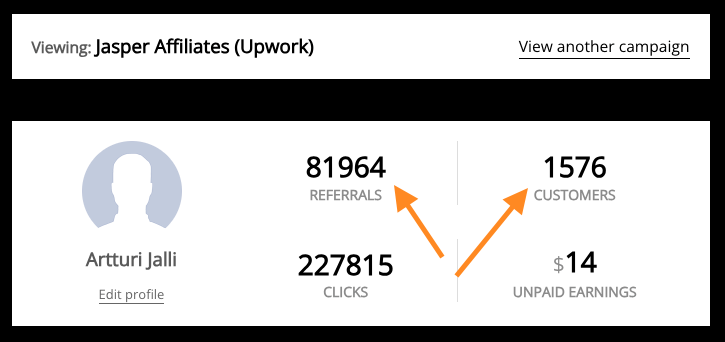
    My blog content has over 2M+ total views and counting.

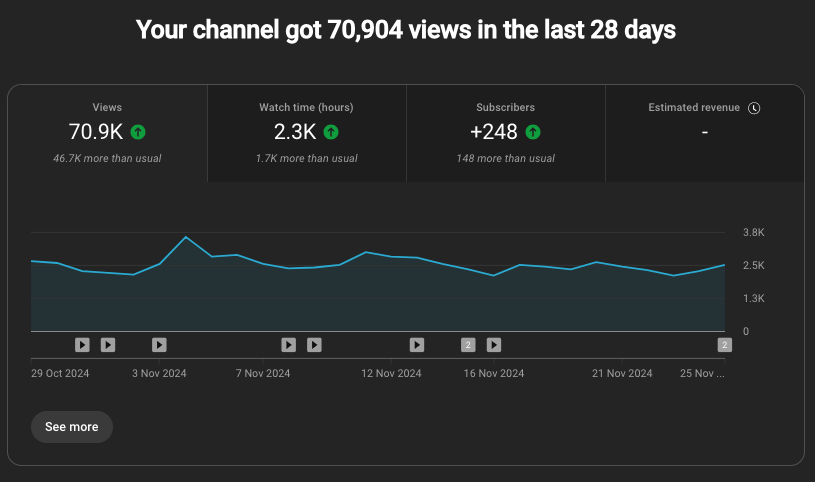
    My YouTube channel gets 70k+ monthly organic video views.

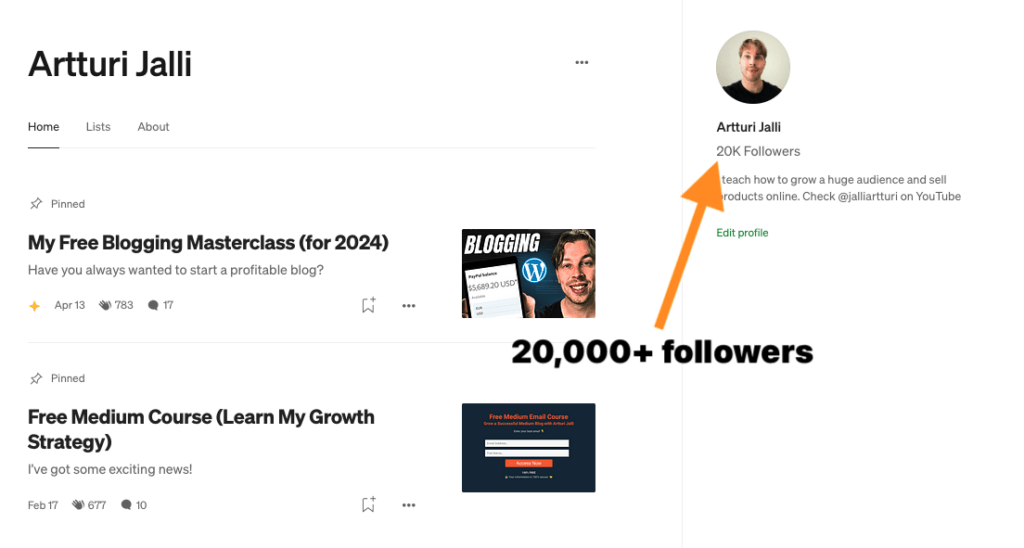
    I also have 20k+ avid followers on Medium.com and have generated millions in revenue for my partners.

    To put it short: I will create you content once, and it will bring in passive traffic and customers for years.

    Start here

    This isn’t a cookie-cutter approach. It’s tailored content designed to build trust and drive results.

    Let’s discuss your goals and see if we’re a good fit.

    👉 Contact me at artturi@softwareviews.net

    Please start the email with “I’m interested in Software Growth Kit”.

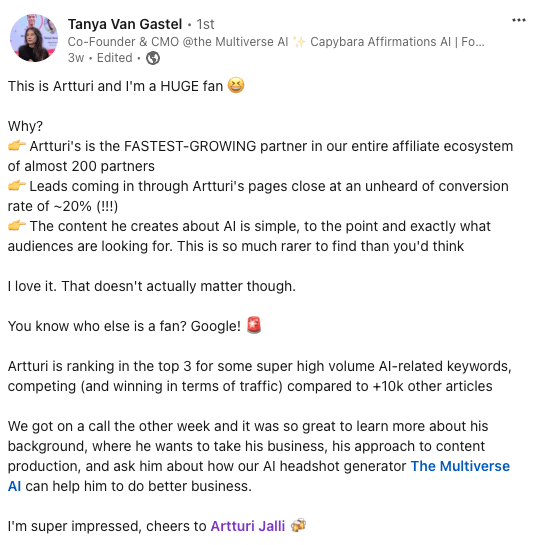
    Testimonials & Results

    Let’s Do It!

    Sounds good? Please, send me an email (or reply if you’re already in the loop).

    👉 Contact me at artturi@codingem.com

    I will get back to you asap!

  • Thinkific vs. LearnWorlds (I’ve used both)


    Thinkific and LearnWorlds are both popular platforms for hosting courses. But which one should you choose?

    I’ve used both extensively—let’s find that out!

    Disclaimer: This post has affiliate links at no cost to you.


    Who Is The Winner?

    My platform of choice is Thinkific.

    I’ve used Thinkific to host and sell 2 courses for nearly three years. I love it because it offers all the basic elements you need for courses.

    Better yet, you can use my link to start using it for free:

    👉 Activate Your Free Trial Here

    But to be fair, the winner is also all about the use case.

    For some, LearnWorlds could be a lot better than Thinkific.

    • If you’re just getting started, Thinkific is the way to go.
    • But if you have a team, then LearnWorlds might be better. That’s because there you can do all the marketing, community stuff, and more in a better way than on Thinkific.

    Let me compare the two platforms a bit closer to give you a better idea.


    Free Versions

    Before I even try platforms like Thinkific or LearnWorlds, I ensure there are free trials.

    I think it’s a signal of confidence and reliability if a platform offers either a free version or a free trial.

    Thinkific

    Thinkific has an entirely free plan.

    It lets you create and publish courses without spending money.

    This was great for testing my ideas before upgrading to a paid plan when I started my courses there.

    LearnWorlds

    LearnWorlds doesn’t have a free plan, but there is a complete 30-day free trial.

    This way I could explore the features of the paid plans before deciding to buy.

    So this is a win for both Thinkific and LearnWorlds!


    Customer Support

    I looked into support options because having reliable support is crucial for resolving any issues quickly and keeping everything running smoothly.

    Thinkific

    Thinkific provides support through a Help Center, community forums, and email.

    In my experience, they are active supporters.

    However, I sometimes find myself talking to a support bot for a bit too long to my liking before an actual human steps in. (Also, the human answers are usually from a template.)

    That being said, I never really have to wait for my answers. That’s great because I have a lot of questions related to specific setups and features.

    LearnWorlds

    LearnWorlds offers support through email, a detailed knowledge base, and how-to articles.

    I found the video tutorials and dedicated (human) support team especially helpful.

    They provide 24/7 email support, and higher-tier plans include priority email support and personalized onboarding.

    Once again, this is a win for both platforms!

    (However, both could improve here a bit as well.)


    Coaching/Webinars

    Personalized webinars and coaching sessions can increase student engagement. Also, in some cases, they are crucial if you’re doing live teaching.

    That’s why I wanted to see if these platforms offer solutions for live webinars and coaching.

    Thinkific

    Thinkific makes it easy to create 1-on-1 coaching through the platform.

    Just create a new event in the products section:

    To do this, you need to use the Thinkific Zoom integration. The same applies to live webinars and live teaching.

    LearnWorlds

    Similar to Thinkific, LearnWorlds integrates with Zoom for webinars and live classes.


    Mobile Apps

    A course platform mobile app allows students (and instructors) to access courses on the go.

    That’s why I wanted to see if there’s one for Thinkific and LearnWorlds.

    Thinkific

    Thinkific has a mobile app for you and your students to engage with the content on the go.

    LearnWorlds

    LearnWorlds also offers a branded mobile app option for schools. You can download this from the iOS App Store and Google Play Store.


    AI Course Creator

    Ok, I had to include this because it’s 2024. I’m of course talking about AI.

    As much as I’m not a huge believer in creating content fully automatically with AI, I believe it can streamline some workflows at least.

    Thinkific

    Thinkific doesn’t use AI to create entire courses.

    However, it has some basic AI features, for example, to create a course outline, course name, or ideas.

    LearnWorlds

    LearnWorlds lets you create an entire course with AI.

    It just asks you a bunch of questions related to your course, audience, and goals, and then it renders a ready-made course.

    But at least based on my experience, this is something that you need to edit heavily.


    Email Sales Funnels

    The number one way to sell a course is through email marketing.

    You first collect newsletter subscribers and then warm them up with valuable content while subtly promoting your course.

    This happens with email sequences that you automate. When someone joins your course, they will start a journey of for example 5 emails during the next 10 days.

    There’s no reason to do it manually. That’s why I expect course platforms to offer services like this.

    Thinkific

    Thinkific doesn’t offer native tools for creating sales funnels, but it integrates well with tools like Mailchimp, ActiveCampaign, and ConvertKit nicely.

    However, I’m surprised how big a hassle it still is.

    Even though you can do marketing with Zapier and MailChimp integrations, I don’t think a modern course platform should ask you to join two other paid platforms to do basic email automation…

    LearnWorlds

    LearnWorlds has built-in features for email marketing and sales funnels.

    You can use it with tools like Mailchimp and ActiveCampaign.

    Then the platform’s automation and funnel-building capabilities make managing your marketing efforts much easier than on Thinkific.

    For example, here’s a simple sales funnel I set up on my account:

    With the marketing tools on LearnWorlds, you can track progress, customize emails, send times, and more without having to jump between platforms.


    SEO Features

    SEO or search engine optimization means that your course website or landing page appears on Google (and other search engine) results.

    Although SEO is all about building a good landing page and content, there are some small things you can tweak to tick some extra boxes.

    That’s why I decided to include the SEO features on the list as well.

    Thinkific

    Thinkific comes with basic SEO features.

    It lets you customize URLs, meta tags, and descriptions for your course pages.

    For example, thanks to this, I was able to make my course landing page look like this in Google search results:

    You can also integrate your Thinkific account with Google Analytics to see the views and performance.

    LearnWorlds

    Very similar to Thinkific, LearnWorlds offers good basic SEO features and a Google Analytics 4 integration to see the landing page performance.

    Both platforms nail the basics of SEO. And why do I keep on saying the “basics of SEO?”

    Well, that’s because SEO is all about you providing value to your audience. There are no specific settings that would make you rank on top of Google.

    If you create a landing page full of valuable, well-structured, and consistent content, that’s the definition of SEO.


    Third-Party Addons

    Both LearnWorlds and Thinkific offer third-party integrations, such as Google Analytics, MailChimp, ConvertKit, and more.

    Also, on Thinkific, there’s a plugin store from where you can install extensions to your account to add a missing feature, for example.


    Affiliate Programs

    Affiliate marketing means that your students get a little kickback for recommending your course. If someone signs up after clicking their link, you will pay them a commission.

    This is one of the best marketing strategies out there as it’s all performance-based. If your students don’t bring any customers, you’re not going to pay them. And if they do, you will give them a reward for each sale—automatically.

    Affiliate marketing is such a powerful way to promote courses that I had to include it on the list. Before I had experience with both platforms, I was sure that both offer affiliate tools for course creators—and yes, I was right.

    Thinkific

    Thinkific includes an option for you to set up an affiliate program.

    The Thinkific affiliate system which allows you to set up, manage, and track affiliate partnerships.

    As I mentioned before, this allows your students (that is, affiliates) to promote your courses and earn commissions on sales.

    This expands your course’s audience and reach automatically.

    LearnWorlds

    LearnWorlds offers built-in affiliate program capabilities across all its plans.

    This lets you create and manage affiliate programs, track performance, and provide affiliates with the tools they need to promote your course.

    I love the fact that the affiliate program is not a higher-tier plan thing but it belongs to all the plans.


    Course Website Builder

    This is a no-brainer. To sell a course, you need a website where your students sign up and find your courses, sales, checkout pages, and support.

    Once you’ve created your course and built your community, dealing with all the integrations can be overwhelming. Creating a website from scratch on top of that is a daunting task, isn’t it?

    That’s why the best online course platforms allow you to do this very easily.

    Thinkific

    Thinkific offers a built-in website builder that lets you create and customize your course website.

    For example, here’s my Thinkific school page (with my two courses listed):

    And here’s an example of one of my courses landing pages:

    Obviously, no coding is needed. Just drag and drop elements to the view and that’s it! This makes it a smooth and quick process.

    If you can’t find what you’re looking for in the basic editor and have a knack for coding, you can use HTML and CSS for more customization too!

    LearnWorlds

    LearnWorlds provides a comprehensive website builder with customizable templates and a drag-and-drop editor.

    Here’s a sample page I built:

    And here’s a sample course page:

    LearnWorlds offers advanced options like custom domains, HTML/CSS editing, and various elements to create a fully branded online school.

    The platform also supports multilingual websites, making it versatile for global audiences.


    Payment Plans

    If your students can’t pay in one go, you need a payment plan. This is a common excuse for someone to not take your course, so it’s a must-have feature.

    Thinkific

    Thinkific allows you to offer payment plans. This feature is available in all the paid plans and integrates with payment gateways like Stripe and PayPal to process these payments smoothly.

    LearnWorlds

    Similar to Thinkific, LearnWorlds allows you to set up payment plans and offer courses in installments.

    This is in my opinion a crucial feature and both platforms nailed it!


    Coupons and Promotions

    Adding some scarcity offers can bump up your course sales as it creates a sense of urgency and incentivizes you to act now.

    This is possible thanks to coupons and discounts that I expect both platforms to offer.

    Thinkific

    Thinkific lets you create coupons and promotions to offer discounts on courses.

    You can set up percentage-based or fixed-amount discounts and specify the duration and usage limits of the coupons.

    For example, if you want to create a promotion that gives 20% off for the first 100 students, you can do it easily on Thinkific.

    One thing I didn’t like on Thinkfic, though, is that you can’t strike through the original price of your course on the landing/checkout page. I thought that’s easy to do but apparently, it’s not.

    LearnWorlds

    Similar to Thinkific, LearnWorlds allows you to set up promotions and discounts. You can do percentages and fixed discounts.

    You can limit the number of codes as well as the date.


    Payment Processors

    Integration with payment processors is essential for handling transactions securely and efficiently. Imagine you had to send invoices, do refunds, and set discounts manually. That would get out of hand with just a handful of customers.

    This is where the online course platforms shine. They’re not just course hosting platforms or community pages but also payment processors (or at least they integrate with one.)

    Thinkific

    Thinkific doesn’t have a built-in payment processor.

    Instead, it relies on integrations with third-party payment gateways like Stripe and PayPal to handle transactions.

    Anyways, this means that you don’t need to worry about payments. Everything happens under the hood. You get a checkout page that looks like this automatically:

    Also, you can handle refunds and chargebacks there with a click of a button as well.

    For example, the other day I had a student who wasn’t happy with my course.

    Instead of having to hassle with the refunds, I could just click one button to refund the fee. That was just 15 seconds of extra work for me.

    👉 Try Thinkific for Free

    LearnWorlds

    LearnWorlds, like Thinkific, doesn’t have a built-in payment processor. It integrates with popular payment gateways like Stripe and PayPal to do payments and refunds.


    To Take Home

    Thinkific and LearnWorlds are great course platforms. As you can see from the comparison and reviews, they both have all the necessary features and integrations to successfully host a course.

    That being said, now it’s time to consider which one you should choose.

    As I mentioned before, I am using Thinkific to host 2 courses. I have an audience of about 25k subscribers and my student count is less than 100.

    So for a small one-person team, Thinkific is a great platform to get started.

    👉 Try Thinkific for Free

    However, if you have a school or a big team of marketers, coders, designers, and such, you might find more bang for your buck on LearnWorlds.

    It’s all about that use case.

    Thanks for reading!


    See also

  • 7 Best AI Business Photo Generators of 2025 (I tried them all)


    I spent over $2,000 testing AI Business Photo Generators to find the best ones for LinkedIn.

    Here’s a side-by-side comparison of the top tools — both free and paid.

    Plus, I’ll show you how to use them and customize your shots.

    My Top 5 Picks

    Here are my top picks for your convenience:

    👉 1. BetterPic

    👉 2. HeadshotsByAI

    👉 3. PortraitPal

    👉 4. AI SuitUp

    👉 5. Aragon AI

    Now let me show you my results with each tool.

    Disclaimer: This post is supported by readers. It has some affiliate links at no cost to you. Thanks for the support!


    1. BetterPic

    Best overall AI LinkedIn headshot generator

    BetterPic is my top pick for an AI Business Photo Generator.

    It delivered some of the best professional headshots I’ve seen.

    It offers powerful customization features — especially the epic human editing option.

    With the Expert plan, a real editor fine-tunes your photos to ensure they truly look like you. So it’s actually not just AI that’s working here.

    Let me show you my results.

    My Results

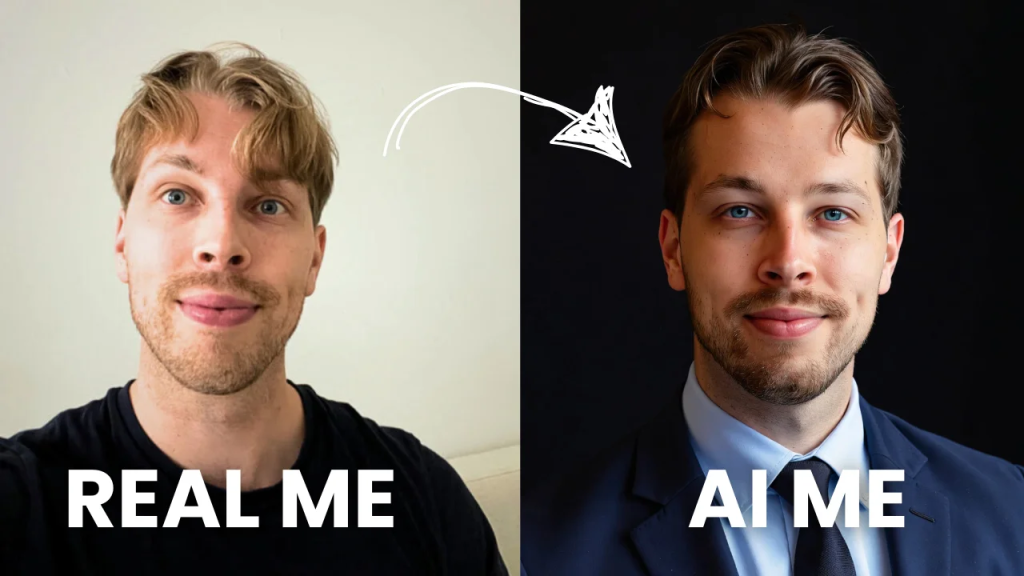
    Here’s an example image that I got from BetterPic AI:

    Before I show you more results, let me show you how easy this tool is to use.

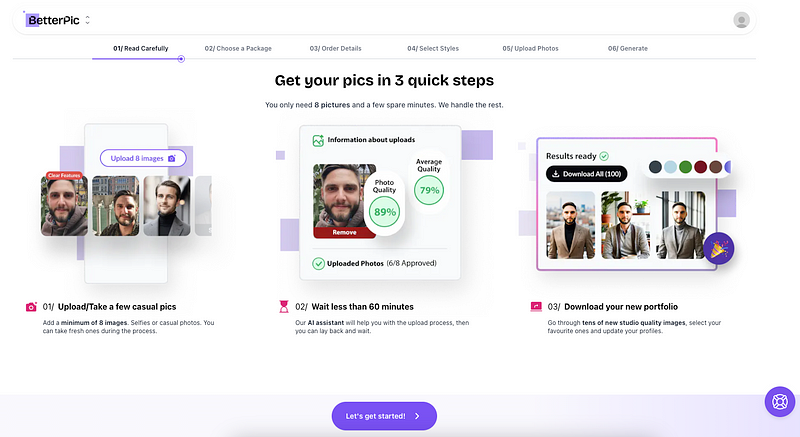
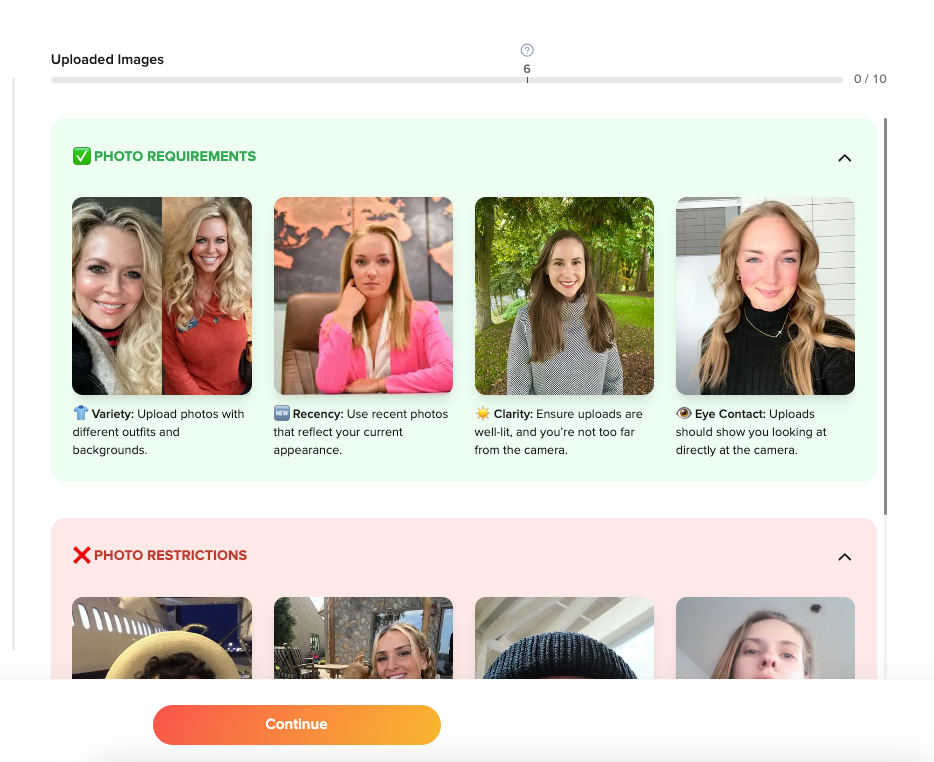
    First, sign up here and read these instructions.

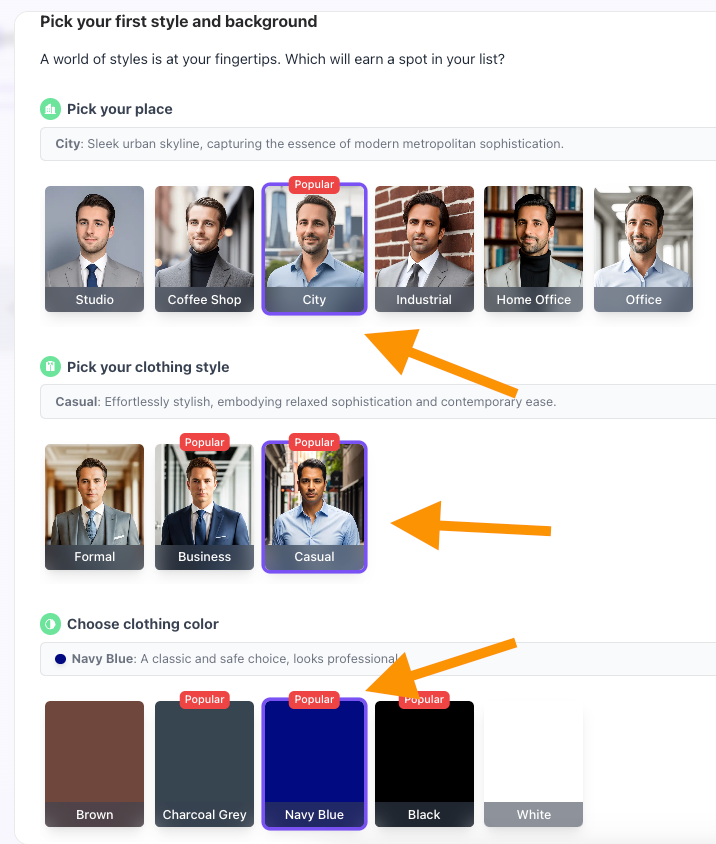
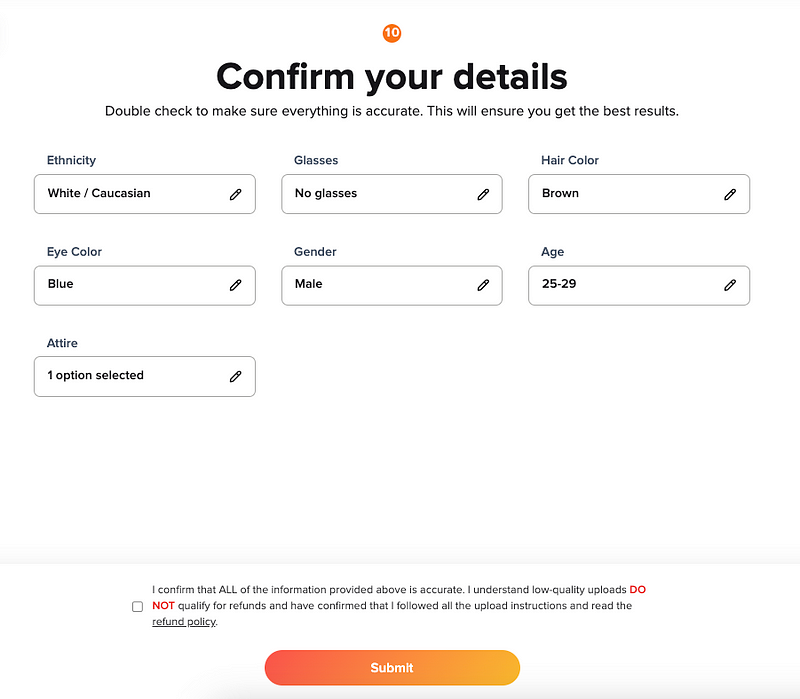
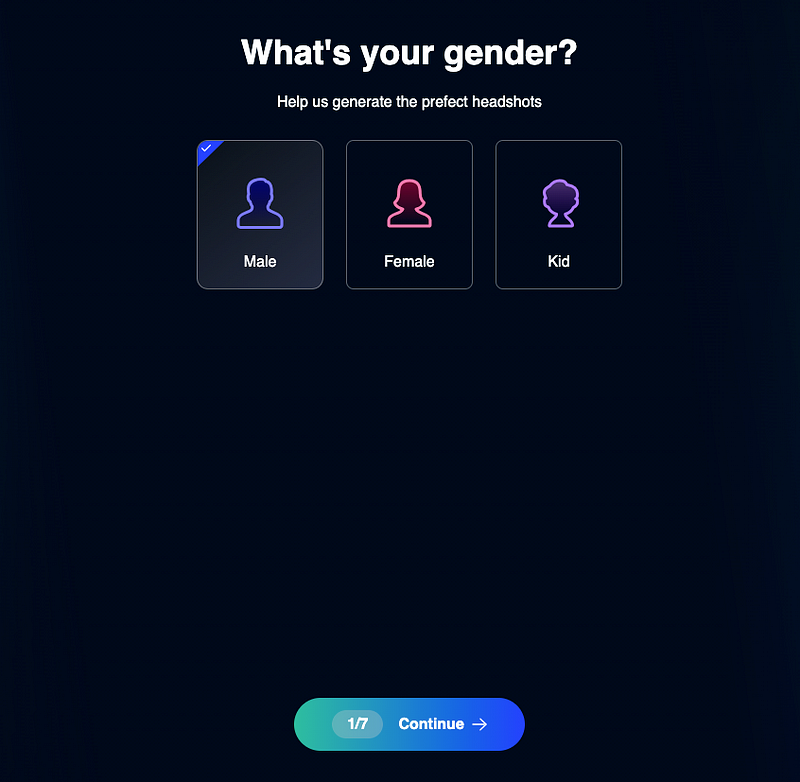
    Add your name, ethnicity, use cases, gender, and eye color.

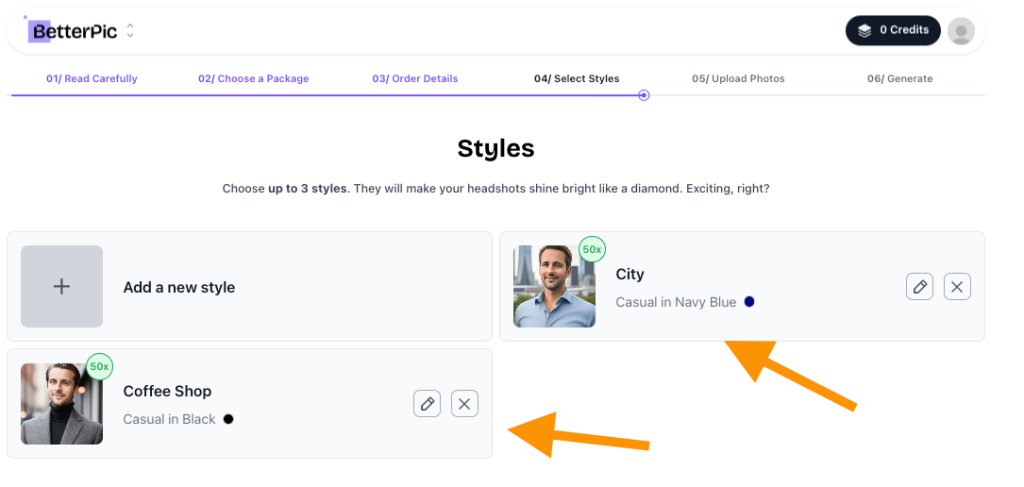
    Then, choose a couple of styles for your AI headshots.

    Pick three styles to make the most out of it.

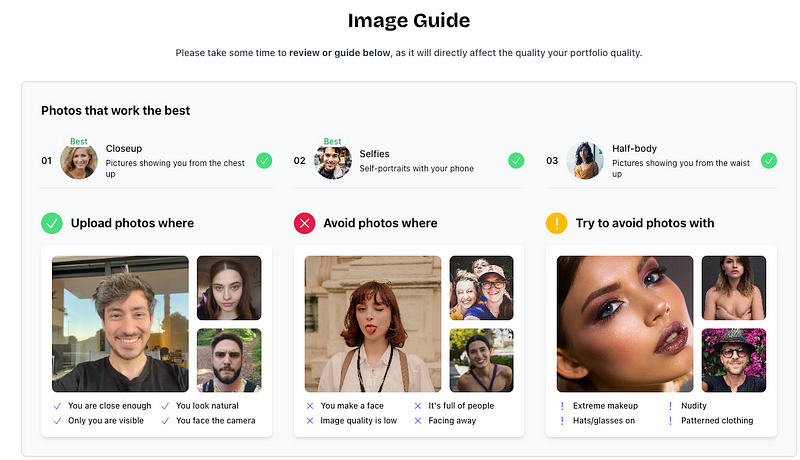
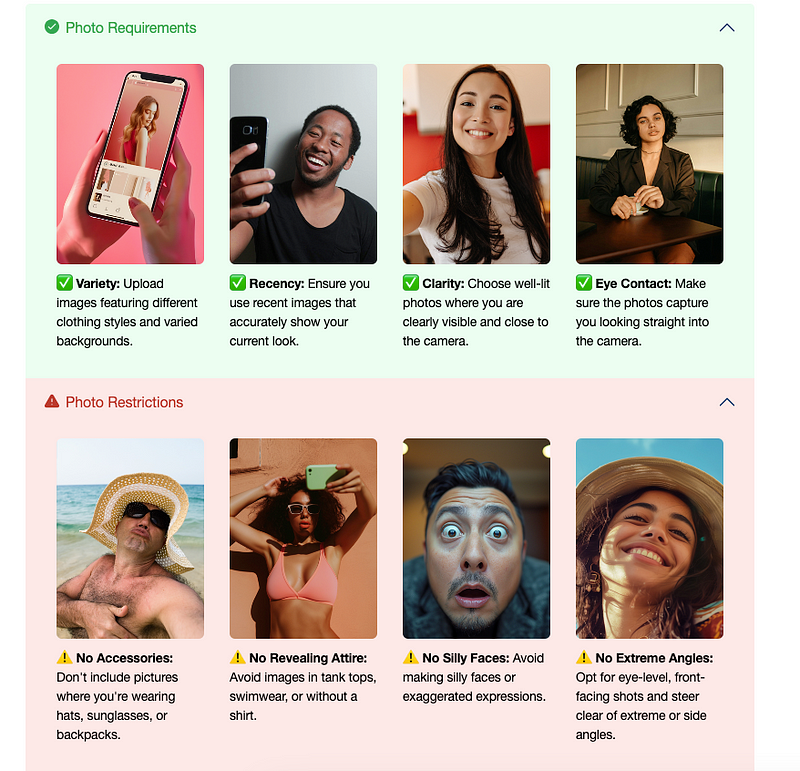
    Make sure to follow the image guidelines carefully — this directly impacts the quality of the headshots you’ll get.

    If you upload low-quality or unclear photos, the AI won’t accurately capture your look.

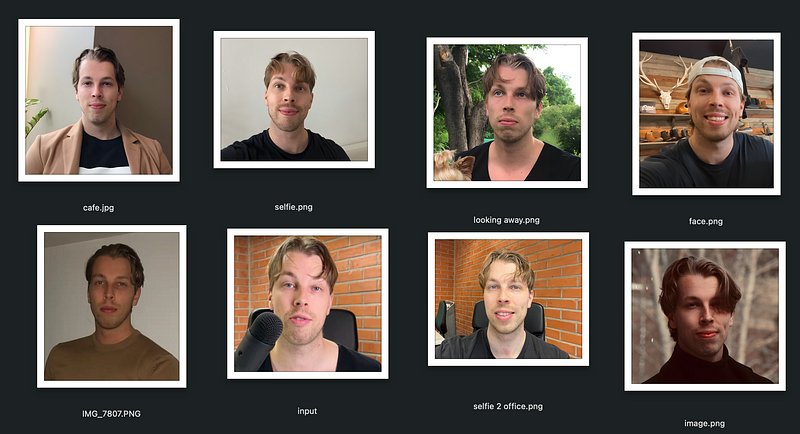
    I recommend using images with different lighting, outfits and poses to help the AI create the best possible headshots.

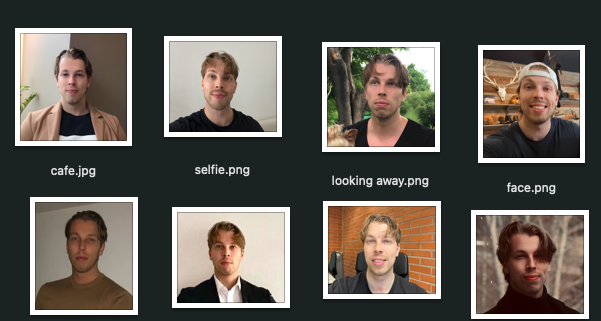
    Here are the real images I used to train the AI:

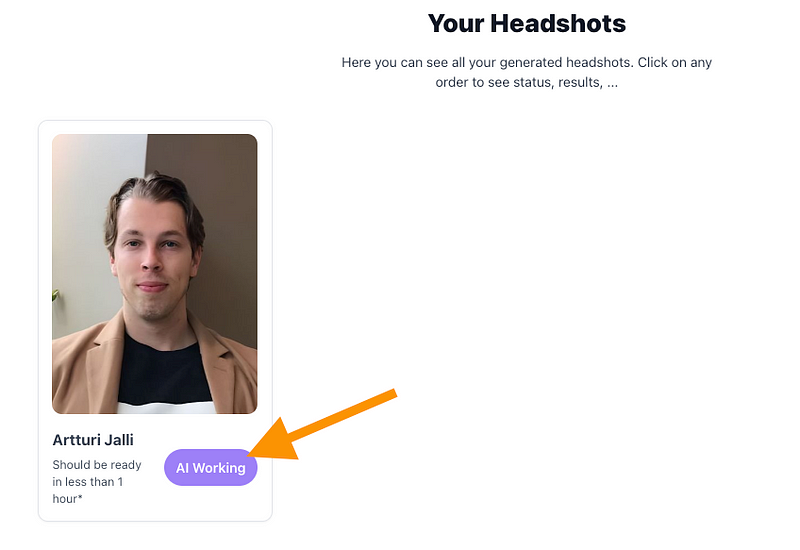
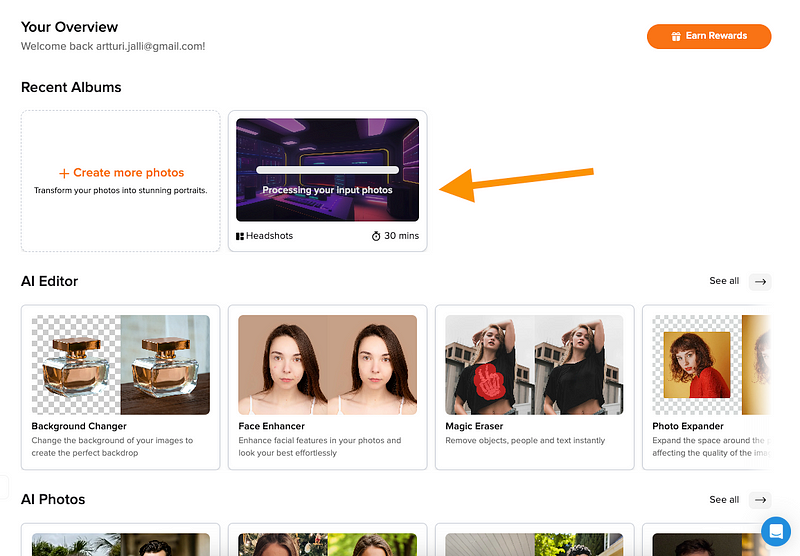
    Once I uploaded my images, the tool analyzed them and filtered out any low-resolution ones. Then, it was time to generate my AI business photos.

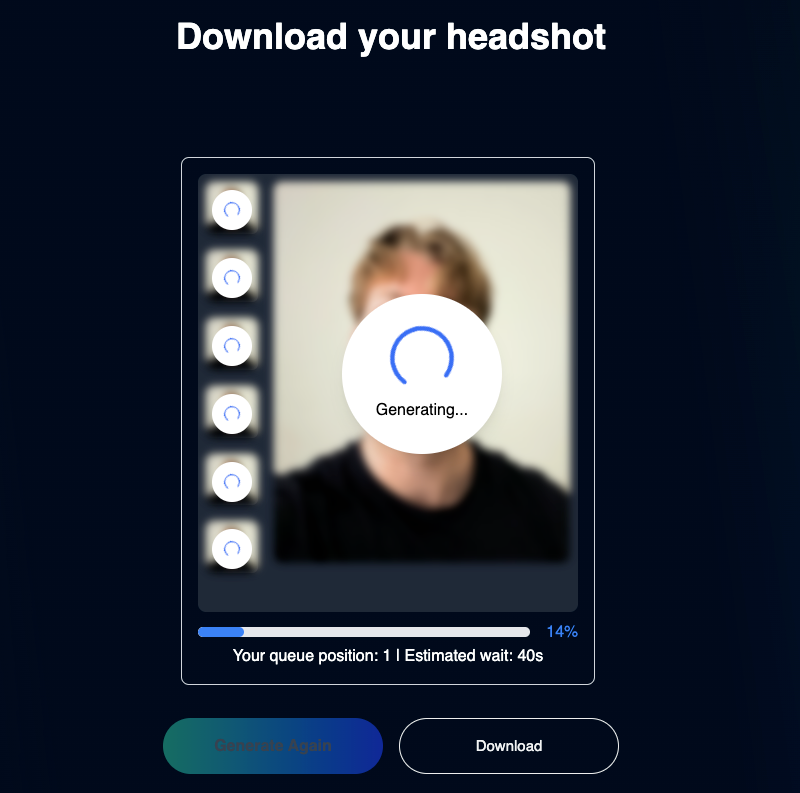
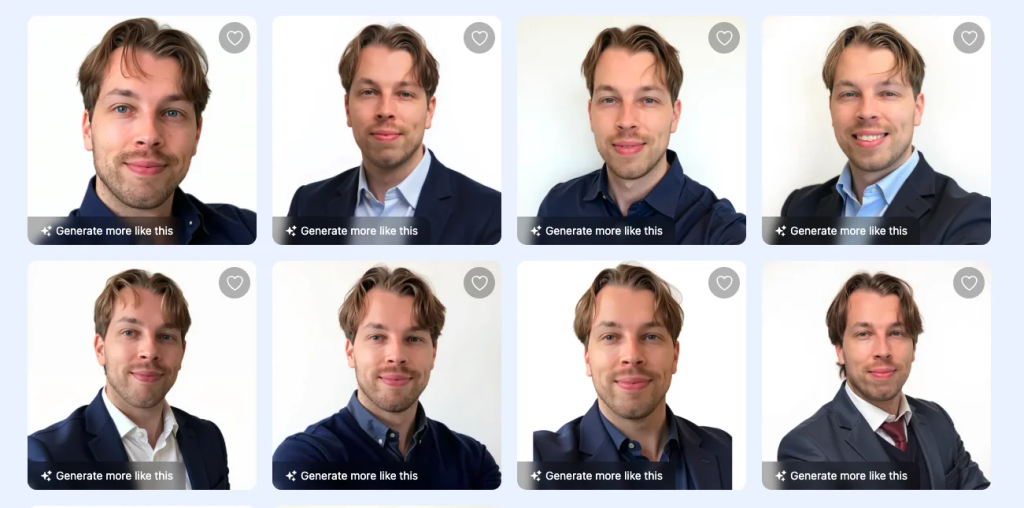
    After 30 minutes, I got my AI headshots. Here they are:

    Isn’t that cool? Those look exactly like me, huh?

    Let me show you some more:

    I won’t pretend every image was perfect.

    As BetterPic notes on the results page — most look great, some are good, and a few miss the mark.

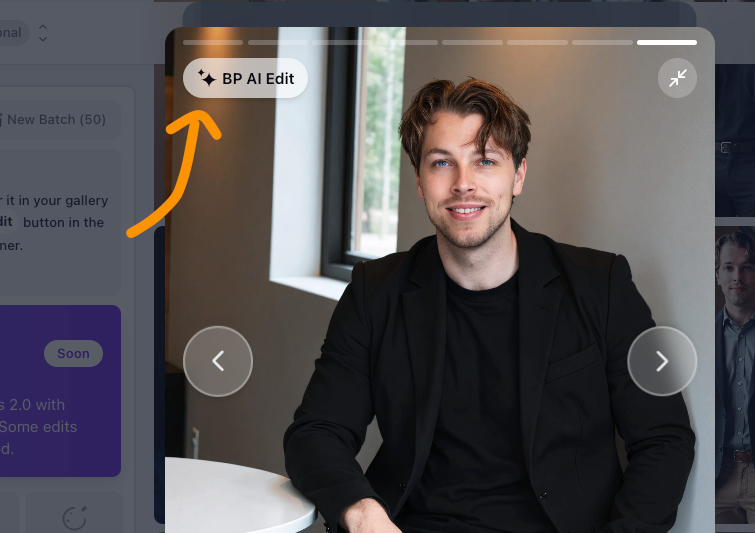
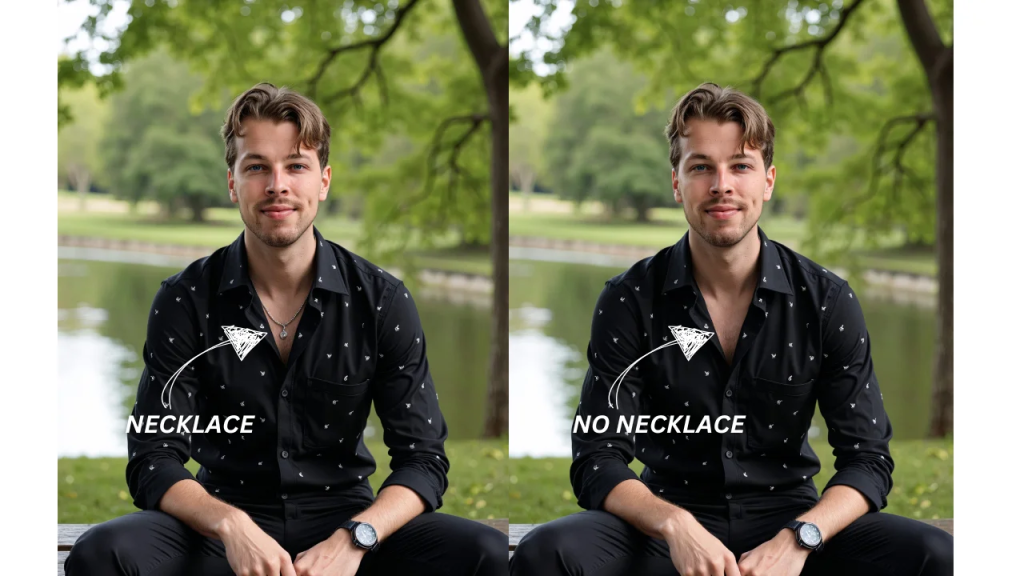
    For example, in this one, I noticed subtle artifacts around my face and teeth.

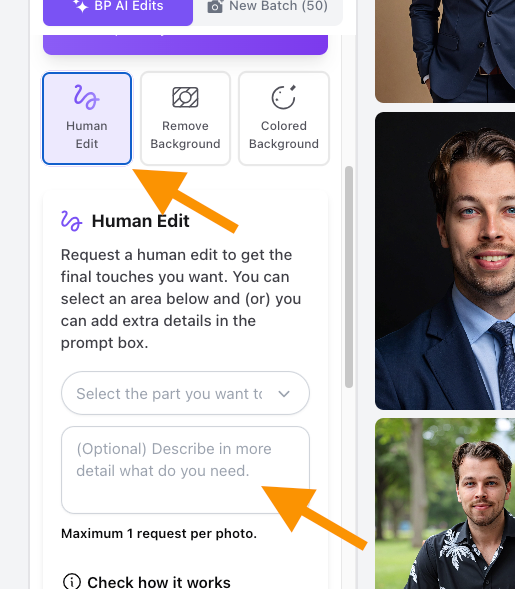
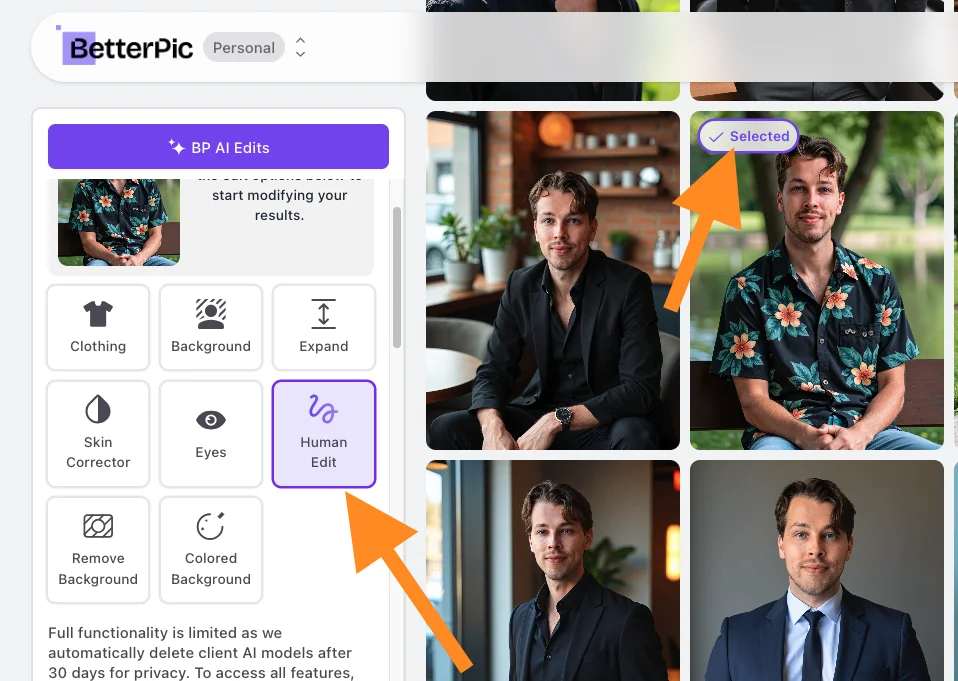
    Although here’s why I like BetterPic. It allows you to fix the failed images. Simply click on the BP AI Edit button, and make the changes.

    You can request a manual edit from the BetterPic for advanced edits.

    Choose the “Human Edit” option on the list to do this:

    That’s amazing. This is the reason this tool lands as the top pick for this use.

    👉 Try BetterPic

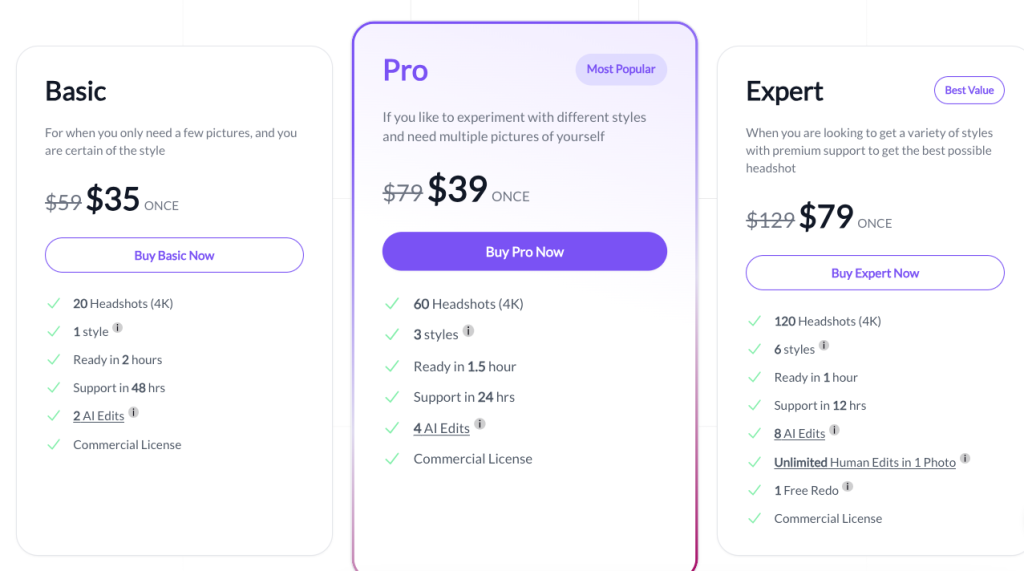
    Pricing

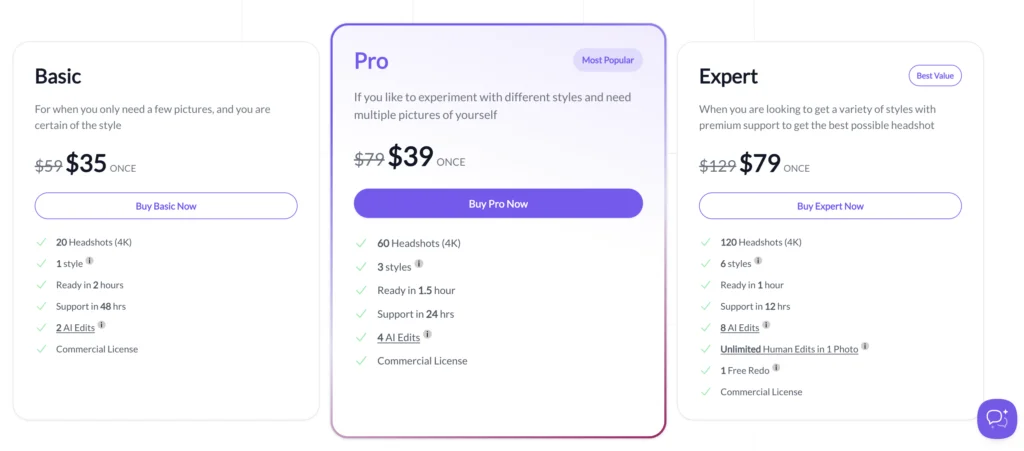
    • Basic: $35 (one time)
    • Pro: $39 (one time)
    • Expert: $79 (one time)

    👉 Try BetterPic

    To Take Home

    I’m a big fan of BetterPic. The results are impressively realistic, and it’s faster than most other AI Business Photo Generators.

    Plus, there’s no risk — if you’re not happy with the results, you can get a refund.

    BTW; I made a video on this tool as well. You can check it here:

    /media/9eea92fc29058d76d32d1c774c00bfcf

    👉 Try BetterPic


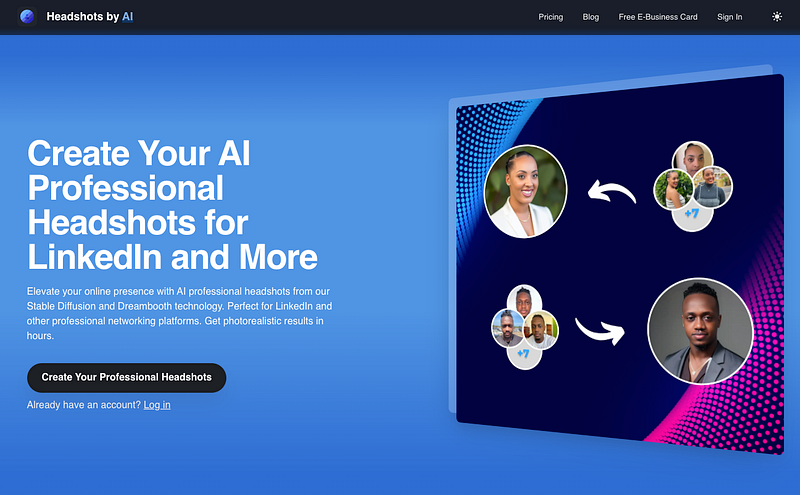
    2. HeadshotsByAI

    Next up is HeadshotsByAI, another powerful AI Business Photo Generator that turns your everyday photos into professional-quality headshots.

    It delivers some of the best results I’ve seen — let’s check it out!

    My Experience

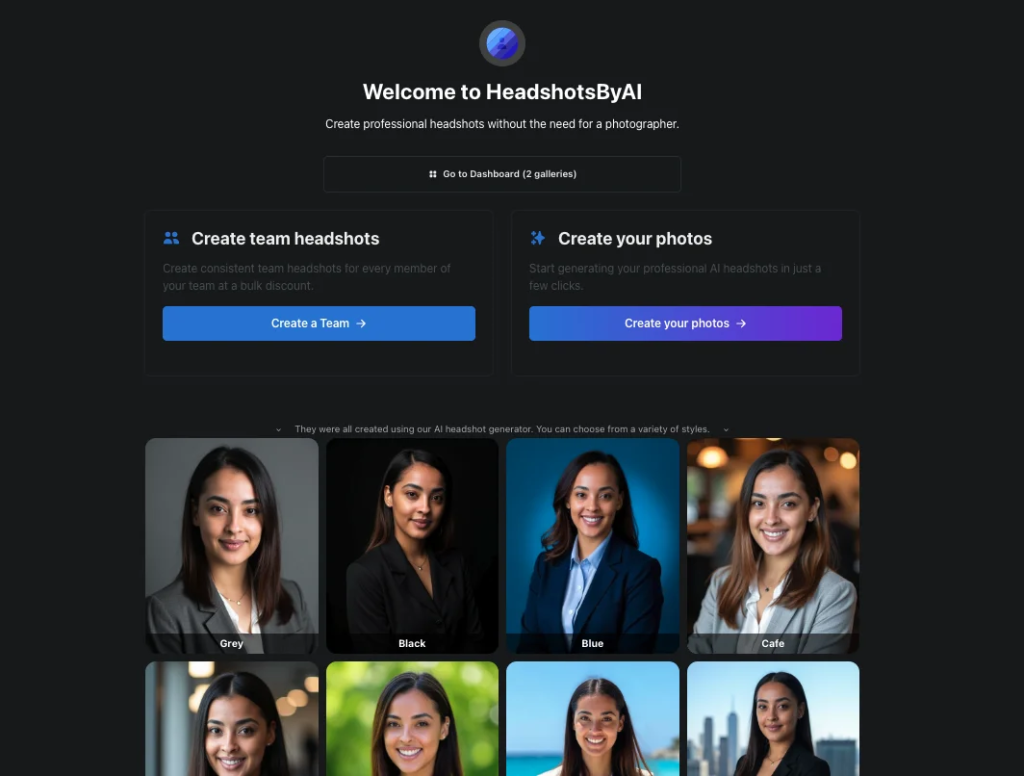
    To use this tool, all you need to do is head over to the HeadshotsByAI homepage and sign up.

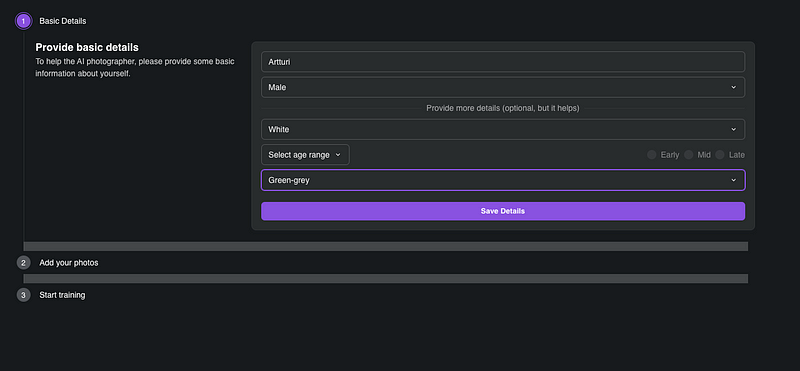
    Enter your information:

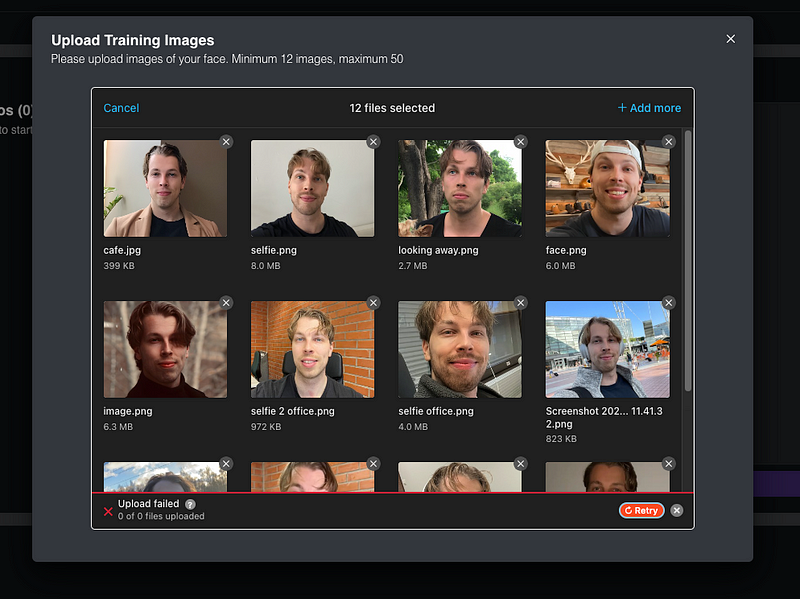
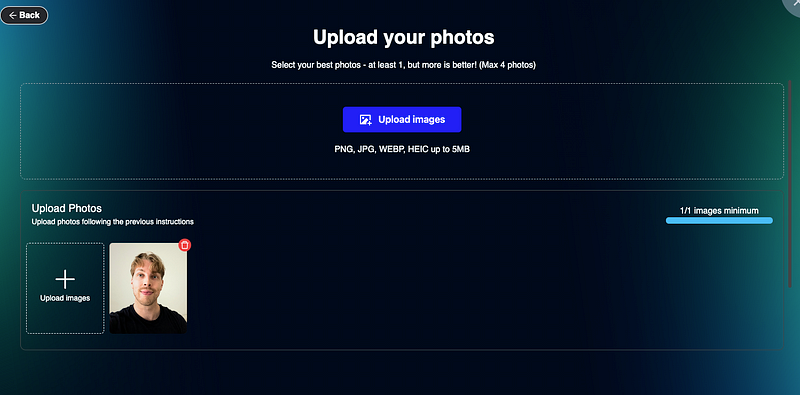
    Choose the input images. Traditional selfies will do.

    Here are the images I used:

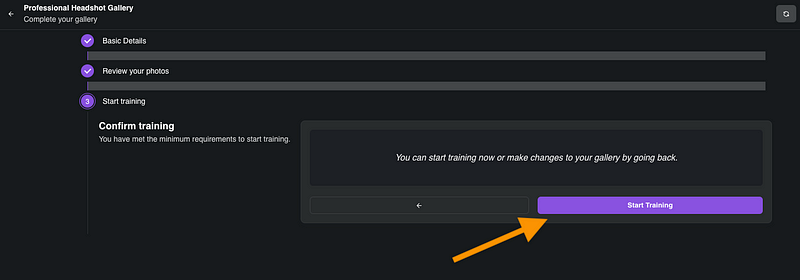
    Then click “Start training.” It sends the images to AI and the AI will start to process your images and generate realistic replicas of yourself.

    It takes a while, though. I think for me this process took a good hour or two.

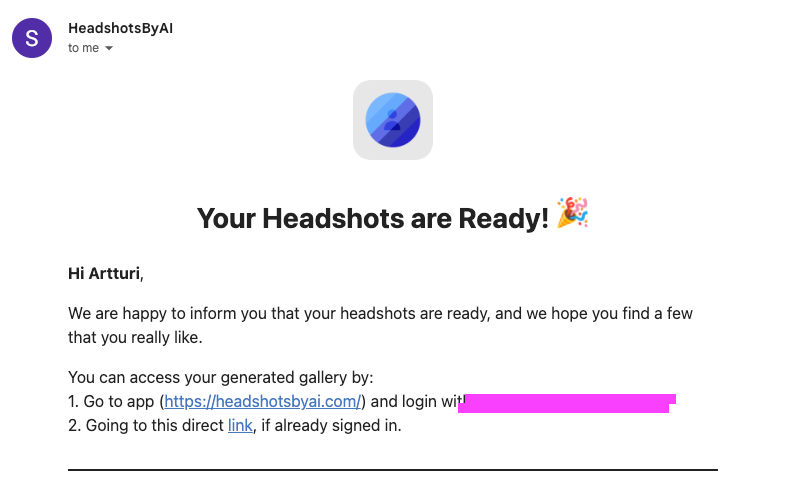
    Once the images are ready, you’ll receive an email so you don’t need to wait.

    Click the link and enjoy the LinkedIn headshots.

    Here are the professional business photos that the AI made:

    That’s crazy. Those look exactly like me.

    The images look so realistic that, in my opinion, you can hardly tell the difference.

    Here are more photos the AI created for me:

    I love the lighting and quality — better than any other tool I’ve tried.

    The only issue for me is that my forehead looks a bit too tall in some images, but you probably wouldn’t notice. There are also small glitches, like messed-up teeth and overly smooth skin.

    But that’s subtle and rare. Most of the headshots are epic.

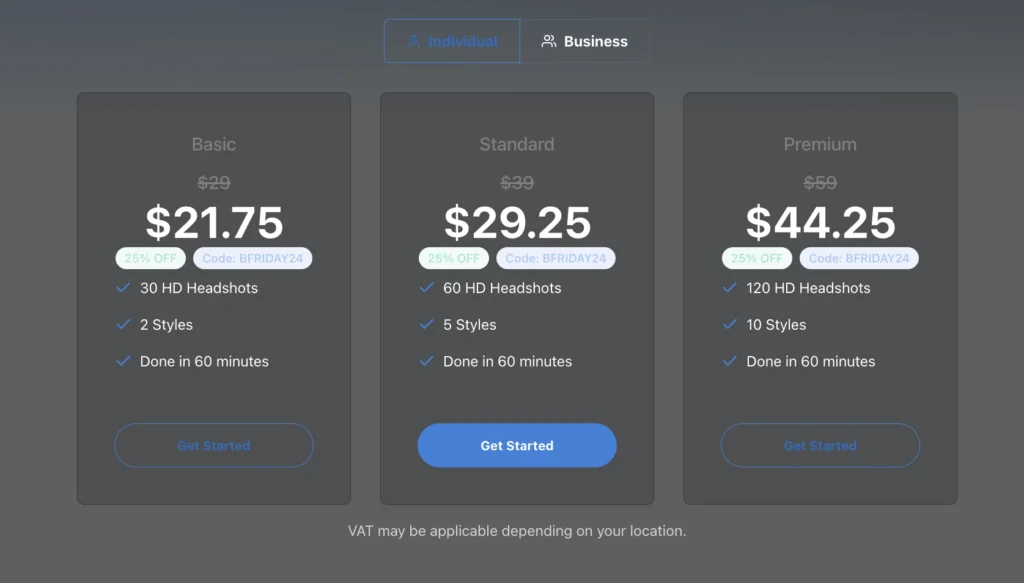
    Pricing

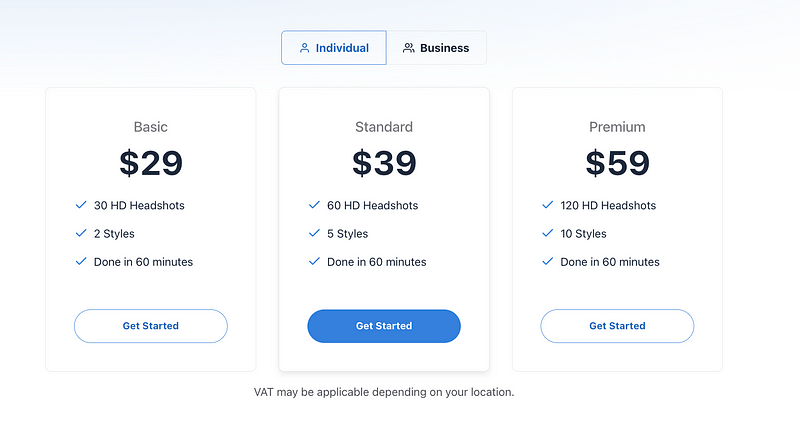
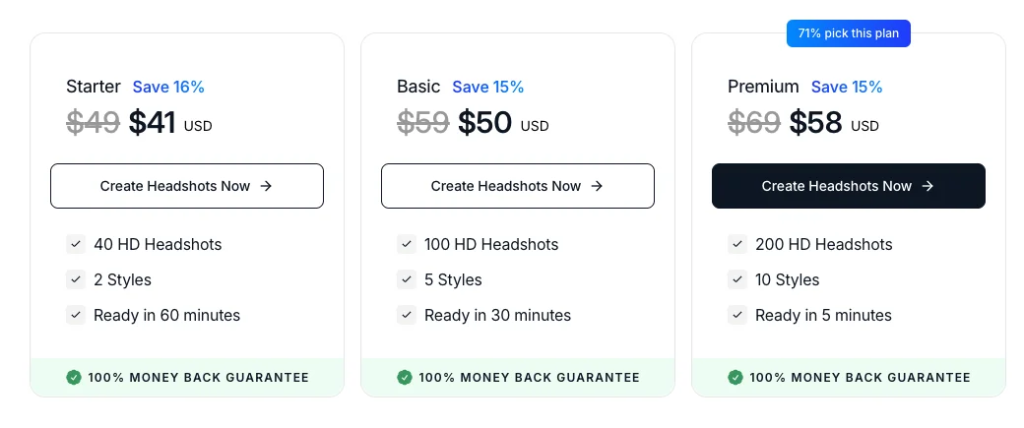
    • Basic: $29 for 30 headshots
    • Standard: $39 for 60 headshots
    • Premium: $59 for 120 headshots

    👉 Try HeadshotsbyAI


    3. Portrait Pal

    Portrait Pal turns your selfies into professional AI business photos. This tool creates vintage-style images with a calm and soothing vibe.

    Let me show you what I got from it.

    👉 Try Portrait Pal

    My Experience

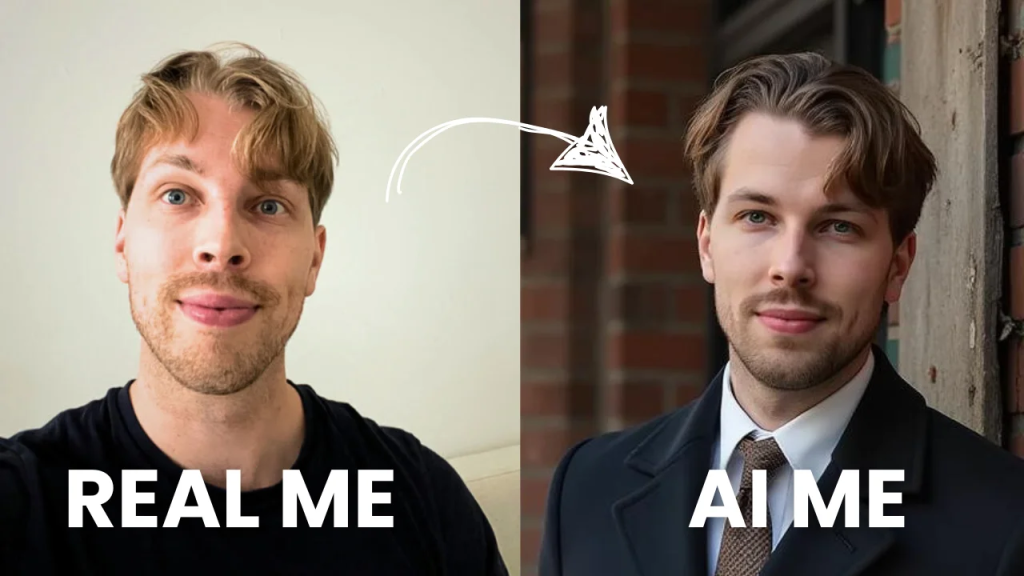
    Here are the real images I used to train the AI.

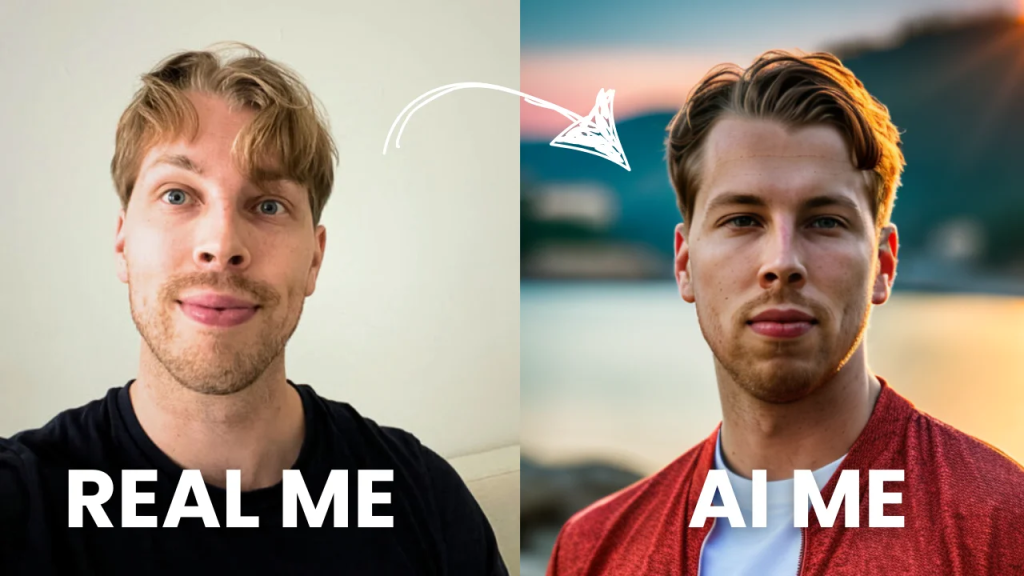
    Here are the results:

    Once again, what a nice tool! Those results are accurate, realistic, and usable in my socials.

    Now, let me show you quickly how to do the same.

    First, head over to this page.

    Click “Create Your Headshots Now.”

    Then sign up for the service.

    Then start creating your images. Specify your characteristics, such as gender, age, eye color, and ethnicity.

    Then, upload a bunch of images of yourself and keep these instructions in your mind while doing so:

    Use clear images with no other people in the frame and avoid silly faces. This helps the AI better understand your look in different contexts.

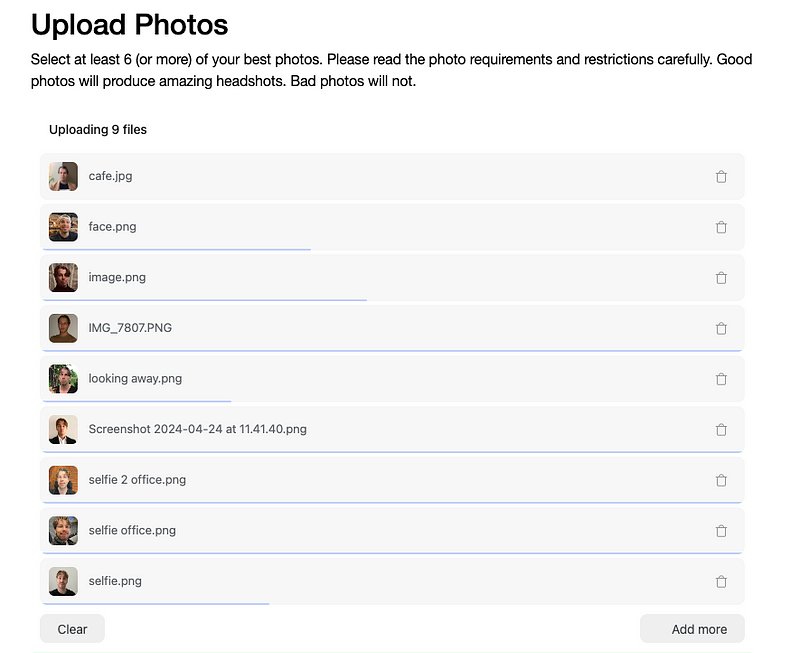
    Just drop your images in like this:

    Then wait for the AI to make your business photos.

    You’ll receive an email once the images are ready.

    Here are my AI business photos from PortraitPal:

    Here are some more:

    What a masterpiece and a handsome dude. 😉

    I’m really happy with these images. There are just a small number of flawed images where I don’t exactly look like myself.

    Perhaps the only thing I don’t like is that you can’t customize the images, for example, if you want to change the background, that’s not possible.

    Other than that, I’d definitely give it a try—especially if you are after those vintage-style older professional images.

    👉 Try PortraitPal

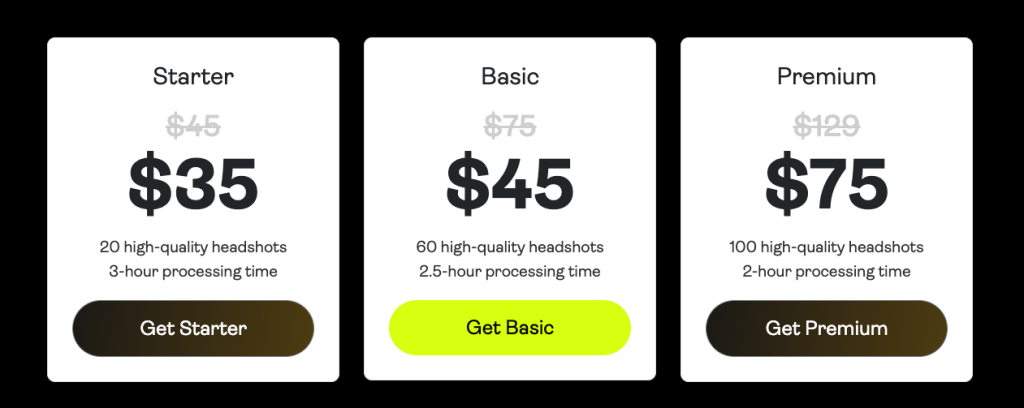
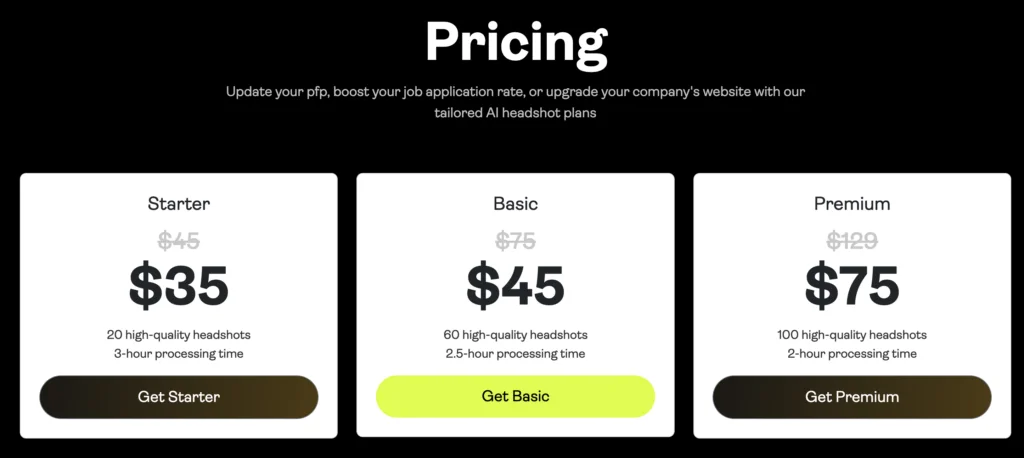
    Pricing

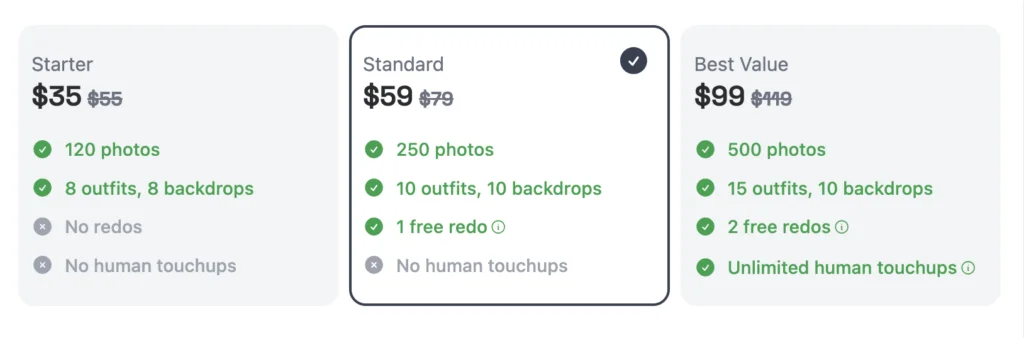
    • Starter: $35 (one-time)
    • Basic: $45 (one-time)
    • Premium: $75 (one-time)

    👉 Try Portrait Pal


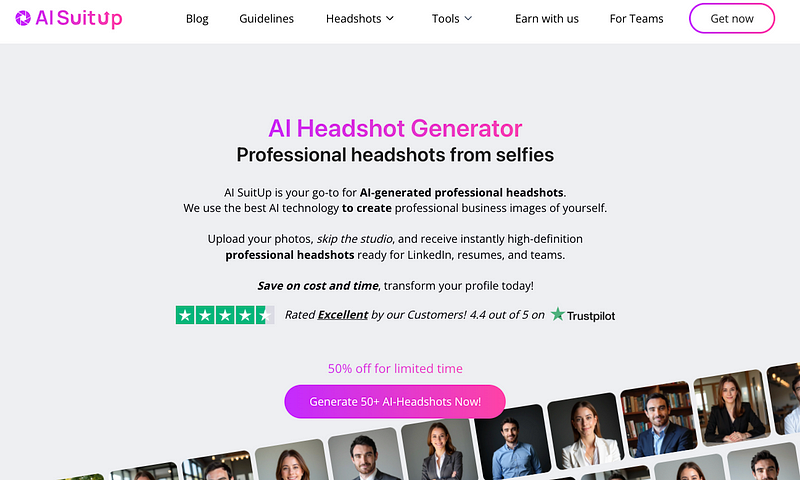
    4. AI SuitUp

    Best on-budget AI LinkedIn headshots

    AI SuitUp is one of the best AI business photo generators, and it’s available with a pricing plan under $30.

    This makes it one of the cheapest on the list.

    It’s not higher on the list because it doesn’t offer customization, but the results are often so good that it’s not needed.

    My Experience

    To create AI SuitUp professional business headshots, head over to this page.

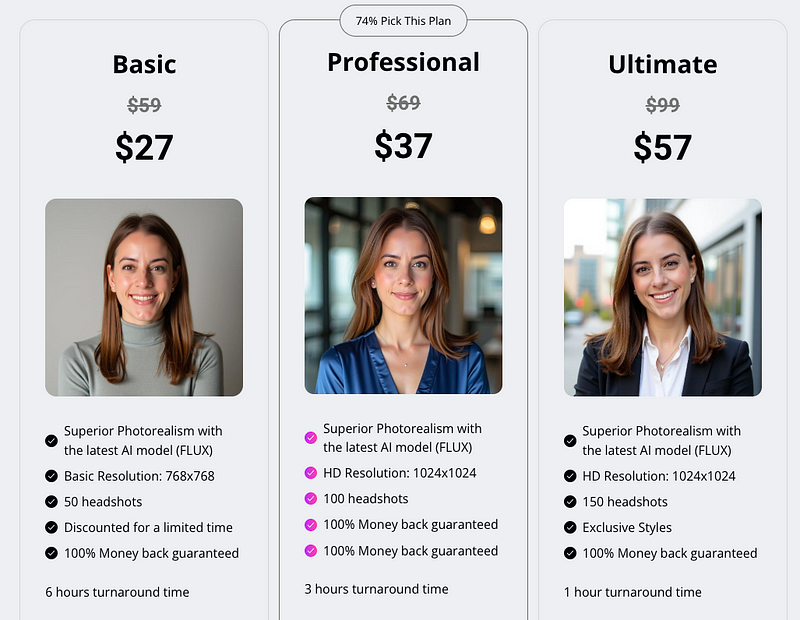
    I recommend the Professional plan, as it gives you 100 headshots. However, the Basic plan still offers great results, and the price doesn’t impact the quality.

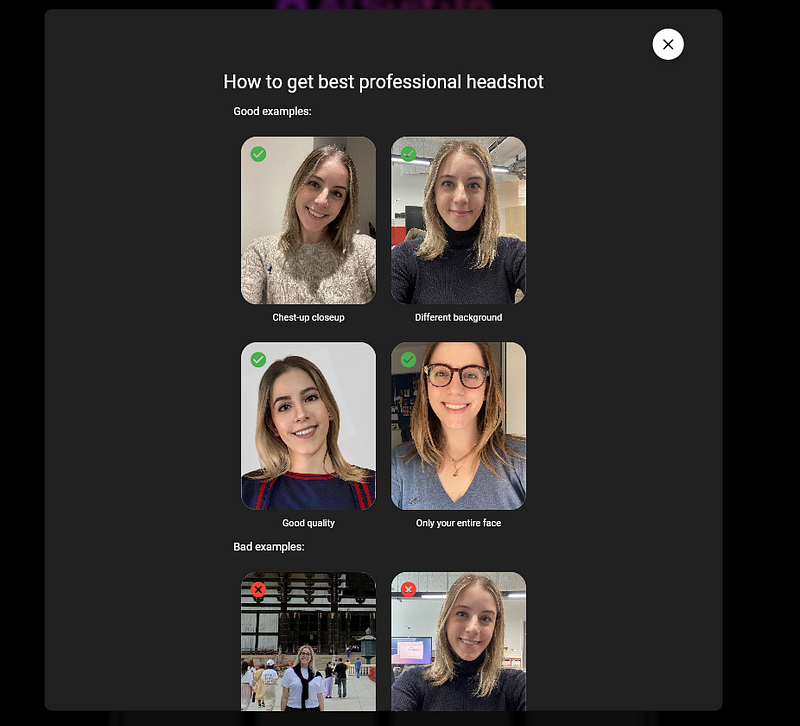
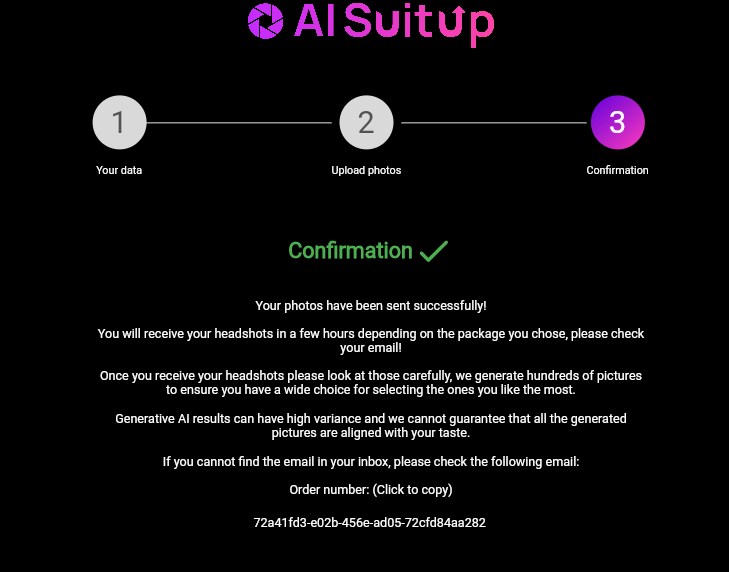
    Next, make sure to read the AI headshot instructions on what types of images you should upload.

    Next, specify your characteristics:

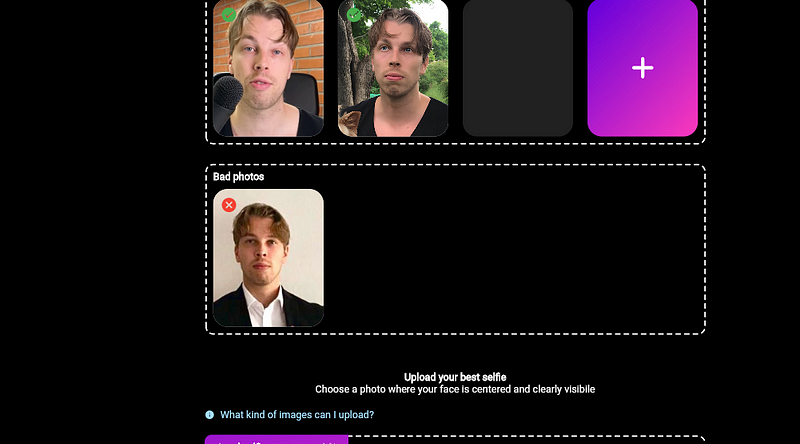
    Upload your selfies directly from your mobile device’s camera roll — no need for professional photos.

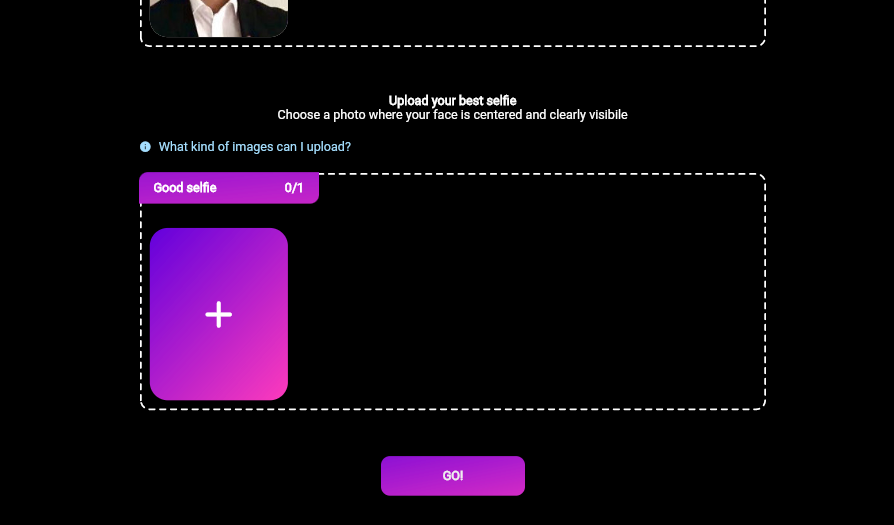
    Then choose your base image. This is the “main image” you’re most proud of that you want the AI to pay the closest attention to.

    Click “Send.”

    Then, wait about an hour or two. Once the AI generates your images, you’ll get an email notifying you that they’re ready.

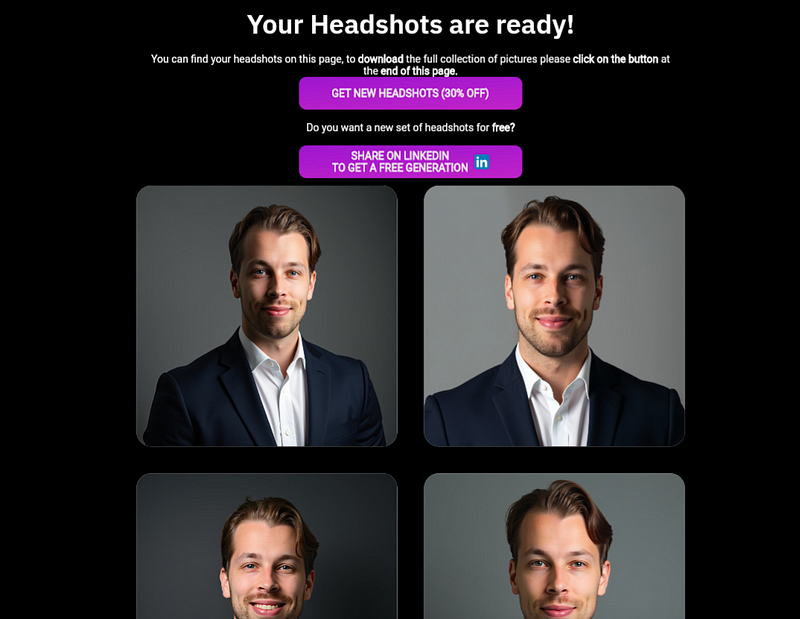
    Here are the AI business photos I got back from AI SuitUp:

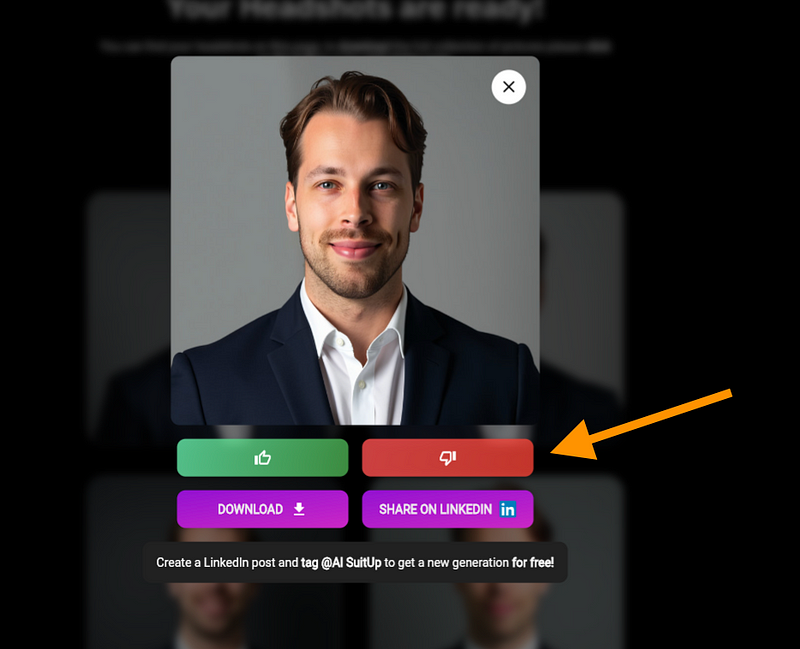
    Aren’t those cool? They look just like me! You can use the like/dislike buttons to remove any images you’re not happy with from the gallery.

    Make sure to save the email/catalog link, as you can’t sign in to AI SuitUp. This is the only way to access your images later.

    Pricing

    Basic Package

    • Price: $27 (Originally $59)

    Professional Package

    • Price: $37 (Originally $69)

    Ultimate Package

    • Price: $57 (Originally $99)

    👉 Try AI SuitUp


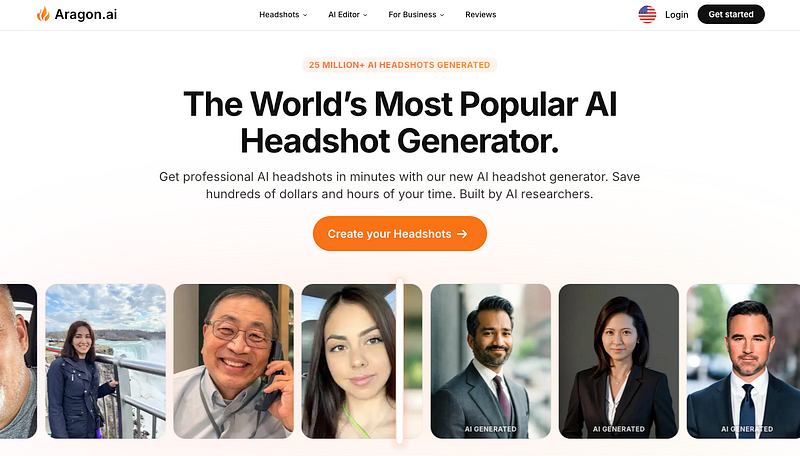
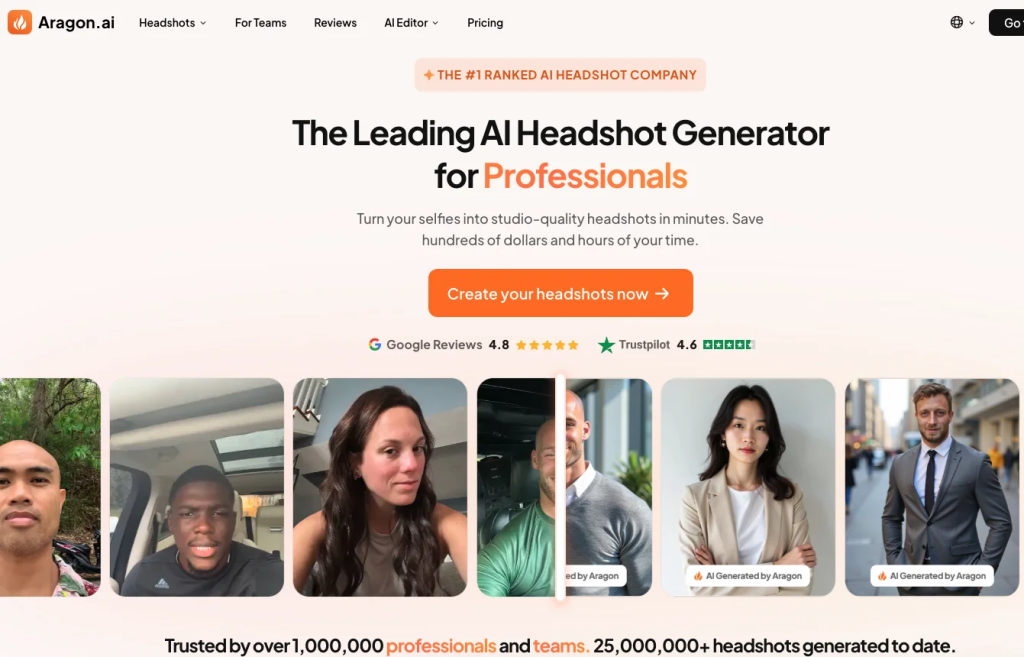
    5. Aragon AI

    Aragon is another cool AI business headshot generator that gives you quite a bit of customization options.

    Let’s see the results.

    My Results

    Let me show you what I got from Aragon.

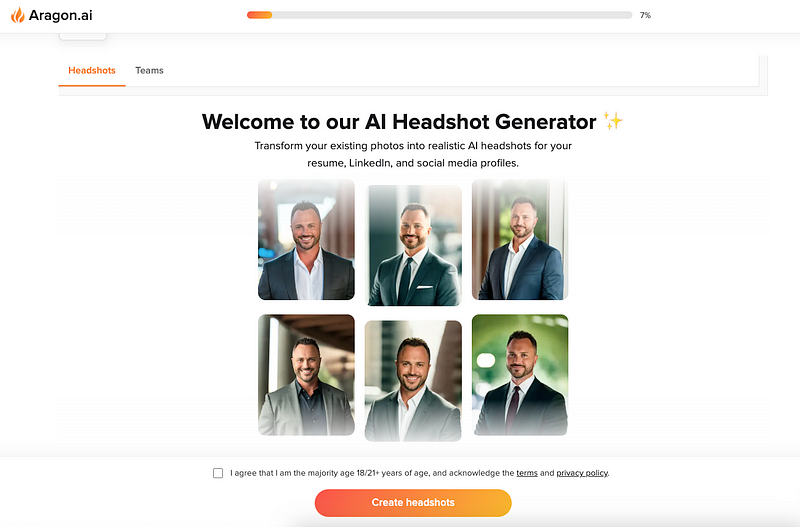
    First and foremost, creating with Aragon is easy.

    Open the Aragon AI headshot generator homepage and sign up.

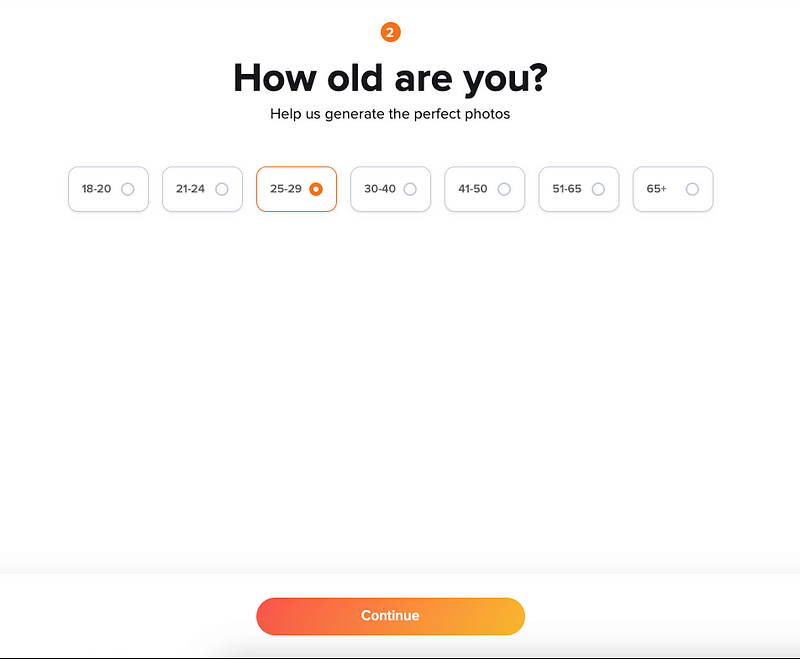
    Answer the questions about your characteristics.

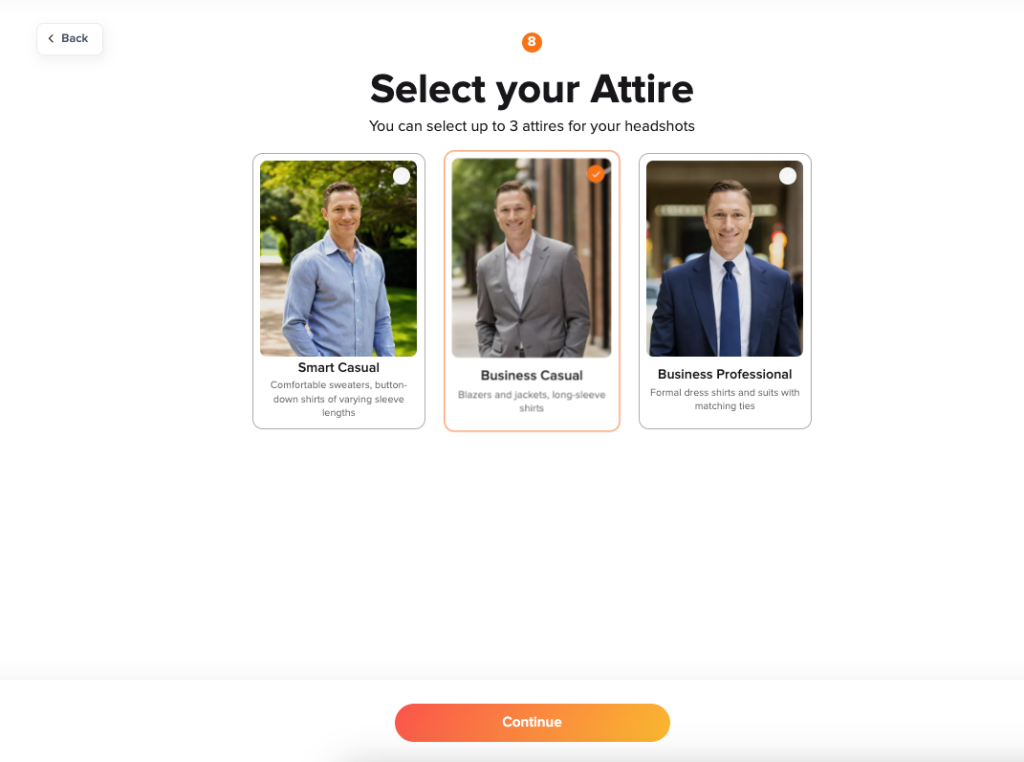
    Then choose a style:

    Then upload your photos and before that, read the instructions.

    Here are the images I used:

    Then before you send it all, double-check your details:

    Then just submit the order and wait for your AI LinkedIn headshots to generate.

    After a while, you’ll get an email about the completion of the AI images:

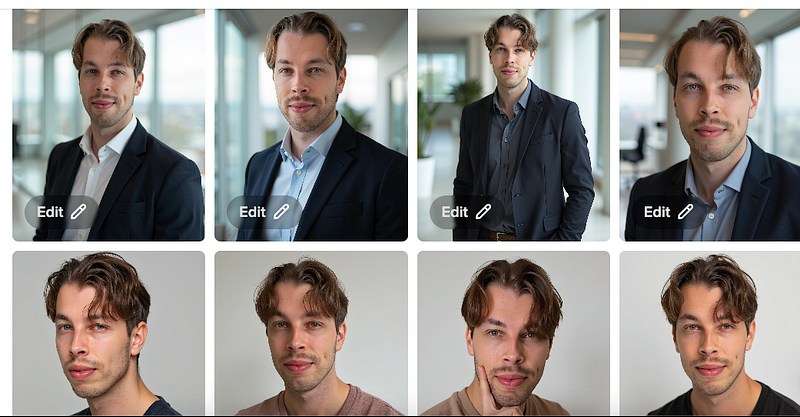
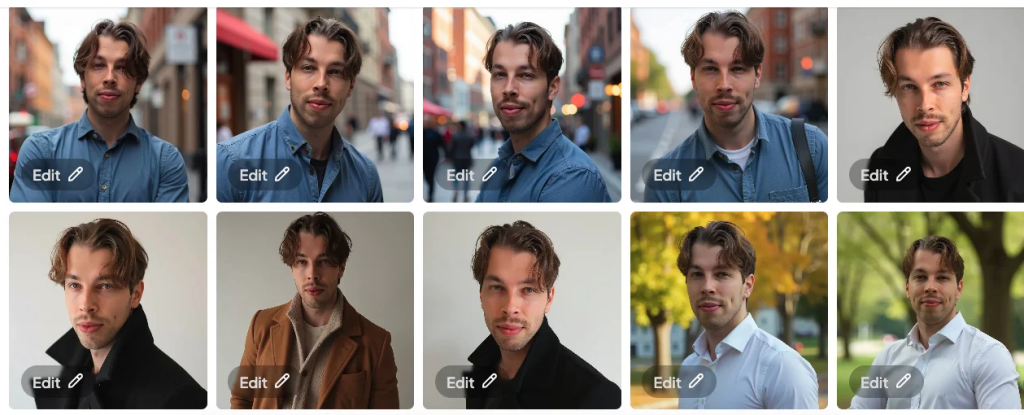
    Here are the business photos I got from it:

    Cool!

    Here are more images of me:

    That’s cool and somewhat realistic.

    But also, there are lots of flaws, to be honest. So compared to some of the other best business image generators, this one is not up there yet.

    Don’t forget you can fix the mistakes with the custom options.

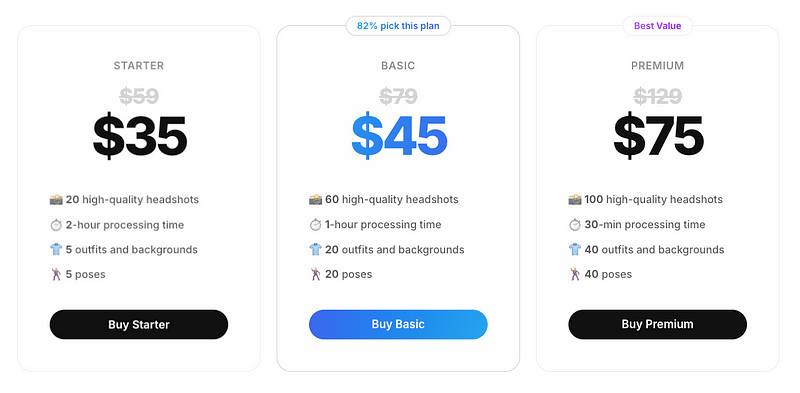
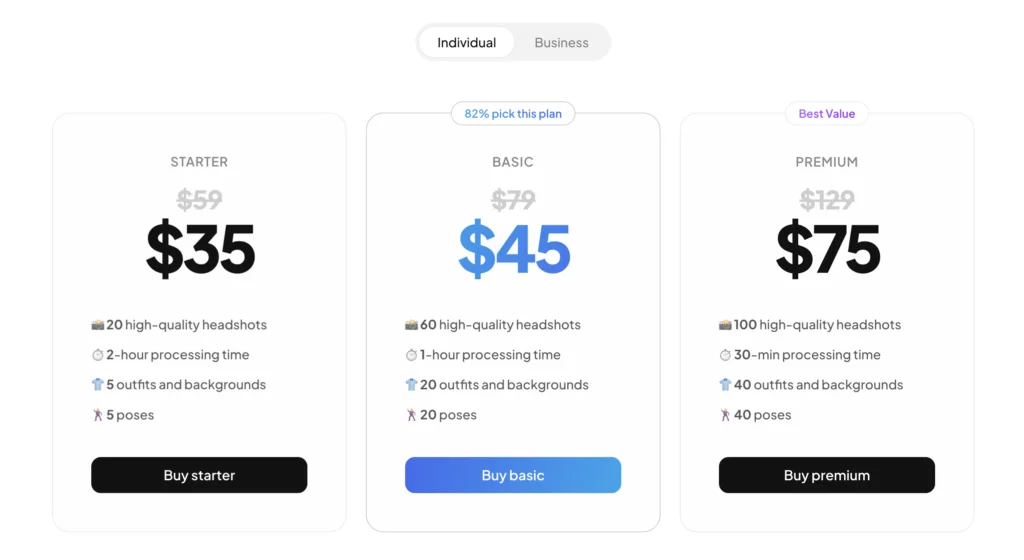
    Pricing

    • Starter: $35 for 20 headshots
    • Basic: $45 for 60 headshots
    • Premium: $75 for 100 headshots

    👉 Try Aragon AI


    6. Supawork AI (Free)

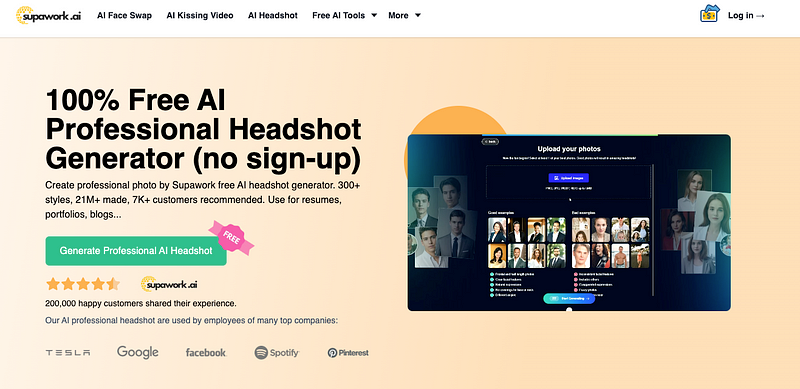
    Supawork is a free AI business photo generator that turns selfies into professional LinkedIn headshots and resume-ready photos.

    It offers various styles without requiring sign-up and prioritizes user privacy.

    Unlike the paid tools on this list, Supawork is free and only needs one image to generate four AI-enhanced headshots.

    Let’s see the results I got from it.

    My Experience

    First, choose the characteristics that best represent you.

    Upload an image of yourself.

    Wait for 3 minutes.

    Here are my business photos:

    You can view additional results by opening the options on the left-hand side.

    For example, here are some more LinkedIn headshots of me:

    You can change the backgrounds in the images using the editing options.

    That’s pretty impressive, especially for a free tool.

    But let’s be honest — it’s not a perfect match. The closer you look, the more it resembles a 3D-rendered character rather than a true replica.

    Pricing

    Free!


    7. PFPMaker

    PFPMaker is a free AI tool that helps you create professional business pictures by swapping out your image background.

    It’s faster than traditional headshot generators, as it removes and replaces the background rather than generating new images.

    But this is not a real photo generator but rather a background swapper tool.

    Let me show you what I got from it.

    My Experience

    To use this tool, just upload an image to this view:

    Then wait for 10 seconds:

    Enjoy your images:

    Here’s a closer example:

    That’s pretty cool! But obviously, it looks exactly like me because it is me—the background just changed.

    In that sense, this free business photo generator is not really a generator but rather a background changer tool.

    Noteworthy

    This tool doesn’t generate faces — it removes backgrounds using AI and replaces them with pre-made options.

    The process is quick, and you can easily try different backgrounds to see which one fits best.

    Since the backgrounds are fixed, the AI doesn’t create new ones each time. Essentially, it’s more of a background remover and changer.

    Don’t forget that you can also edit your images:

    Pricing

    Free!

  • Podia Review & Tutorial: The Best Course Platform?

    Podia is an online course platform that lets you create and sell courses and memberships.

    But it’s not only a course platform.

    Podia also comes with the tools you need to start making sales. It gives you features for building a website, marketing your site and courses, student management, and more.

    But does it work? How easy is it to use? How much can you earn?

    I’ve used Podia (and many other similar platforms) to find out.

    Let’s dive right into it.

    Try Podia for Free

    Disclaimer: This post has affiliate links at no cost to you.

    Main Features

    Before I showcase the product and share my experiences, here’s a brief recap of the main features of Podia just to give you an idea.

    • Course Creation: Tools for creating and selling courses.
    • Digital Downloads: Sell eBooks, PDFs, and more.
    • Membership Sites: Manage exclusive content access.
    • Website Builder: Customizable, no-code builder for non-technical users.
    • Email Marketing: Tools for newsletters and automation.
    • Sales Pages: Design high-converting course landing pages.
    • Webinars: Host live or recorded sessions.
    • Affiliate Program: Set up affiliate promotions to earn more.
    • Payment Processing: Integrated solutions to handle everything.
    • Analytics: Detailed sales and customer tracking.

    As you can see already from these, Podia is not just for creating and selling a course. It’s much more than that.

    Now, let me share my experience and results.

    My Experience

    Let me show you how Podia works first.

    You can follow this step-by-step guide either by reading the post or by following the actions I take.

    One thing I love about Podia is that it’s kind of an “independent” platform. This means anyone can just sign up and start creating. You don’t need to apply to become an instructor, unlike some other platforms.

    After signing in, you’ll see your main dashboard that looks something like this:

    To start building your first Podia course, choose the “Create a product” section.

    Then pick the Online course from the options.

    Next, you’ll find the course details page, where you can create lessons and add new sections to your course. How handy is that?

    Here you can give it a name. I call mine “Blogging Masterclass.”

    Make sure to come up with a good price point too.

    When it comes to creating your learning content, Podia offers you a bunch of content options to choose from.

    These include:

    • Text
    • Embedded content
    • Quiz
    • Coaching
    • Files

    For example, here’s what a quiz looks like in Podia. You can ask a question and then give a bunch of answers and set the right one.

    As another example, here’s what setting up a coaching call with your students looks like:

    Here you can link your Calendly (or another calendar tool) to let students book a slot with you automatically. This way you don’t need to do the back-and-forth emails.

    The course text editor is also quite good.

    It gives you tools for basic formatting. This way your text chapters or lessons won’t just be dull walls of text.

    You can further organize your content with basic features like lists, bold, italics, and more.

    Once you’ve added the course content, it’s time to edit the landing page. It’s crucial because this is the page every potential student sees. It’s the one that can be in a make-or-break role in your course sales.

    To create a landing page, click on the “Edit page” button.

    After this, you can choose your layout.

    For example, Podia asks you to choose a color scheme that meets your eye.

    After these steps, here’s what my landing page’s initial draft looks like:

    Nothing too epic, but it has the key elements in place.

    Creating a page like this from scratch or without templates would be time-consuming. You can quickly customize it by changing colors, fonts, buttons, links, and media.

    Once you’re ready, click “View product” to see your course.

    This gives you a student’s view of the course — a very handy feature.

    Once you’ve published your course, you can share a link to it:

    That’s the course creation process on Podia — simple with all the essentials but limited in customization compared to platforms like LearnWorlds.

    However, creating a course is just the start; selling it is key, and this is where Podia excels.

    You can set up email campaigns to engage your leads and potential students.

    Create a campaign by clicking “Start campaign.”

    Next, enter the name and choose the conditions for sending it to your subscribers.

    You have several email templates to choose from, but a simple text template is often the best option today. It’s straightforward, relatable, and highly effective — no need for flashy colors or elaborate formatting anymore.

    Here I’m adding titles and preview texts to my emails:

    Email marketing success could use its tutorial, but let’s keep it brief.

    Once your course, landing page, and emails are set up, you can start tracking your analytics to see metrics like email sends, open rates, and more.

    You can encourage students to buy sooner by offering limited-time coupons, like 50% off for Jan 2025.

    I haven’t created any coupons yet, but you just need to set a coupon name, discount amount, expiration date, and an optional usage limit.

    Finally, you can build a community around your learning content, which is quite common nowadays. You can set up topic pages and membership sites on Podia easily.

    Once your customer base grows, you can try affiliate marketing.

    This allows your students to review your products and earn a commission automatically whenever they generate a sale through their affiliate link.

    This is great and, once again, not something every platform offers. Depending on your niche, an affiliate program can give your sales a serious boost.

    With all this being said, I’d say Podia is a great platform with many great features for creating and selling a course to a warmed-up community of students.

    Why Podia, Though?

    But at this point, you might wonder what sets Podia apart.

    The difference is quite straightforward:

    For instance, unlike Udemy, which is a marketplace, Podia gives you full control over your branding and customer relationships.

    On the other hand, compared to platforms like Thinkific, Podia is more of an all-in-one solution with built-in email marketing, whereas Thinkific requires a third-party email service.

    But there’s plenty of overlap too! Podia indeed shares a lot of similar features with platforms like UdemyLearnWorlds, and Teachable.

    Pros

    • All-in-One Platform: Podia offers everything you need for course creation, digital downloads, memberships, and email marketing.
    • User-Friendly: The platform is easy to use. Just sign up, start creating courses and landing pages, and start selling. While building and warming up an audience takes time, Podia minimizes the technical hurdles.
    • No Transaction Fees: Unlike some competitors, Podia doesn’t charge transaction fees on any plan.
    • Customer Support: Podia has a responsive and highly-rated customer support team ready to help with any platform-related questions.

    Cons

    • Limited Customization: There are fewer design customization options compared to some other platforms, and the content options are quite basic.
    • Too Basic Reporting: The analytics and reporting features are not as advanced as some might prefer, but this isn’t a big issue for beginners.
    • Limited Community Features: The community tools are less robust than those on other platforms; using Slack or another third-party service might be a better option.
    • Fewer Integrations: Podia offers fewer third-party integrations compared to some competitors.

    Podia Alternatives

    Before wrapping up, let me show you a bunch of good Podia alternatives for different use cases.

    These might be better options based on your specific needs.

    1. LearnWorlds

    LearnWorlds is the most complete course platform out there.

    If you’re looking for more customization and features, LearnWorlds is a better option than Podia.

    For example, it lets you customize your websites and landing pages to a much greater detail than Podia.

    Also, it has more features overall.

    But a lot of features are not automatically a good thing.

    If you use LearnWorlds as a beginner who just needs to host a course, you’d end up paying for features you don’t need.

    But if you have a team or if you think you need more customization and community features, LearnWorlds might be exactly what you need.

    Try Learnworlds

    2. Udemy

    Udemy is great if you want to teach but don’t want to do marketing.

    Udemy does marketing behind the scenes. They run sales and ads, and they have a reputable brand.

    The drawback is that they take a big cut from your courses and limit your pricing. Most of the time, the courses are at an 85% discount. After Udemy takes its cut from that, you might be left with just a couple of bucks from a $100 course.

    But this is good because it’s much easier to start. If you use platforms like Podia or LearnWorlds, you need to build a reputation and audience. This takes years of hard work. In this sense, a course marketplace like Udemy can be a lot easier and a lot more stress-free option.

    Try Udemy

    3. Khan Academy

    If you think education should be free, use Khan Academy. Especially if your audience is K—12.

    Khan Academy lets you build free and non-profit courses from their expert-created materials. This is not only affordable but also quick. Instead of having to record your classes and materials, just combine existing results.

    Also, you can act as a teacher on the platform. Once you’ve created a course, you can invite your students to take the classes. You can also create quizzes and assignments and track their progress with the built-in Khan Academy features.

    If you want to teach K—12 subjects like maths, physics, or coding as a school teacher, Khan Academy can be a great place to start.

    Try Khan Academy

    Pricing

    • Free Plan: $0/month
    • Starter Plan: $4/month
    • Mover Plan: $33/month
    • Shaker Plan: $59/month (first year pricing, then $75/month)

    Try Podia for Free

    To Take Home

    I really like Podia.

    While it might not be my top choice right now, it’s excellent for course creation.

    It’s more than just a tool for building courses and setting prices; it also offers marketing and community features.

    Podia lets you maintain full control over your branding and customer relationships, unlike platforms like Skillshare or Udemy.

    Try Podia for Free

  • 8 Best AI Video Upscalers of 2024 (I’ve tested them all)

    Did you know you can use AI to enhance your videos?

    I’ve tested the best AI video enhancer/upscaler tools on the market so you don’t have to.

    In this post, I will show you the best AI video enhancer tools and what kinds of results you can expect from those.

    Let’s dive right into it!


    Disclaimer: This post has affiliate links at no cost to you. Thanks for the support!


    1. VideoProc AI

    👉 Try VideoProc AI for free

    VideoProc Converter AI is my favorite AI video upscaler tool.

    It allows you to drag and drop a video to the view and then improve its quality in just minutes.

    This is hands down the best tool for upscaling videos online!

    But is it just hype? Let me actually show you around and how it works.

    Key Features

    • AI Super Resolution: Upscales videos to 4K or 8K, enhancing detail and texture without adding artifacts.
    • AI Frame Interpolation: Creates smoother videos by increasing the frame rate, perfect for slow-motion or fluid footage.
    • AI Video Stabilization: Reduces camera shake and motion distortion, ideal for handheld videos.
    • Extensive Format Support: Handles over 370 input formats and 420 output formats, making it incredibly versatile.
    • Full GPU Acceleration: Speeds up video processing and encoding with Level-3 GPU acceleration.

    My Experience

    VideoProc is simply fantastic, taking video upscaling to the next level. Let me show you how it performs in my hands.

    To get started, first, you’ll need to download it to access the tool, and there’s a free trial available to get you started.

    After you’ve set it up, you can start improving your videos with it.

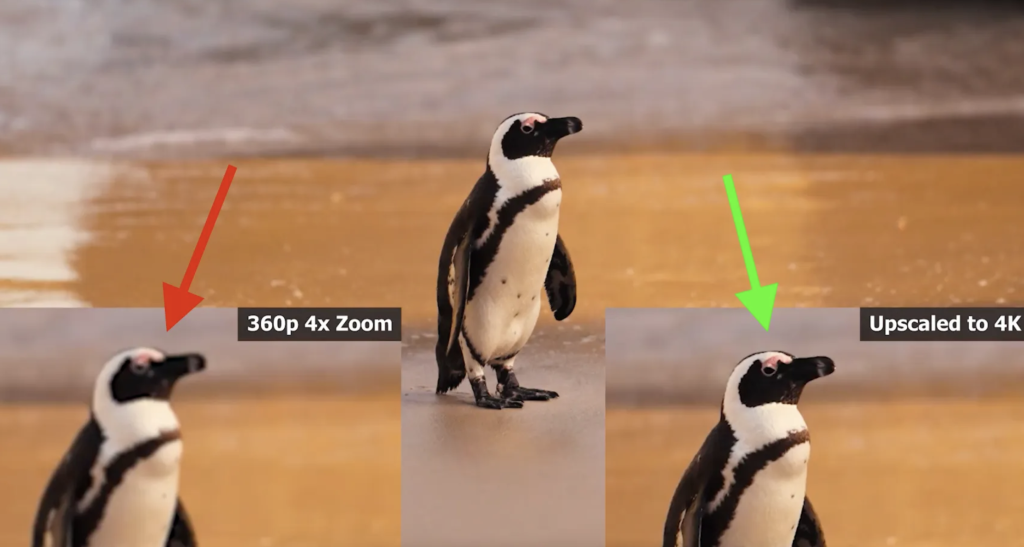
    For example, here’s a screenshot of a video I upscaled with this product.

    As you can see on the left-hand side, the video quality of that poor penguin is lost. This is because the original video is simply not sharp and detailed enough.

    However, once I used the VideoProc AI, the quality of the zoomed animal improved by quite a bit.

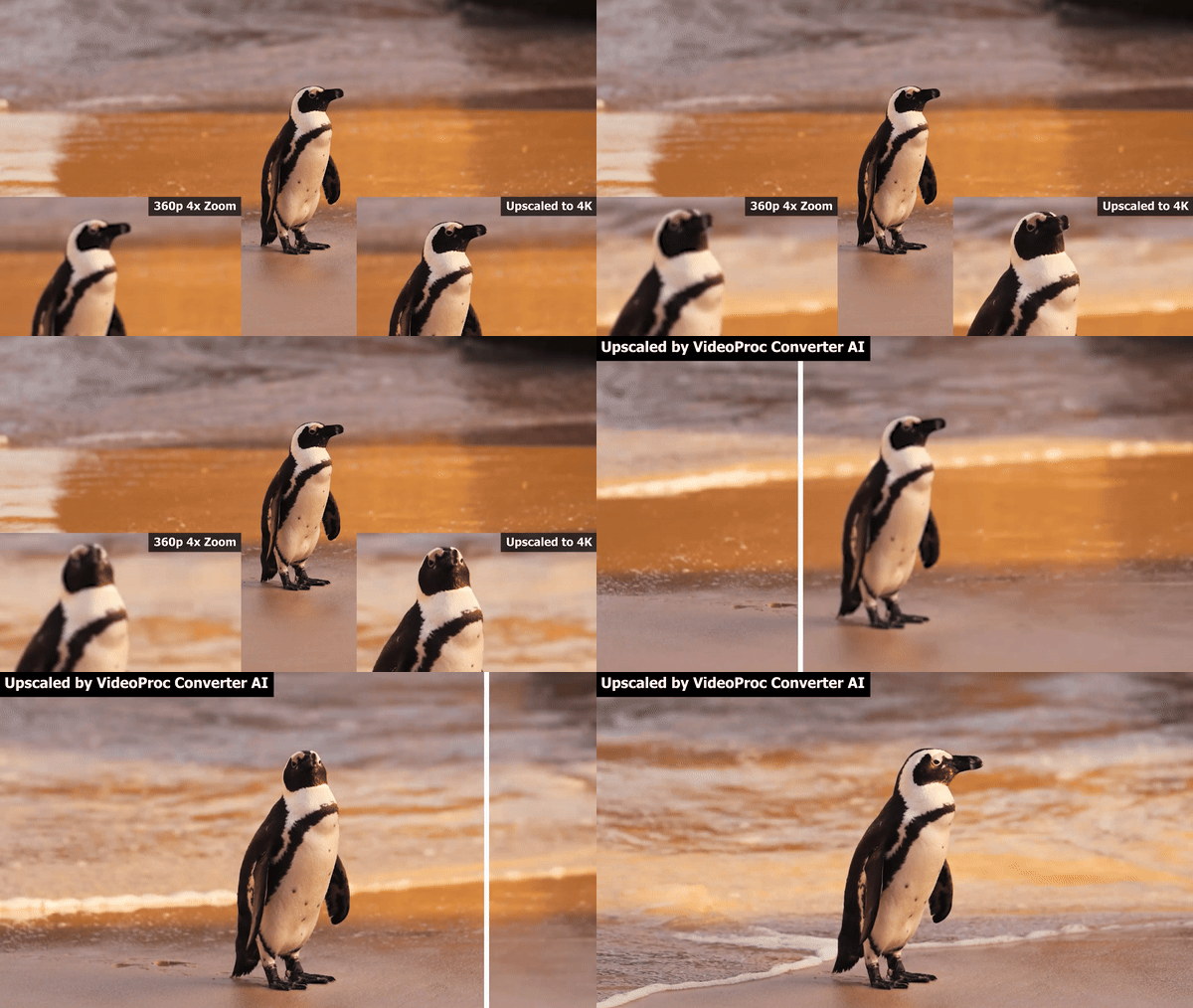
    I can actually add a GIF for you to see the upscaling in action:

    But please keep in mind this is just a gif. It doesn’t do full justice because the GIF lags annoyingly. The point is to show you how good the video quality is now.

    Oh, and here’s something epic.

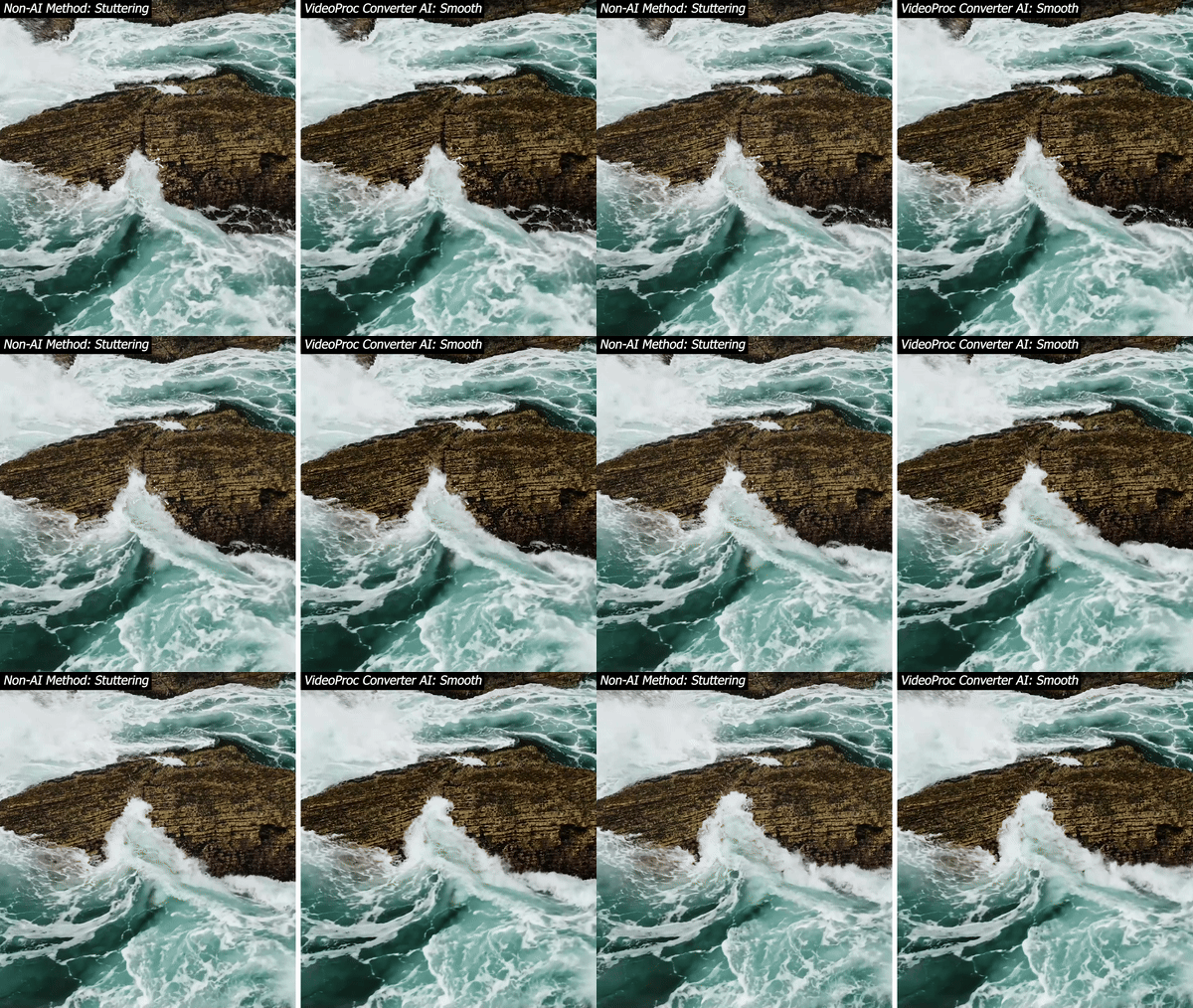
    You can not only upscale your videos but also improve frame rates with the “fill in” feature. This interpolates what it predicts to happen between the frames and fills in your video to make it smooth.

    This sounds like a math lecture so let me show you an example of what I mean:

    In the above comparison, the left-hand side video has a low framerate. This is a slow motion of a wave hitting the rock and this is typically what happens—especially with older footage.

    But these days you can use AI to fix that. The right-most video is a lot smoother take, huh? Because the AI cannot go back in time to see what happened between the frames, it’s not perfect.

    But it’s close.

    It fills in the “missing frames” based on the “averages” between the two frames.

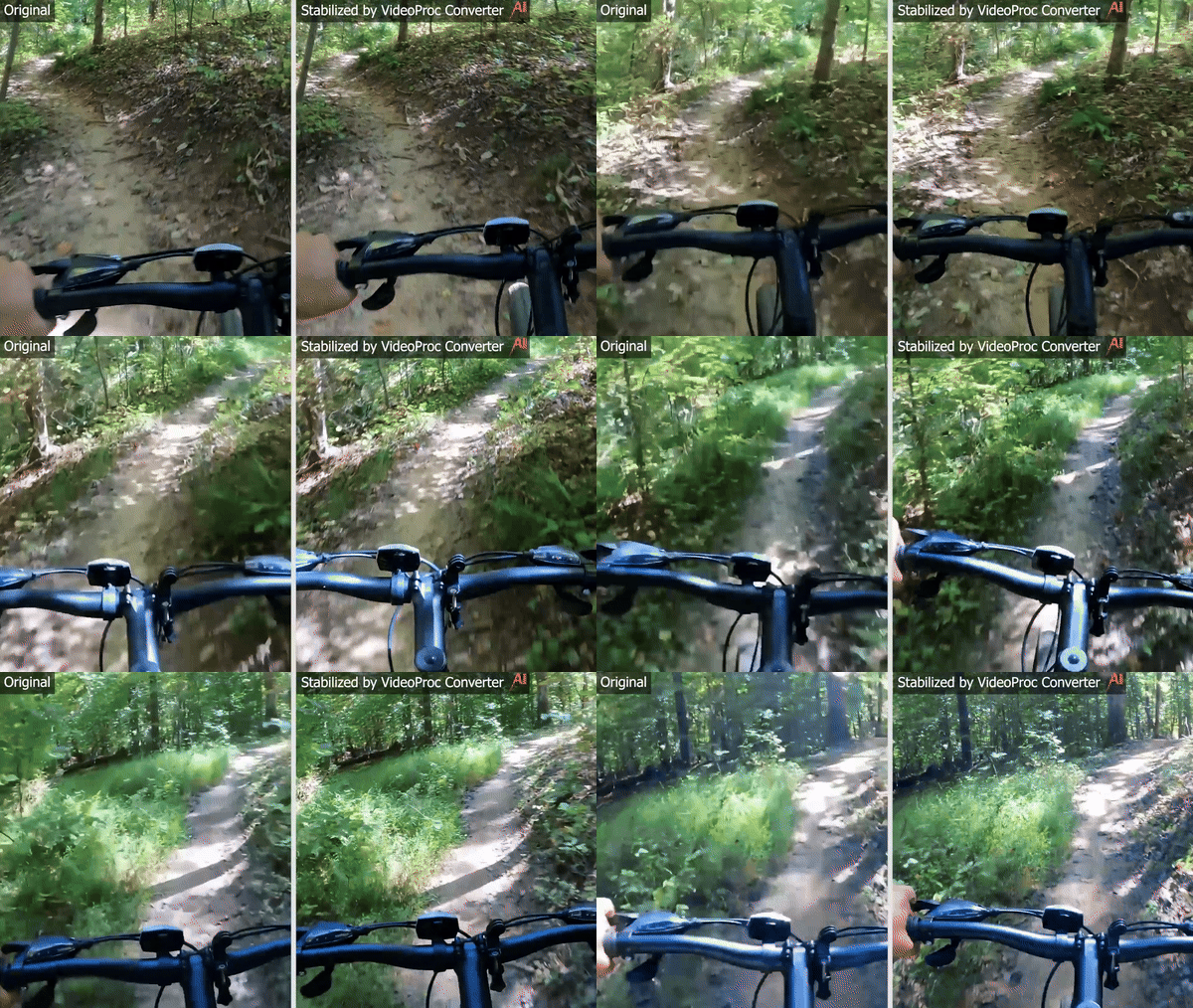
    Then one more cool feature I must bring up is the stabilizer feature. If you have shaky footage, you can use VideoProc AI to stabilize your videos.

    For example:

    Just a heads-up, the GIF format doesn’t quite capture the full effect. The real video looks even more impressive.

    Still, this highlights VideoProc’s capabilities perfectly. If you’re serious about enhancing videos, you’ve got to try it. The best part? There’s a free trial that’s incredibly easy to activate and use.

    Pros

    • High-Quality Upscaling: AI-driven upscaling creates sharp, detailed videos and outperforms all the online upscalers I’ve tested.
    • Ease of Use: User-friendly interface, perfect for beginners—just a few clicks to upscale your videos.
    • Versatility: Ideal for hobbyists, vloggers, and professionals, offering tools for stabilization, interpolation, and upscaling to enhance video quality.
    • Comprehensive Editing Tools: Includes options for cutting, merging, cropping, and adding effects.

    Cons

    • Limited AI Features on Mac: Currently, AI features are only available on Windows, with Mac support still in the works.
    • Cost: While a free trial is available, the full version comes with a price, which may be a concern for those on a budget.

    Pricing

    • Premium 365: $25.95/year for 3 Macs, with full GPU acceleration, optimized for 4K/HDR, 47x faster processing, and AI features coming soon. Includes a 30-day money-back guarantee.
    • Lifetime License: $45.95 for 1 Mac, offering lifetime access, latest GPU compatibility, high-quality conversion, and future AI features, along with a 30-day money-back guarantee.
    • Family License: $57.95 for up to 5 Macs, including everything from the Lifetime License, ideal for families or small teams, with lifetime access and a 30-day money-back guarantee.

    For detailed pricing for both Windows and Mac, visit the pricing page.

    To Summarize

    I love VideoProc Converter.

    This AI tool enhances your video quality in seconds with the power of AI.

    Simply upload your video and let it work its magic.

    Though it’s a cost-effective option, it’s currently limited to Windows users (as of now). If you’re using a different OS, stay tuned for more options!

    👉 Try VideoProc AI for free


    2. AVCLabs AI Upscaler

    👉 Try AVCLabs Free

    AVCLabs Video Enhancer AI is another epic software that uses AI to enhance video quality.

    It comes with AI-driven features that improve video quality, smoothness, color, and focus.

    But is it just hype? Let’s see how it performs in my hands.

    Features

    • AI Super-Resolution Algorithm: Upscale videos from SD to HD, HD to 4K, and 4K to 8K, significantly enhancing quality.
    • Frame-by-Frame Editing: This tool allows you to edit and trim videos.
    • Face Refinement: Use AVC to sharpen blurred faces and enhance facial details.
    • Natural Output: Creates enhanced videos with a natural look. This tool also avoids over-saturation and excessive brightness common in other upscalers.
    • User-Friendly Interface: No technical background is needed. Just install the software and start upscaling your videos.

    My Experience

    Let me show you how I use AVCLabs and what kinds of results you can expect.

    First, you install the software if you want to use it. If you trust my word, then just read along as I will show you realistic results and use cases.

    Download the app for Windows or Mac to try it for free.

    While the website suggests purchasing, you can test it for free. (This just adds watermarks to videos.)

    I recommend giving it a shot to see what it can do before buying. If prompted to purchase, just click “X” to close the window.

    Once you’ve done this, you can start using the tool. Just drag and drop a video into the view and start processing it.

    For example, here’s a side-by-side comparison of the above video and the upscaled one (I’m using screenshots here, though.)

    I think the AI-processed video looks great. While it’s not perfect, it’s a noticeable improvement over what other tools produce.

    Let’s zoom in to take a closer look at some details:

    In this example, the difference is clearer (although it’s a bit hard to see from these blurred screenshots…)

    The image on the right is a bit blurry but much smoother than the original on the left.

    I’d say this is impressive, although not quite as good as with the first tool. Also, I expected a bit more based on the homepage images—but it’s cool nonetheless.

    Also, you’ve got to keep in mind that the images I’ve used here don’t do justice because screenshots are always blurry.

    Pros

    • Delivers high-quality video upscaling to 4K/8K.
    • User-friendly interface, perfect for beginners.
    • Automated process with minimal manual effort.
    • Precise enhancement through frame-by-frame analysis.
    • Offers a trial version to test the features.

    Cons

    • Requires a high-end graphics card with at least 4GB GPU memory.
    • The free trial version adds watermarks to videos.
    • Can be demanding on computer hardware, requiring robust specifications.

    Pricing

    • AI video enhancer: $39.95/month

    To Take Home

    While most AI tools are web-based, AVCLabs offers a powerful downloadable AI video upscaler.

    Its versatile features make it is the best available software.

    Despite the high system requirements, the flexible pricing and user-friendly interface make it a great option for both pros and casual users.

    Give it a try—it’s free!

    👉 Try AVCLabs Free


    3. Tensorpix AI

    👉 Try free here

    TensorPix AI is a powerful online tool that uses advanced AI to enhance and upscale videos and images.

    You can use it to remove artifacts, restore old films, resize videos, and more.

    What usually takes film professionals days, this tool handles in just a minute or two.

    But before I call you to action to test it and spend time with it, let me show you what it’s capable of.

    Features

    • AI Filters: TensorPix lets you choose AI filters to boost video quality.
    • Ease of Use: The platform is user-friendly, allowing you to upload and enhance videos from any device in just a few steps.
    • File Storage: With specific plans, your enhanced files are stored indefinitely.
    • Free Previews: Provides free previews of enhancements, with length and resolution depending on your subscription plan.

    My Experience

    The user experience is straightforward to navigate. Just sign up and start using the tool.

    Then you can activate your video enhancer by clicking the icon as follows:

    If (and probably as) you’re on a free trial, you’ll notice that you only have 1.00 credits. That sounds like a small amount because it gives you the impression that it’s exactly 1. But in fact, you can use this amount to upscale quite a bit of video.

    Just drag and drop a video into the view to start:

    Remember to tweak the “AI Upscale” slider so that it knows to improve the video quality.

    Then click “Enhance” and wait.

    I had to wait 5 minutes and my clip was just 5 seconds. I’m not sure if it’s the free plan but this suggests that longer videos might take hours or even an entire day to process.

    Be prepared to wait!

    But you can close your window at this point. Once the video processing is completed, you will receive an email that lets you know the process has been completed! That’s actually convenient—you don’t have to wait there or come back to check if it’s done already.

    Let me show you my results with the first upscaling attempt:

    It seems nothing really changed, huh?

    Even though this is just a screenshot you’re seeing right here, I can confirm that it looks similar to my eyes when I watch the whole clip.

    That’s a bummer…

    But then I realized that “Upscale” might not be the best option for this particular video. So, I tried a different approach, using the “Film Clean v2” and “Color Restore” features instead.

    After a while, here’s the result:

    In the screenshot above, it’s not too impressive, but the video itself looked much smoother in real life.

    The tool removed some random noise artifacts, making the old, grainy video look better. It didn’t do it as much as I wished but this is already a lot better.

    It’s for sure worth trying—especially because there’s a free trial.

    Also, you’ve got to remember that these tools work differently on different types of videos. If my results aren’t pleasing, that doesn’t mean your video would perform the same. So make sure to give it a shot.

    Pros

    • Web-Based: No installation required; easily accessible from any web browser.
    • Simplicity: User-friendly process suitable for all skill levels.
    • Flexibility: Offers both subscription plans and a pay-as-you-go option.
    • Rollover Credits: Subscription credits roll over each month and remain valid for 12 months.

    Cons

    • Limited Free Plan: Basic features with significant limitations in the free version.
    • Upscaling Limitations: While effective, there’s still room for improvement in video quality.

    Pricing

    • Pay As You Go: $0/month – Free credits on signup, up to 1080p resolution, 1 video at a time, 2 AI filters max.
    • Standard Plan: $12/month – 30 credits/month, up to 2K resolution, 3 videos at a time, 3 AI filters max.
    • Premium Plan: $27/month – 70 credits/month, up to 4K resolution, 5 videos at a time, 4 AI filters max.
    • Elite Plan: $66/month – 200 credits/month, up to 4K resolution, 10 videos at a time, 6 AI filters max.
    • Enterprise Plan: Custom pricing – Tailored credits, resolution, and features based on needs.

    To Take Home

    TensorPix AI offers a simple and effective web-based platform for enhancing videos and images.

    It’s an impressive tool, especially since you can try it for free.

    Beyond just upscaling, it also includes additional enhancement features worth exploring.

    👉 Try free here


    4. CapCut AI Enhancer

    👉 Try CapCut enhancer for free

    CapCut’s free AI video upscaler is an online tool designed to enhance video quality by upscaling to 4K resolution.

    This feature is part of CapCut’s extensive video editing suite, known for its user-friendly interface and AI-driven functionality.

    Let’s take a closer look at how it performs.

    By the way, don’t get me wrong. CapCut is a complete video editing package and this AI enhancer is just one of the hundreds of features. But I’ll assess it as a separate tool for this post.

    Features

    • 4K Upscaling: CapCut uses AI to upscale videos to 4K resolution, enhancing each frame with added detail and clarity.
    • Deblurring and Detail Enhancement: It reduces blur and restores original details, significantly improving video quality.
    • Versatile Video Processing: CapCut handles various video formats and resolutions, making it adaptable for different projects.
    • User-Friendly Interface: The tool provides a simple, step-by-step process for upscaling videos.
    • Complete Video Editor: Outside of just upscaling, this tool provides a huge library of video editing tools and features.

    My Experience

    What I love most about this tool is that it’s free and you can use it even without signing up (just click the “X” to skip creating an account.)

    So this one doesn’t care if you’re on a Mac or Windows. Also, you don’t need to install anything.

    Next, just drag and drop a video into the view. I’ve done this for the same clip I’ve used before for the other upscaler tools.

    The upscaling process takes a bit of time, but in my case, the same 5-second clip was processed much faster than with Tensorpix.

    Here’s a screenshot of the result:

    The upscaled version looks almost identical at first glance.

    But the closer you look at it on a bigger screen, you can see that it has more pixels and appears smoother (which is hard to capture in this small screenshot).

    I’m happy with these results—especially considering it’s a free feature you can use online.

    Just remember that this is only one of the features of CapCut. Make sure to try the video-editing features as well!

    Pros

    • Quality Enhancement: CapCut is great at improving video resolution. Experiment with different videos to see the best results!
    • Ease of Use: The intuitive interface makes it easy for users of all experience levels to navigate.
    • Additional Editing Tools: Beyond upscaling, CapCut offers a multi-track video editor with effects, filters, text, and more.
    • Free Access: Available online at no cost, making it accessible to users.

    Cons

    • Limited Advanced Features: While it’s excellent for basic editing, CapCut lacks the advanced features in professional-grade video enhancement tools.
    • Lots of Features: If you’re just looking to upscale a video, it makes no sense to buy a full suite of video editing tools.

    Pricing

    • Free

    CapCut is entirely free when it comes to upscaling videos. (Also, the video editor is partly free and some consider it the best free video editor online.)

    To Take Home

    CapCut’s free AI video upscaler is impressive, especially because it’s free.

    It’s a great choice if you’re looking to boost video quality, particularly when upscaling to 4K.

    This tool is perfect for content creators and hobbyists who need a quick solution for enhancing video resolution.

    Plus, even without the AI features, CapCut is a fantastic video editor, so if you’re looking to elevate your edits, definitely give it a try!

    👉 Try CapCut enhancer for free


    5. Vmake AI Upscaler

    👉 Try Vmake for free

    Vmake AI Video Enhancer is another online tool for boosting the quality of videos (and images.)

    This one is also something you can use just by heading to their website instead of having to download software.

    But let’s take a closer look at how it works and performs in my experience.

    Features

    • AI Video Enhancer: Boosts video quality, delivering clear, high-definition footage.
    • Video Background Remover: Easily removes unwanted backgrounds from videos.
    • Video Object Eraser: Seamlessly erases unwanted objects from your videos.
    • Video Stabilizer: Eliminates shaky footage, ensuring smooth and stable videos.
    • Video Ad Generator: Simplifies the creation of engaging video ads.
    • AI Image Editor: Offers tools like AI Fashion Model, Image Background Changer, and Image Quality Enhancer.
    • Image Uncrop and Object Remover: Restores missing details in images and removes unwanted elements.

    My Experience

    Let me show you my results with Vmake AI video upscaler.

    To start, just head over to their website and drop a video into the view.

    I’ve done this with the same clip you saw earlier:

    This was one of the quickest upscalers I’ve tried, processing my 5-second video in just 20–30 seconds.

    The only drawback was that I couldn’t download the video without signing up.

    After signing up, I could access my upscaled video. Here are the results:

    I have to admit, on this small screen, the AI processing does make the video look better.

    But to be honest, when you zoom in, the quality really falls short.

    Let’s take a closer look to demonstrate this—here’s a screenshot of the video after AI processing:

    To compare this, here’s a screenshot of the original video before the AI:

    To be brutally honest, it’s tough to say which version is better.

    The AI-processed video looks smoother, but also blurrier and less detailed, which is odd. It should have more detail if the upscaling worked properly.

    Of course, this is just one type of video I’m testing. AI upscalers can work wonders with some videos and fall short with others.

    Pros

    • Ease of Use: Vmake’s user-friendly interface makes it accessible to users of all experience levels.
    • High-Quality Results: Advanced AI algorithms deliver top-notch image and video enhancements.
    • Versatile Applications: Ideal for various industries, including eCommerce and social media marketing.
    • Cost-Effective: Pay only for the tools you use. This makes it a budget-friendly choice.

    Cons

    • Limited Pricing Information: The website doesn’t clearly outline the pricing structure for Vmake’s tools.
    • Sign-Up Requirement: You must sign up or log in to access Vmake’s tools.

    Pricing

    • Hobby (Free): 5 free credits, unlimited SD image/video processing and downloads.
    • Pro (Subscription): $0.25/credit; plans start at $4.99/month, including HD downloads, and monthly credits with rollover.
    • Flexible (Pay As You Go): $0.80/credit; no monthly commitment, credits valid for 2 years, includes HD downloads.

    To Take Home

    Vmake is a great free tool for video upscaling. I think it delivers ok quality improvements. However, there are better alternatives available.

    Although I think you’ll find better options above, your mileage may vary based on your video content and quality.

    👉 Try Vmake for free


    7. Media.io AI Video Upscaler

    👉 Try Media.io Upscaler

    Media.io AI Video Enhancer is a multimedia file enhancer with a video upscaler feature.

    It’s one of the last items on our list today but this doesn’t mean it wouldn’t be worth a shot.

    Let’s see how it performs in my hands.

    Features

    • Video Upscaler: Improves video quality and removes artifacts and noise.
    • Video Compressor: Easily compresses video files in any format.
    • Image Compressor: Efficiently compresses PNG/JPEG/JPG images.
    • GIF Maker: Allows the creation of GIFs from pictures or videos.

    My Experience

    To use Media.io upscaler, open up their website and drag and drop it into the view.

    You can find the “Process” button below the video at the bottom of the screen. Make sure to select the “Upscaler” feature first, though.

    At this point, the service asks you to sign up.

    Then I paid attention to the fact that the 4x upscaling is a paid feature.

    I don’t want to pay for it first so let’s see if the 2x version does anything. This feature took about 2 minutes to upscale a 5-second video so it might take time on longer ones!

    Here are my results with the 2x upscaler:

    Judging by the screenshots, it’s very hard to tell the difference.

    But here’s the thing. Not all video upscalers are meant to improve the sharpness or remove noise. In fact, most upscalers won’t do anything to the video quality if you look at it on a smaller screen. The effect kicks in once you 4x the screen size and still get a similar resolution. That’s the point of these upscalers.

    So I think this one does that. It’s not improving or enhancing the video but it makes the video bigger.

    This time, I will skip testing the other paid features.

    Pros

    • Easy to Use: Just drag and drop to upscale and then wait.
    • Versatility: Offers a wide range of multimedia processing tools.
    • Privacy: Deletes uploaded files from servers after processing.

    Cons

    • Slow Processing: It takes a long time to upscale just a short video.
    • Very Limited Free Trial: It only offers you a basic short 2x upscaling as a free trial.

    Pricing

    • Free: $0/month
    • Monthly: $17.90/month
    • Pay as you go: $59.90 one-time

    To Take Home

    Media.io is a basic video enhancer online. There are lots of features that were supposed to be free but they weren’t.

    You can try the 2x upscaler for free! But be prepared: It’s just going to upscale the video but not necessarily enhance the quality or remove noise etc.

    👉 Try Media.io Upscaler


    I think that’s it for the list of the best AI video upscaler tools. I hope you found the perfect one for your use case. 🙂

    Thanks for reading!

    Make sure to also check my video on the best AI business tools.

  • 11 Best AI Headshot Generators of 2025 (free & paid)

    This is your ultimate guide to choosing the best AI headshot generator right now.

    I’ve spent over $1,500 on AI headshots. Let me show you what tools got the best results for me.


    Top 3 Picks

    For your convenience, here are my top 3 picks that gave the best results:

    👉 1. BetterPic AI

    👉 2. HeadshotsByAI

    👉 3. ProPhotos AI

    Now, let me show you what kinds of results I got.

    Disclaimer: This post has affiliate links at no cost to you.


    1. BetterPic AI

    Get a 10% discount with code JALLI10

    BetterPic is my favorite AI headshot generator.

    Just upload a set of selfies to the tool and it will create realistic images.

    Also, if there are issues with your photos, you can request a human edit directly from the tool. This way you (or your team) will get at least one image per person that they’re 100% satisfied with.

    Let me share my results.

    Before vs. After

    Here’s what the AI created for me:

    That one right there is my favorite image and I actually use it as my LinkedIn photo.

    Speaking of LinkedIn headshots, here’s a complete post about those.

    It’s so close to what I look like that none of my mates believed me when I told it’s not me but AI. That’s how far we’ve come! And it’s no more than 2-3 years ago when nobody would have believed in technology like this.

    Let me show you some more results, though.

    More Results

    But it’s not just one image that you get.

    This tool gives you a lot of images that would take forever to take in real life because of changing the environments and clothes.

    Here are some more AI headshots that I got from BetterPic:

    In all of these, I look very close to what I look like. There’s no way to tell it’s not me pretty much.

    You can also use the like/dislike button handily to filter out the blemished images that you don’t like that much. Yes, you got it right: not all images are perfect replicas! Just be careful to understand that before investing to not get disappointed.

    Noteworthy

    Notice that you can edit your images with a human editor from the BetterPic team! This is something that’s not available in any other AI headshot generators.

    To do this, pick an image and click on “BP AI Edit.” Then choose “Human Edit” on the left-hand side.

    Then describe what you want to do with your image.

    For example, I told the team to remove a necklace from one of the images.

    That’s flawless and smooth. Also, the delivery was pretty fast in my case.

    If you want to find more information about BetterPic, check my complete review of it.

    Pricing

    • Basic: $35
    • Pro: $39
    • Expert: $79

    Discount

    Get 10% off with JALLI10

    PS. BetterPic allows for AI customizations to your photos. I have made a complete 13-minute guide on how to use it. You can check it here.

    👉 Try BetterPic AI


    2. HeadshotsByAI

    For the highest-quality AI headshots, I recommend HeadshotsByAI. While this tool doesn’t allow you to customize your images at all, it creates the sharpest images in my experience.

    Let me show you my results.

    Before vs. After

    That’s so close to what I look like. Perhaps a touch too much artificial smoothness in the image but other than that I’m really happy with the results.

    More Results

    Here are more results with HeadshotsByAI:

    I like these because they are sharp, the lighting is bright, and the images look realistic. Also, there are very few artifacts.

    Noteworthy

    Notice that you can’t edit the images made by HeadshotsByAI. That’s a bit of a bummer because, at the end of the day, AI images are always a bit of a dice roll.

    Anyway, I was happy with the results so there’s not much to complain about.

    Pricing

    • Basic: $21.75
    • Standard: $29.25
    • Premium: $44.25

    Discount

    25% off with code BFRIDAY24 (ends around Black Friday 2024)

    👉 Try HeadshotsByAI


    3. ProPhotos AI

    For a touch of artistic flair, I recommend ProPhotos AI.

    The images maintain a professional quality but offer a variety of unique styles not seen in the other tools mentioned. You’ll find options like coffee shop-themed shots and other creative settings, perfect for standout social media profile pictures.

    Let me show you what I got.

    Before vs. After

    Here’s a before-after shot with one of my favorite images I got from ProPhotos AI:

    That is so realistic and close to what I look like.

    More Results

    I like it. There are a bunch of coffee-shop images but also studio images that I need for my LinkedIn and other professional networking purposes.

    Noteworthy

    Similar to most of the AI headshot generators on the list, you can’t edit your ProPhotos images.

    That’s one of the reasons it’s not at the top of the list. The images are good but there are certainly small things I’d need to fix on a closer look that I could do with BetterPic, for example.

    Pricing

    • Basic: $39
    • Premium: $49
    • Professional: $59
    • Enterprise: Custom

    Discount

    Not available.

    👉 Try ProPhotos AI


    4. InstaHeadshots AI

    If you’re after an epic selfie generator, give InstaHeadshots a try. It’s perfect for creating classic Instagram-style photos with professional outfits and backgrounds.

    Simply upload a bunch of traditional selfies, and the tool will deliver AI-created versions.

    Before vs. After

    Here’s the before-after shot:

    More Results

    Here are more selfies from the AI:

    These look super cool to me. I wish I could send these back in the day when I was still using Instagram.

    The images look realistic and resemble me very closely. Only upon zooming in do you notice minor differences or artificial details.

    Noteworthy

    Sadly, InstaHeadshots also doesn’t allow you to edit your images. You can only download them.

    When previewing your images, you’ll notice watermarks, but don’t worry—they won’t appear on the downloaded files. The watermarks are there to ensure your satisfaction. If you’re unhappy with the previews, you can request a refund. However, downloading the images indicates that you’re satisfied with the results, so refunds won’t be available after that point.

    Pricing

    • Starter: $41
    • Basic: $50
    • Premium: $58

    Discount

    Not available.

    👉 Try InstaHeadshots AI


    5. Aragon AI

    Looking for professional office-style photos? Aragon is a must-try.

    Simply upload a set of selfies, and it will generate polished, professional images you can customize directly on the platform.

    Let me show you what I got.

    Before vs. After

    Here’s the before-after image:

    More Results

    Here are some more results:

    These look decent. But to be honest, I think I got a bad dice roll with these. It seems that my images are too dramatic and “try-hard.”

    Compared to the previously mentioned tools, these are not quite up there. But then again, you have the AI editing options that can make a bit of a difference that most tools don’t offer.

    Noteworthy

    This tool allows you to edit your images.

    Just click the “Edit” button to start doing them.

    The edits are pretty basic, though, so you cannot do anything crazy there. But at least you get to fix some shortcomings or minor details.

    Pricing

    • Starter: $35
    • Basic: $45
    • Premium: $75

    Discount

    Get 10% off with code ARTTURI

    👉 Try Aragon AI


    6. PortraitPal AI

    If you want more casual, artistic, and slightly vintage-looking images, give PortraitPal a try. It’s faster than most other tools. Just upload some selfies and wait for the results.

    Here’s what I got.

    Before vs. After

    Here’s a before-after view with my favorite headshot from PortraitPal:

    More Results

    Here are some more images I got with PortraitPal:

    I think I got over 200 of those so I won’t show them all here.

    The results look amazing.

    They have that cozy, old-school coffee shop vibe. The only thing you might not notice from the small images is that the photos look a bit too smooth. They have a heavily edited or filtered look, lacking the natural, uneven skin texture you’d expect.

    Noteworthy

    PortraitPal sadly allows you to just download and view images with no customization options. This is a bit of a bummer, because most of the best AI tools also let you edit your images (or even offer a real human editor such as BetterPic.)

    Pricing

    • Starter: $35
    • Basic: $45
    • Premium: $75

    Discount

    Not available.

    👉 Try PortraitPal AI


    7. DreamWave AI

    Then, I had to include DreamWave because it’s one of the most well-known tools on the market.

    This tool is a great option for both casual and professional images for your social media or professional network. Simply upload some regular photos of yourself, and let the tool do the rest—just like the other tools on this list.

    But as you probably can already tell from the position on the list, this tool isn’t quite as good as the best tools out there.

    Let me show you what I got.

    Before vs. After

    Here’s a before-after view of one of the best headshots I got from it:

    More Results

    I think DreamWave created more pictures than any other tool I tested. There must be closer to 300 headshots.

    DreamWave images look good from a distance, at least.

    There’s a lot of variability, and you can customize the images as well. However, for some reason, I look unusually tired in the photos. Plus, like PortraitPal, the results are quite smooth, which gives them an artificial feel.

    Noteworthy

    You can do AI edits on your images. Just click on the magic edit button on one of your images and you will see a lot of editing options:

    • Starter: $35
    • Standard: $59
    • Best Value: $99

    Pricing

    • Starter: $35
    • Standard: $59
    • Best Value: $99

    Discount

    Not available.

    👉 Try Dreamwave AI


    8. The Multiverse AI

    I wanted to include The Multiverse AI on this list because it offers something unique: a text-to-image feature.

    Similar to the other tools, it allows you to create images, but with Multiverse AI, you can use custom prompts to generate personalized images based on your specific requests.

    Before vs. After

    Here’s a custom AI headshot I created by telling the AI that I want to place myself in a sunset in Spain:

    That is crazy!

    If you can describe the images you want to see and the AI is this accurate already, who can imagine what these are like in 5 years?

    More Results

    Here are some other results I got:

    These are the default AI headshots that The Multiverse AI created for me. Those look epic but at the same time a bit artificial.

    However, I think they updated their models to be more accurate and lifelike, so perhaps I should give it another shot soon.

    Noteworthy

    Customization is epic with The Multiverse AI. The tool lets you tell the AI what you want to see and it will create an image for that.

    It’s literally like you were talking to a real photographer, except for you can be sitting in front of a computer and not having to stress about what you look like or how you should smile, etc.

    Pricing

    There’s just one plan, that is:

    • $29 for 100 AI headshots and 20 custom images

    Discount

    Get 10% off with code ARTTURI

    👉 Try The Multiverse AI


    9. SupaWork AI (FREE)

    Then last but not least, we have a free AI headshot generator on the list. Out of the ones I tested, this is the best free one.

    However, as a little spoiler, I can tell that this is nowhere near what the paid ones can do. But it’s still cool and might give varying results too. So I’d give it a shot.

    Before vs. After

    Here’s the best image I got:

    More Results

    In total, it creates four images:

    But the images are not looking like me at all. That’s probably because it’s free and it uses only a very limited amount of resources to render the images (which is also why it’s so fast.)

    Noteworthy

    This tool is free! Also, it’s a lot faster than the paid tools. But the results are bad compared to the paid ones.

    Pricing

    Free!

    Thanks for reading! 🙂


    10. PFPMaker (Free)

    Then as the next tool on this list, we have an AI-powered profile picture generator called PFPMaker.

    Upload your photo, and it creates hundreds of options instantly.

    Whether you need a professional headshot for LinkedIn or a creative look for Instagram, it offers styles for any purpose. It’s fast, and simple, and makes creating polished profile pictures effortless.

    However, this is not necessarily creating a face—instead, it’s using the uploaded photo as a base image.

    So this tool is essentially a background swapper!

    Before vs. After

    Here’s the before-after image I liked the most:

    More Results

    Here are some more images I got from PFPmaker:

    Some of them are out of place because it’s all about the background matching with my face lighting by chance.

    However, because there are so many options to choose from, chances are there are good ones too!

    Noteworthy

    However, as I said before, this tool just removed the background and changed it with something else.

    So this doesn’t really count as a proper AI headshot generator (hence it’s position on the list too!)

    Nonetheless, there are lots of backgrounds to choose from, so you might find really good results with this strategy too.

    Notice also that you can customize your photos:

    Pricing

    Free!


    11. HeadshotPro

    Next up, we have HeadshotPro, a tool similar to PFPMaker in being a clever background swapper for profile photos.

    With HeadshotPro, you upload your photo, and it transforms it into dozens of professional-looking headshots instantly.

    Whether you’re polishing up your LinkedIn profile or need a clean, polished shot for your company website, it offers a variety of modern, corporate-style backgrounds to match your goals. It’s straightforward, and efficient, and ensures your headshots look sharp and on-brand.

    Keep in mind, like PFPMaker, this isn’t generating a new face—it works by enhancing your existing photo with different professional backdrops. A quick and easy way to upgrade your image.

    Let me show you my results.

    Before vs. After

    Here’s my favorite before-after shot it created:

    That’s cool! The lighting is accurate and looks realistic. But this is all luck. The AI didn’t modify my face lighting, it just happened to be a good background in the catalog.

    More Results

    You can get more similar results by choosing the background from this view:

    Noteworthy

    Once again, this is not a headshot generator in the sense that it doesn’t create your face. But instead, it uses AI to remove the background and swap it with something else.

    But thanks to the ready-made backgrounds, this process is fast. You can test different background views and one of them will surely match your image well.

    One thing I don’t like about this is that the backgrounds are pre-built. That is, the AI doesn’t create new ones as you hit generate. This means it’s essentially just a good old background remover/changer and nothing else.

    But as I showed you, if you have a good initial image, the background might be surprizingly good!

    Pricing

    Free!


    One Thing Before You Go!

    AI headshot generators are pretty cool, but let’s break down how they work and set some expectations, so you don’t feel bummed if the results aren’t Insta-perfect right out of the gate.

    Here’s the deal: these tools use AI models trained on gazillions of photos to create headshots based on the photos you upload. They’re fast, efficient, and kind of magical—but they’re not perfect. A lot of the time, the images can look a little off. Maybe your smile looks just a bit too “robotic” or your features don’t match your vibe 100%. That’s because the AI is guessing, not truly understanding who you are.

    But here’s why you shouldn’t feel let down. First, most AI-generated headshots aren’t flawless. The tech is amazing, but it’s not at that “replace-a-human” level yet. And second, (this is my favorite part!) Betterpic comes in with a secret weapon: real human editors. If your headshot isn’t nailing your look, they’ll step in and fine-tune the image so it actually looks like you—your face, your style, your personality. No weird glitches or uncanny vibes. This human touch is why I think Betterpic stands out. It’s not just relying on AI alone—it’s giving you the best of both worlds: speed from AI and precision from humans.

    So, if your first AI results aren’t mind-blowing, don’t sweat it. That’s normal! Betterpic’s got your back to make sure the final product looks amazing and totally “you.”

    Thanks for reading!

    See Also

    Find more epic AI reviews on my new YouTube channel: https://www.youtube.com/@artturiexplores/videos

    Or find a complete list of the best AI LinkedIn headshot generators here: https://medium.com/@artturi-jalli/i-tried-12-ai-linkedin-headshot-generators-heres-the-best-7851d45ddc41